
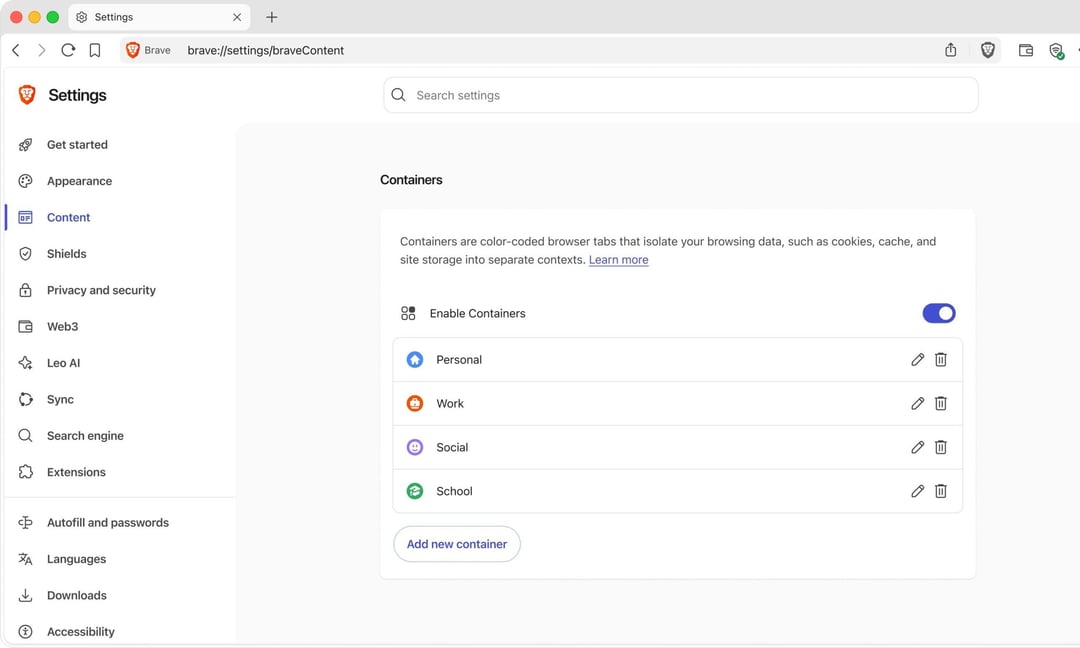
What Brave Containers Do and How They Work
Brave has introduced a built-in Containers feature to its desktop browser, giving users a native way to keep separate accounts, browsing sessions, and online activity fully isolated from one another. The functionality arrives with Brave 1.92 and is available across Windows, macOS, and Linux, with a phased rollout taking place over the coming days.
Containers have been one of the most frequently requested additions to Brave, particularly from users who routinely bounce between professional, personal, developer, and creator accounts on the same websites. Once the feature is switched on, it allows you to open tabs inside dedicated spaces where cookies and site storage remain contained — meaning nothing leaks across container boundaries. Each container essentially functions as its own isolated browsing environment, so what happens in one stays there.
Practical Use Cases for Brave Containers
Managing Multiple Social Media Accounts Simultaneously
For anyone handling more than one social media presence, Containers eliminate the constant login-and-logout cycle. You can stay signed into two separate accounts on the same platform at the same time, each in its own container tab, and switch between them without disrupting either session.
Developer Testing Across Different User Roles
Developers get a practical workflow boost as well. You can test an application as an administrator in one container tab and as a standard user in another, comparing how different roles experience the same app — all within a single browser window and without juggling separate profiles.
Separating Work and Personal Activity
A common scenario: you're signed into a work Google account and want to watch YouTube without that activity getting tangled into your professional session. Open YouTube inside a different container, and your viewing history stays disconnected from the work account tied to your main browser session.
How to Enable and Use Containers in Brave
Turning on Containers takes just a moment. You can activate the feature directly from Brave's settings page. After that, using it is straightforward — right-click any tab, select "Open in container," and choose the container category you want to assign it to. The tab then operates inside that isolated space, keeping its cookies, storage, and session data separate from tabs in other containers.
Privacy Versus Convenience: Where Containers Fit In
Brave has been clear that Containers should be understood primarily as a convenience and workflow tool rather than a fundamentally new privacy system. The browser already relies on storage partitioning to isolate individual sites and limit third-party tracking requests, which does much of the heavy lifting when it comes to cross-site tracking protection. What Containers add is finer-grained control over how a given site perceives you across different tabs within the same browsing session — letting you present different identities or session states to the same website without interference.
How Brave Containers Compare to Firefox Multi-Account Containers
Brave isn't the first browser to offer this style of tab-level isolation. Firefox has long supported Multi-Account Containers through an official extension, and several Firefox-based browsers — including LibreWolf, Floorp, and Zen Browser — have built container-style workflows into their experience as well.
What makes Brave's implementation notable is that it brings Containers to a Chromium-based browser. Up to this point, users who wanted container-style tab isolation generally had to turn to Firefox or one of its derivatives. That limitation has been a real source of frustration for people who appreciate the feature but prefer Chromium, particularly because some websites are built and tested primarily around Chrome-like browsing engines. Brave's Containers close that gap, giving Chromium users a native option for session separation without leaving the browser they already prefer.