
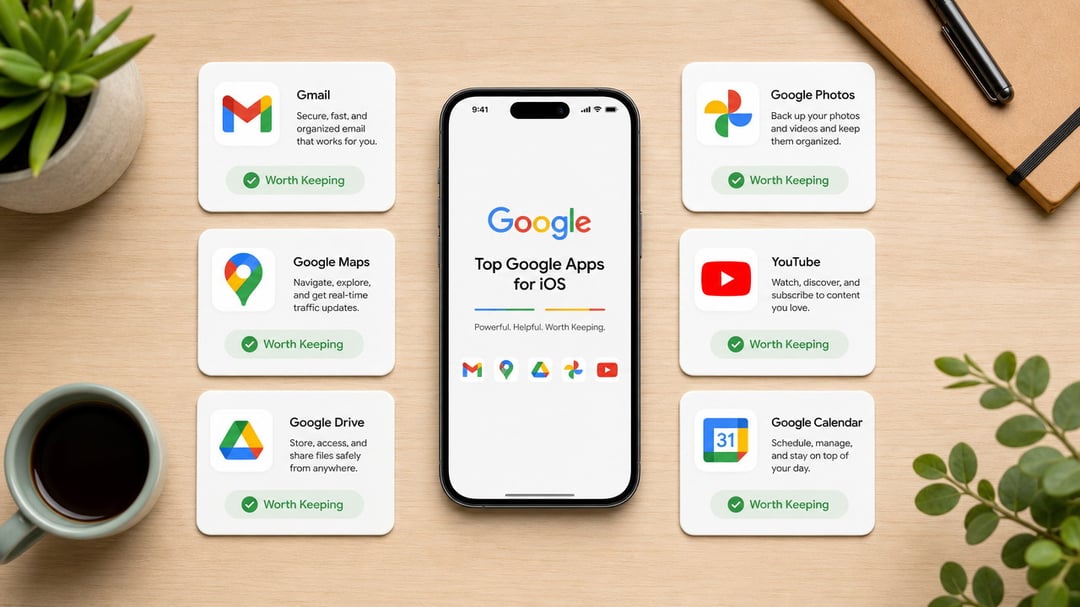
An iPhone comes with capable built-in apps. Still, many people work, study, travel, and share files through a Google account. That split can get messy fast: photos live in one place, documents in another, and saved locations disappear the moment you switch devices.
The best Google apps for iPhone solve that problem. They bring familiar Google services into a pocket-sized workflow without requiring you to abandon Apple’s ecosystem altogether. You don’t need every app Google makes. But these seven earn their place.
How to Choose the Best Google Apps for iPhone
A useful app should remove friction from something you already do. That might mean finding a saved restaurant while traveling, opening a work document from your phone, or checking a shared family calendar.
Before downloading a full suite of Google tools, ask a simple question: Does this app connect an important part of my life across devices? If the answer is no, Apple’s built-in alternative may already be enough.
There’s also a privacy angle. Google Maps needs location access to guide you. Google Photos needs access to your library to back up images. Those permissions make sense when the feature matters to you. They don’t need to be automatic. Review location, photo, notification, and cellular-data settings as you set each app up.
1. Google Maps for iPhone: Best for Navigation and Local Discovery
Google Maps is probably the most useful Google app you can install on an iPhone. It handles the obvious job—getting you from A to B—but its real value shows up in the details.
You can search local businesses, check operating hours, read reviews, save locations, plan multi-stop trips, and download selected areas for offline use. That makes it just as handy for a weekday errand run as it is for navigating a new city after a long flight.
Why Google Maps Works So Well on iPhone
The app is especially useful when you already use Google Search or Chrome on another device. Save a bakery, hotel, client office, or hiking trail on your laptop and it’s waiting on your iPhone when you need it.
Create dedicated lists for places you want to try, reliable parking spots, client locations, or trip planning. It sounds small. But when you’re standing on a rainy street trying to remember that restaurant someone recommended three months ago, it feels like magic.
Google Maps vs. Apple Maps
Apple Maps integrates neatly with Siri, CarPlay, and Apple Watch. For people who use only Apple devices, it may be the simpler choice.
Google Maps makes more sense when your saved places and search history already sit inside a Google account. There’s no universal winner here. Use the one that matches how you actually move through the world.
2. Google Photos for iPhone: Best for Cross-Platform Photo Backup
Your iPhone camera roll grows quietly. Then, suddenly, storage warnings appear while you’re trying to record a concert, scan a document, or capture your dog doing something ridiculous.
Google Photos offers a second place to back up and browse your library. More importantly, it makes photos accessible from browsers, Android devices, tablets, and computers. That cross-platform reach is the point.
Search Is Google Photos’ Secret Weapon
Google Photos can help you find images based on people, places, objects, and other details in your library. Instead of scrolling through thousands of thumbnails, you can search for a rough memory and get close surprisingly fast.
The app also supports shared albums, which helps families and groups avoid the old routine of sending dozens of individual images through messaging apps.
Watch Your Storage Settings
Google Photos uses storage associated with your Google account. Before turning on backup, check the available space, backup quality settings, and whether the app can use cellular data.
Running both iCloud Photos and Google Photos can provide useful redundancy. It can also create duplicate costs and a confusing workflow. Decide which service is your primary library, then use the other with a clear purpose.
3. Gmail for iPhone: Best for Google Workspace Email
Gmail is a natural choice for anyone who uses a Google Workspace account for work, school, or a small business. It brings the same labels, categories, search behavior, and account structure you see on a desktop browser into a focused mobile app.
And that familiarity matters. Email is stressful enough without hunting for a message because your phone organizes it differently from your computer.
Why Gmail Beats Generic Email Apps for Some Users
Gmail’s search tools are a major advantage when your inbox has years of receipts, client threads, booking confirmations, and attachments. You can switch among accounts without signing out and can use labels to separate projects or responsibilities.
Google Meet integration also makes the app practical for users whose invitations and meetings already revolve around Google services.
Keep Notifications Under Control
Don’t let an email app turn your iPhone into a tiny panic machine. Limit notifications to high-priority messages or specific accounts when possible. Personal and work accounts should also stay visually distinct. Sending a casual reply from the company address is a mistake most people only make once.
4. Google Drive for iPhone: Best for Files, Documents, and Shared Work
Google Drive is the app you appreciate when you need a document right now. A PDF for an appointment. A contract waiting for review. A slide deck someone shared ten minutes before a meeting.
It gives you access to stored files, shared folders, and documents from nearly any device connected to your Google account.
What Google Drive Does Best on an iPhone
You can upload files, browse shared folders, preview common document formats, scan paper documents with your camera, and mark selected files for offline access. That last feature is particularly helpful before a flight or when you know mobile coverage will be weak.
Drive works best when folders and filenames make sense. “Final_v7_reallyfinal.pdf” may be funny once. It is not a file-management strategy.
Google Drive and Apple Files Can Coexist
You don’t need to choose one file system and declare loyalty. Apple’s Files app can act as a central browser while Google Drive remains the collaboration and storage layer behind your shared work.
Before sending a Drive link, check its permissions. Viewer, commenter, and editor access serve very different purposes. And “anyone with the link” is convenient until the link lands somewhere it shouldn’t.
5. Google Calendar for iPhone: Best for Shared Schedules
A calendar only works when people can see the same plan. That is why Google Calendar remains one of the best Google productivity apps for iPhone users with shared work, school, household, or client schedules.
It handles multiple calendars, event invitations, color coding, recurring appointments, shared access, and meeting links in one familiar place.
Where Google Calendar Shines
Google Calendar works particularly well when invitations arrive through Gmail or when a team uses Google Workspace. A meeting invitation, location, attendee list, and video-call link stay connected instead of getting scattered between apps.
For personal life, separate calendars for work, family, appointments, and events can make a crowded week easier to read. The trick is restraint. Too many color-coded calendars can turn Monday morning into a confetti cannon.
Google Calendar vs. Apple Calendar
Apple Calendar is a strong option for iCloud-centered households. But Google Calendar is often easier if your events originate from Gmail or shared Google accounts.
You can also add a Google calendar to Apple Calendar if you prefer Apple’s interface. The best choice is the one everyone involved will reliably check.
6. Google Chrome for iPhone: Best for Browser Sync Across Devices
Safari is fast, private, and deeply integrated with the iPhone. But Chrome has a different appeal: it follows you across platforms.
If you use Chrome on a Windows PC, Chromebook, work computer, or Android tablet, the iPhone app can sync bookmarks, open tabs, saved passwords, and autofill details through your Google account.
When Google Chrome Makes Sense on an iPhone
Chrome is ideal for people who begin research on a desktop and continue it during a commute or while waiting in line. Open tabs can move with you, which sounds trivial until you’re trying to find a page you had open two hours ago.
It also reduces friction for users who depend on Google Password Manager. Still, use a strong password and two-factor authentication for the connected Google account. Browser sync is convenient. It also deserves basic security discipline.
Chrome vs. Safari: Choose the Ecosystem You Use
Choose Safari if your life runs mainly on Apple devices. Choose Chrome if your browsing habits stretch across multiple operating systems.
You can keep both, of course. Just know that bookmarks, history, and saved links may become split between them. That gets annoying faster than most people expect.
7. Google Translate for iPhone: Best for Travel and Everyday Language Help
Google Translate is one of those apps you may ignore for months. Then you need it urgently.
A menu in another language. A train notice. A quick conversation while traveling. A product label that makes no sense. The app gives you several ways to bridge that gap through typed translation, camera translation, conversation features, and downloadable offline languages.
Why Google Translate Belongs on an iPhone
Camera translation is especially useful for signs, menus, and printed information. Conversation tools can help with simple exchanges when both people are patient and willing to work around the occasional awkward phrase.
Before a trip, download the languages you may need while connected to Wi-Fi. This matters when roaming costs are high or mobile service disappears at exactly the wrong moment.
Know Its Limits
Machine translation can miss cultural context, tone, technical phrasing, and ambiguity. It is useful for understanding the general meaning of everyday information.
It is not the right tool for legal agreements, medical instructions, contracts, or sensitive professional communication. For those situations, use a qualified human translator.
Build Your Google App Stack Without Downloading Everything
The best Google apps for iPhone are not a replacement plan for every Apple app. They are tools for specific gaps.
A Google-focused iPhone setup might include:
- Google Maps for navigation, reviews, and saved locations
- Google Photos for backup and cross-platform access
- Gmail for work and personal inbox management
- Google Drive for shared documents and files
- Google Calendar for collaborative schedules
- Google Chrome for browser continuity
- Google Translate for travel and language support
Start with the apps tied to recurring problems. Maybe that is Maps and Drive. Maybe it is Photos and Calendar. Give each one a real job, review its permissions, and skip the ones that simply duplicate what already works.
That is the whole point: a cleaner iPhone workflow, not another folder full of apps you never open.