
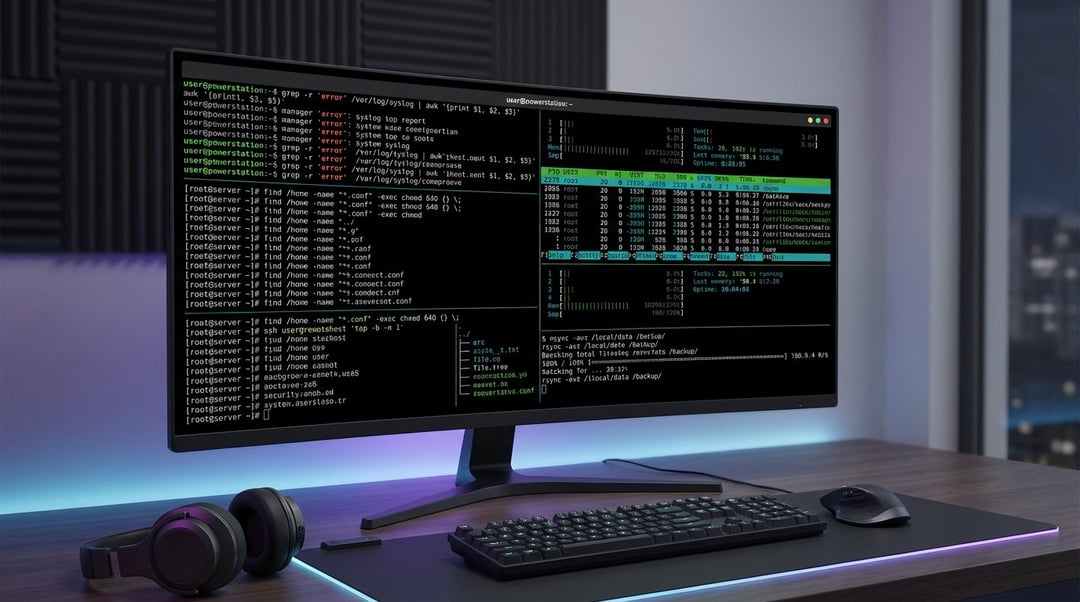
Linux gets interesting when the terminal stops feeling like a black box and starts acting like a control panel. That shift usually happens when you move past basic commands and learn the tools that expose what the system is really doing. The best advanced Linux commands do not just perform tasks. They help you inspect state, filter noise, automate decisions, and fix problems fast.
This guide focuses on advanced Linux commands every power user should master because they deliver leverage. Some help you find files with precision. Others cut through massive logs, reveal hidden resource issues, or make remote work safer and faster. The point is not memorizing every flag. The point is learning which command to reach for when the system starts fighting back.
What makes Linux commands advanced
Advanced Linux commands are not “hard” because they look intimidating. They are advanced because they combine flexibility with control. A command like find can search by name, size, age, owner, and permissions in a single line. awk can parse structured text and produce clean reports without opening a spreadsheet. ss can tell you which services are listening on which ports before you waste time blaming the wrong process.
That is the real dividing line. Beginner commands perform one obvious action. Linux commands for power users reveal patterns and let you build workflows. Once you understand input, output, redirection, and pipes, the shell stops being a list of isolated tricks and becomes a system for solving problems.
Advanced Linux commands for file discovery
If you work on a real machine with years of directories, backups, logs, and half-forgotten scripts, ls stops being enough almost immediately. This is where find earns its reputation. It can search by filename, file type, modification time, size, and permissions with surgical accuracy.
For example, find /var/log -type f -mtime -1 helps you locate files changed in the last day. Add -size +100M and you can spot oversized log files before they fill a partition. That kind of precision matters because file problems are rarely about one file in one folder. They are about drift across a whole tree.
locate, which, and whereis also deserve a place in your toolkit. locate is fast because it uses an index rather than scanning the filesystem live. which shows the path of an executable in your current environment. whereis goes wider and can reveal binaries, source files, and manual pages. These commands save time when you need answers now.
Text processing commands that separate casual users from power users
Linux is built around text. Logs are text. Configurations are text. Process output is text. If you can search, slice, and transform text quickly, you become dramatically more effective.
Start with grep. It is still one of the most useful advanced Linux commands because it finds signal in noise. Recursive searches through config directories, case-insensitive pattern matching, and line-numbered log inspection all become trivial. When something breaks at 2 a.m., grep is often the first flashlight you grab.
Then comes awk, which is more powerful than many people realize. It treats each line as structured data and lets you operate on fields. That means you can extract columns, filter rows, count values, and build quick summaries without leaving the terminal. sed handles another category of work: stream editing. It shines when you need repeatable substitutions or batch text cleanup across many files.
And then there are the quiet workhorses like sort, cut, and xargs. On their own they seem modest. Combined, they become lethal in the best way.
Process and system monitoring commands every power user needs
A healthy Linux workflow depends on visibility. You need to know what is consuming CPU, which process owns a port, why a disk looks full, or what file remains open after deletion.
ps gives you snapshots of running processes. top gives you a live view of resource usage. Together they help you inspect parent-child relationships, spot runaway tasks, and confirm whether a service is actually active. If the machine feels slow, these are often your first stops.
lsof and ss dig deeper. lsof shows open files and can identify which process is holding a deleted log file open, which explains those maddening “disk still full” situations. ss is excellent for socket inspection. It shows listening ports and active network connections cleanly and quickly.
For storage, df and du work as a pair. df shows filesystem capacity. du shows what is consuming space inside directories. One tells you that a problem exists. The other tells you where the problem lives.
Permissions, remote access, and command chaining
Permissions are where many Linux issues hide in plain sight. chmod, chown, id, and umask are essential shell commands for advanced users because access problems often look like application failures at first glance. A service that cannot write to a directory does not always announce the real cause clearly. You need to verify ownership, permission bits, and user context directly.
Remote work introduces another layer of control. ssh is foundational because it gives you secure shell access to another machine. scp transfers files safely. rsync goes further by synchronizing files efficiently and preserving metadata, which makes it a favorite for backups and staged deployments. tar still matters too because packaging directories cleanly remains part of real administration work.
But here is where real mastery begins: command chaining. Pipes and redirection turn simple Linux command line tools into systems. You can search logs with grep, extract fields with awk, sort the results, and send the final output to a file. That is the Linux advantage in one sentence. Small tools. Clean input. Precise output.
Key Point to Remember
The best advanced Linux commands every power user should master are not necessarily the flashiest ones. They are the commands that keep solving problems under pressure. find helps you discover. grep, awk, and sed help you interpret. ps, top, lsof, and ss help you diagnose. chmod, ssh, rsync, and tar help you control systems safely.
Learn a few powerful terminal commands deeply rather than skimming dozens. Practice them on real tasks. Combine them intentionally. That is how Linux starts to feel less like a maze and more like an instrument.