
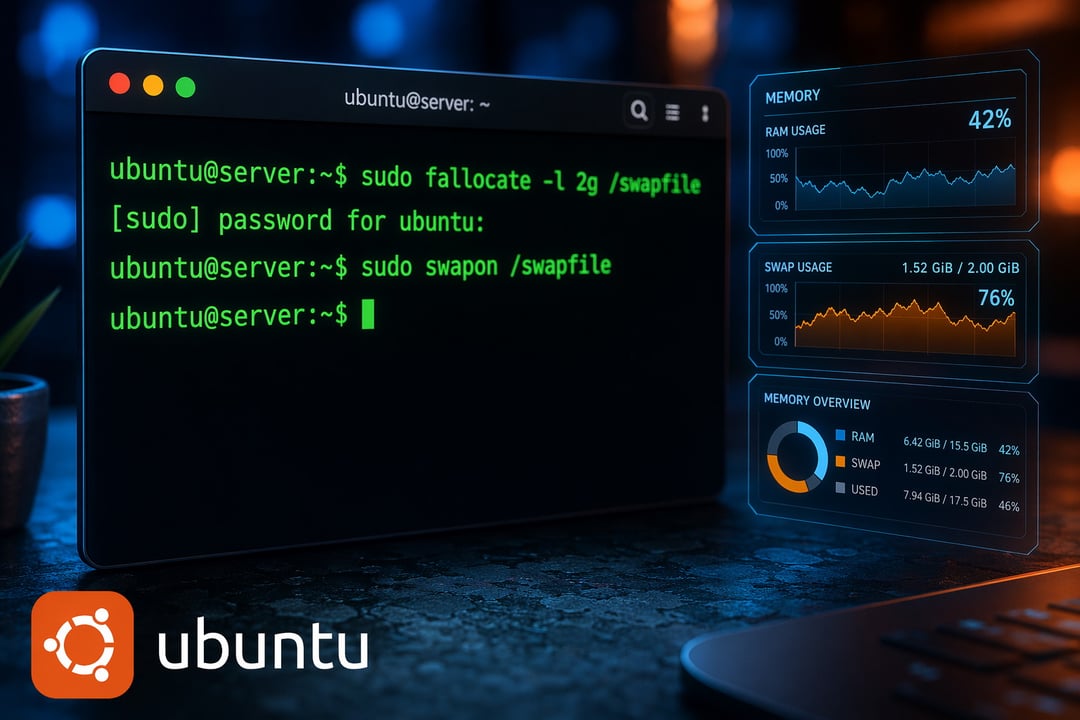
There's a specific kind of frustration that hits when your Ubuntu server grinds to a halt. Maybe you're running a small VPS, maybe it's a home lab setup — and suddenly, an application crashes, processes start getting killed, and the whole thing feels like it's drowning. Nine times out of ten, you're looking at a memory problem. And the fix is simpler than you'd think.
Adding swap space using a swapfile is one of those foundational Linux tasks that takes about five minutes to set up and saves you from a world of pain. This guide walks you through every command, every step, and every decision you need to make — no guesswork, no skipping ahead.
This applies to Ubuntu 20.04, 22.04, and 24.04 LTS.
What Is Swap Space and Why Does Ubuntu Need It?
The Role of Swap in Linux Memory Management
Think of your RAM as your desk. It's fast, it's right in front of you, and it's where all the active work happens. Swap space is the filing cabinet beside the desk — not as fast to reach, but it holds the overflow when the desk gets too crowded.
When your system runs out of physical RAM, the Linux kernel moves less-active memory pages to swap space on disk. This prevents the system from crashing outright. It slows things down, sure — but a slow system beats a dead one.
Here's the thing though: Ubuntu doesn't always create swap automatically. Cloud instances on DigitalOcean, AWS EC2, and Linode often ship with no swap configured at all. You have to add it yourself.
Swapfile vs. Swap Partition — Which One Should You Use?
You've got two options when adding swap to a Linux system: a dedicated swap partition or a swapfile.
A swap partition is carved out at install time, has a fixed size, and lives on its own section of the disk. It's marginally faster but completely inflexible — resizing it means repartitioning your drive.
A swapfile is just a regular file on your existing filesystem that the kernel treats as swap space. It's easy to create, easy to resize, and doesn't require touching your partition layout. For most people — especially anyone managing a VPS or a system that's already running — a swapfile is the right call.
How Much Swap Space Do You Actually Need?
This depends on your RAM:
- Less than 2 GB RAM → Create swap equal to 2x your RAM
- 2–8 GB RAM → Create swap equal to your RAM
- More than 8 GB RAM → 2–4 GB of swap is usually enough
- Using hibernation → Swap must be at least equal to your total RAM
One important thing to understand: swap is not a substitute for RAM. If your system is constantly hammering swap, you need more RAM — not more swap.
Before You Begin — Checking Your Current Swap Setup
Before creating anything, check whether swap is already active on your system. Run this:
swapon --show
If you see output with a file path, size, and type — swap already exists. If you see nothing, you're clear to proceed.
You can also check with:
free -h
Look at the Swap: row. If total shows 0B, there's no swap configured. A third option is:
cat /proc/swaps
Any of these three commands will tell you what you need to know before moving forward.
Step-by-Step: How to Add Swap Space on Ubuntu Using a Swapfile
Step 1 — Create the Swapfile
The fastest way to create a swapfile is with fallocate. This command pre-allocates the space without writing zeros to every block, making it significantly quicker than alternatives.
sudo fallocate -l 2G /swapfile
This creates a 2 GB swapfile at /swapfile. Adjust the size to match your needs (1G, 4G, etc.).
On some filesystems — particularly older ext3 setups or certain network-mounted volumes — fallocate might fail with "Operation not supported." If that happens, use dd instead:
sudo dd if=/dev/zero of=/swapfile bs=1M count=2048
Here, bs=1M sets the block size to 1 megabyte and count=2048 creates 2048 blocks — resulting in a 2 GB file. It's slower but universally compatible.
Step 2 — Secure the Swapfile with Correct Permissions
Swap space can contain sensitive data — fragments of passwords, session tokens, application memory. You don't want other users on the system reading it. Lock it down:
sudo chmod 600 /swapfile
Verify the permissions are correct:
ls -lh /swapfile
You should see -rw------- at the start of the output. If you see anything else, run the chmod command again.
Step 3 — Mark the File as Swap Space
Before Linux can use the file as swap, it needs to be formatted with the swap signature. That's what mkswap does:
sudo mkswap /swapfile
You'll see output confirming the swap space was set up, including the UUID of the new swap area. This doesn't activate the swap yet — it just prepares the file.
Step 4 — Enable the Swapfile
Now activate it:
sudo swapon /swapfile
Confirm it's running:
sudo swapon --show
free -h
The Swap: row in free -h should now show your allocated swap space. Your system is already using it.
Step 5 — Make the Swapfile Permanent
The swap you've enabled is active right now but won't survive a reboot unless you tell the system to mount it automatically. That's handled through /etc/fstab.
First — and this is important — back up your fstab file before touching it:
sudo cp /etc/fstab /etc/fstab.bak
Now add the swap entry:
echo '/swapfile none swap sw 0 0' | sudo tee -a /etc/fstab
Breaking down that fstab entry:
/swapfile— the file to usenone— no mount point (swap doesn't mount like a filesystem)swap— filesystem typesw— mount options0 0— dump and fsck pass (both disabled for swap)
Reboot your system and run swapon --show again to confirm the swap persists.
Optimizing Swap Performance with Kernel Parameters
Adjusting Swappiness
Swappiness controls how aggressively the kernel pushes data from RAM to swap. The value ranges from 0 to 100 — higher means the kernel swaps more eagerly.
Check your current value:
cat /proc/sys/vm/swappiness
The default is 60. For a desktop, that's fine. For a server, it's too aggressive — your system will start swapping before it really needs to, adding unnecessary disk I/O.
A value of 10 works well for most servers. Apply it temporarily first to test:
sudo sysctl vm.swappiness=10
To make it permanent, add this line to /etc/sysctl.conf:
vm.swappiness=10
Adjusting Cache Pressure
vfs_cache_pressure controls how aggressively the kernel reclaims memory used for caching filesystem metadata. The default is 100.
Lowering it to 50 tells the kernel to hold onto cached directory and inode data longer — which improves filesystem performance on swap-enabled systems:
sudo sysctl vm.vfs_cache_pressure=50
Make it permanent by adding to /etc/sysctl.conf:
vm.vfs_cache_pressure=50
How to Remove or Resize a Swapfile on Ubuntu
Disabling and Deleting the Swapfile
Need to remove swap entirely? Start by deactivating it:
sudo swapoff -v /swapfile
Then remove the /etc/fstab entry you added earlier. Open the file with your editor of choice and delete the line containing /swapfile. Finally, delete the file:
sudo rm /swapfile
Resizing an Existing Swapfile
You can't resize a swapfile in place — you have to recreate it. The process is: swapoff, delete the old file, create a new one at the desired size, run mkswap and swapon, then update fstab if the filename changed.
Troubleshooting Common Swapfile Errors
"fallocate failed: Operation not supported" Your filesystem doesn't support fallocate. Use the dd command from Step 1 instead.
"insecure permissions" warning from mkswap You skipped or got the chmod wrong. Run sudo chmod 600 /swapfile and try mkswap again.
Swap isn't active after reboot Check your fstab entry with cat /etc/fstab. Make sure the line reads exactly /swapfile none swap sw 0 0 with no typos.
Swap is always full but RAM looks fine Your swappiness value is too high. Lower it to 10 using the sysctl steps above.
Frequently Asked Questions
Does swap slow down my server? Only when the system actually uses it. Reading from disk is slower than RAM so heavy swap usage will impact performance. But light swap activity — keeping rarely-used pages warm in the background — has minimal real-world impact.
Can I have multiple swapfiles? Yes. You can create additional swapfiles and enable them all with swapon. Each needs its own fstab entry.
Do I need swap if I have 16 GB of RAM? Probably not for day-to-day use. But even a small 2 GB swapfile acts as a safety net and enables hibernation. It costs almost nothing to have it.
Does this work the same on Ubuntu Desktop and Ubuntu Server? Yes. The commands and process are identical across both editions.
Wrapping Up
That's the full picture. You've checked whether swap exists, created a swapfile, secured it, formatted it, activated it, made it permanent, and tuned the kernel parameters to keep it performing well. It's a one-time setup that quietly protects your system in the background — and now you know exactly what every command does and why.
If your server is still struggling after adding swap, the next step is monitoring actual memory usage over time with tools like htop or vmstat to see where the pressure is coming from.


