
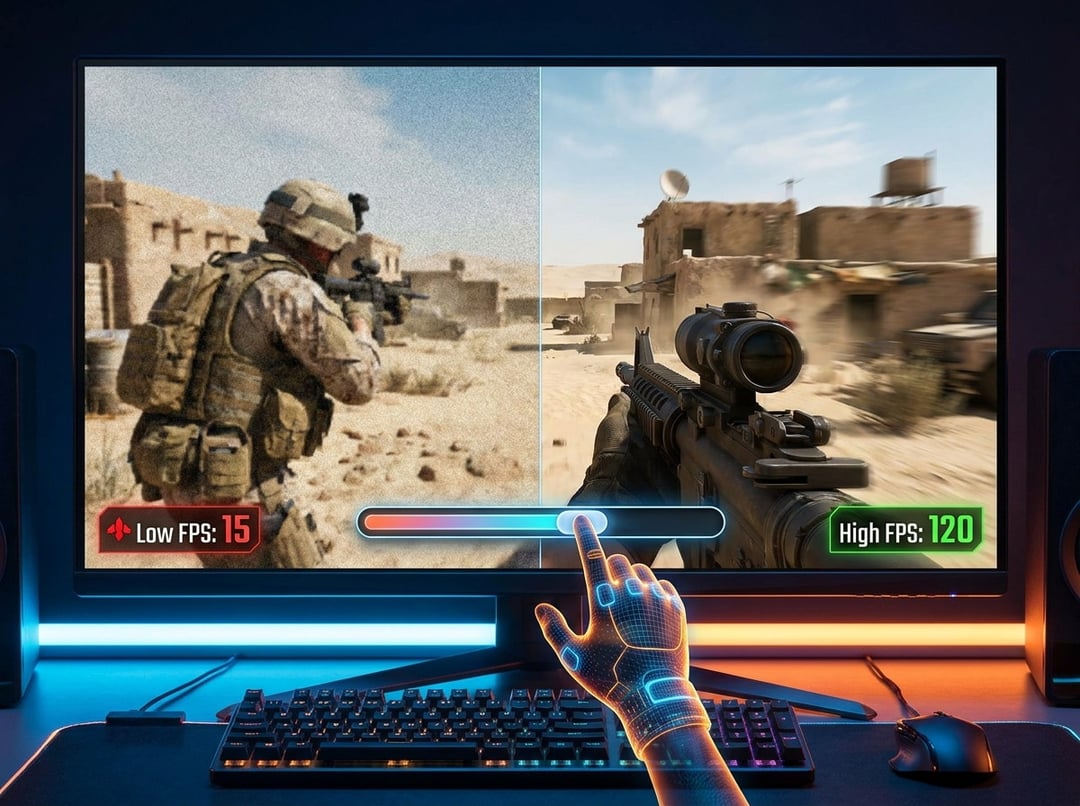
You know that moment when a game looks incredible in the menu, then turns into a choppy slideshow the second action starts? It’s frustrating. Worse, it makes the game feel harder than it should. Your aim feels late. Camera movement feels rough. Big fights become a mess of stutter and guesswork.
The good news: you don’t always need a new graphics card. A few smart changes can improve FPS dramatically while keeping the game looking good. This beginner’s guide to optimizing game settings for better FPS walks through the settings that matter most, the ones you can usually leave alone, and the simple order to adjust everything.
What FPS Means and Why It Matters
FPS means frames per second. It tells you how many individual images your system renders every second. Think of it like a flipbook. The more pages you flip each second, the smoother the motion looks.
For most players, 60 FPS is the sweet spot. It feels smooth enough for action games, RPGs, racing games, and shooters. 30 FPS can work for slower games, but it often feels sluggish. 120 FPS or higher matters more for competitive games where fast reactions count.
FPS is not the same as internet lag. If your character rubber-bands across the map, that’s probably network latency. If the image stutters when explosions fill the screen, that’s usually a performance issue. Different problem. Different fix.
Start With Resolution and Render Scale
Resolution has one of the biggest impacts on FPS because it controls how many pixels your GPU must draw. A game running at 1440p demands far more graphics power than the same game at 1080p.
But don’t immediately drop your full display resolution. First, check for render scale. This setting lets the game display at your monitor’s normal resolution while rendering the 3D scene at a lower internal resolution. For example, 90% render scale can give a useful FPS boost without making menus and text look blurry.
Here’s the practical move: keep native resolution if possible, then lower render scale to 90%. If FPS still feels unstable, try 80–85%. Below that, the image may start looking soft.
Use Presets Carefully
Most games offer Low, Medium, High, and Ultra presets. They’re convenient, but they’re blunt tools. Ultra often costs a lot of performance for small visual upgrades you barely notice during actual gameplay.
Start with Medium. It gives you a realistic baseline. Then adjust individual settings from there. This approach works better than slamming everything to Low and wondering why the game suddenly looks like wet cardboard.
Lower Shadows First
Shadows are one of the best settings to adjust for better FPS. High-quality shadows require the game to calculate shape, distance, softness, and movement across the scene. That gets expensive fast.
The funny part? Ultra shadows often look only slightly better than Medium shadows during normal play. You might notice the difference in a screenshot, but not while dodging enemies or racing through a city.
Set shadows to Medium first. If performance still struggles, drop them to Low. This single change can make a surprisingly large difference.
Reduce Reflections, Volumetrics, and Ambient Occlusion
Some settings look cinematic but quietly hammer performance.
Reflections affect water, mirrors, metal, glass, and glossy floors. Screen space reflections can look great, but they often cost more than they’re worth. Set reflections to Low or turn them off if FPS dips badly.
Volumetric lighting controls fog, mist, smoke, god rays, and atmospheric light beams. Beautiful? Absolutely. Cheap? Not usually. In open-world games, volumetrics can drag performance down hard. Use Low or Medium.
Ambient occlusion adds soft shadowing where objects meet, like corners, grass, furniture, and character gear. It gives scenes depth, but weaker systems may struggle with it. Use SSAO Low or turn it off if you need more FPS.
Choose Anti-Aliasing Wisely
Anti-aliasing smooths jagged edges. Without it, fences, wires, and distant buildings can shimmer or crawl when the camera moves.
Different anti-aliasing methods have different costs. TAA is common and usually efficient, though it can blur the image. FXAA is light but often too soft. MSAA can be expensive depending on the game.
For beginners, try TAA Low or Medium first. If the image looks too blurry, test FXAA or sharpen the image if the game offers a sharpening slider.
Keep Texture Quality Higher When You Can
Texture quality affects the detail on surfaces: walls, clothing, weapons, roads, rocks, and character models. Unlike shadows or reflections, textures usually depend more on VRAM than raw GPU speed.
If your graphics card has enough VRAM, High textures may not hurt FPS much. But if VRAM runs out, the game can stutter badly as it swaps data in and out of memory.
Set textures to High if the game runs smoothly. Drop to Medium if you see hitching, freezing, or VRAM warnings.
Turn Off Motion Blur and Consider V-Sync
Motion blur tries to make movement look cinematic. In practice, it often makes games harder to read. Turn it Off. It usually won’t transform FPS, but it improves clarity immediately.
V-Sync prevents screen tearing, which happens when the image splits horizontally during movement. However, V-Sync can add input delay and may cap FPS. For competitive games, turn it Off unless tearing bothers you. If your monitor supports variable refresh rate, technologies like NVIDIA G-Sync or AMD FreeSync can help smooth things out.
Use DLSS, FSR, or XeSS If Available
Modern upscaling tools can boost FPS while keeping image quality decent. NVIDIA DLSS works on RTX cards. AMD FSR supports a broad range of GPUs. Intel XeSS works best on Intel Arc but can run on other hardware too.
Use Quality mode first. If you need more FPS, try Balanced. Avoid Performance mode unless the game still feels rough or you’re playing at a high resolution.
Best Beginner Settings for Better FPS
For a balanced setup, try this:
- Resolution: Native
- Render scale: 90%
- Textures: Medium or High
- Shadows: Medium
- Reflections: Low
- Volumetrics: Low
- Ambient occlusion: Low or SSAO
- Anti-aliasing: TAA Low or Medium
- Motion blur: Off
- Ray tracing: Off
- Upscaling: Quality or Balanced
Ray tracing deserves special mention. It can make lighting and reflections look amazing, but it’s brutally demanding. If your FPS is poor, turn ray tracing off before anything else.
Final Checklist for Optimizing Game Settings
Optimizing game settings for better FPS is not about making everything ugly. It’s about cutting the settings that cost the most while preserving the ones you actually notice.
Start with Medium. Turn off ray tracing and motion blur. Lower shadows, reflections, volumetrics, and ambient occlusion. Use render scale or upscaling if needed. Then test the same scene again.
Small changes add up. And once the game feels smooth, stop tweaking and play. That’s the whole point.