
You know that sinking feeling when you open Fortnite on a new console and your locker looks empty? No favorite skins. No emotes. No Battle Pass progress where you expected it. It feels like the game forgot you.
Most of the time, Fortnite hasn’t lost anything. The problem is account linking.
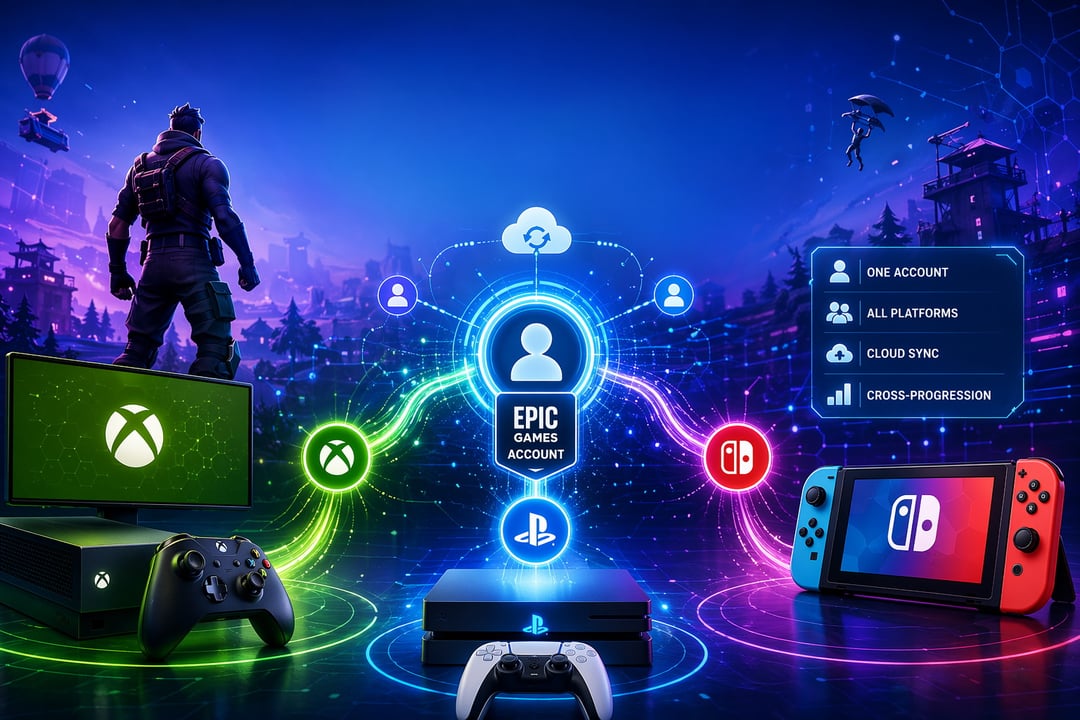
Your Fortnite progress is tied mainly to your Epic Games account. Your Xbox, PlayStation, or Nintendo Switch account works like the front door. If that door opens into the wrong Epic account, you won’t see the cosmetics, friends, or progress you expected.
Here’s how to link your Fortnite accounts on Xbox, PlayStation, or Switch without making the common mistakes that cause missing skins and account confusion.
Before You Link Your Fortnite Account
Before connecting anything, slow down for a minute. This is the part people skip, and honestly, it’s usually where the mess starts.
You need to know which Epic Games account actually holds your Fortnite progress. Maybe you created one years ago with an old email. Maybe Fortnite automatically created an Epic account when you first played on console. Or maybe a parent set it up and nobody remembers the login now.
Check these details first:
- The Epic Games email address
- Your Epic display name
- Your Fortnite locker
- Your Battle Pass progress
- Your linked console accounts
- Any two-factor authentication access
If you use a shared family computer, consider opening a private browser window. Browser autofill can sign you into the wrong Epic account without you noticing. That tiny mistake can lead to a lot of “Where did my skins go?” panic.
You can manage official account connections through Epic’s account page: https://www.epicgames.com/account/connections.
How Fortnite Account Linking Works
Fortnite account linking connects your console profile to your Epic Games account. That means your Xbox gamertag, PlayStation Network account, or Nintendo Account can access the Fortnite profile stored by Epic.
Think about it this way. Your console account is the keycard. Your Epic Games account is the hotel room. If you swipe the wrong keycard, you end up standing in the hallway wondering why nothing looks familiar.
Linking is different from merging. Epic Games no longer offers general account merging, so you usually can’t combine cosmetics from two separate Epic accounts. That’s why choosing the right account matters before you click connect.
Epic explains console linking in its official help center here: How do I connect a console account to my Epic Games account?
How to Link Your Fortnite Account to Epic Games
The web method is the cleanest way to link Fortnite accounts across Xbox, PlayStation, and Switch.
Follow these steps:
- Go to Epic Games Account Connections.
- Sign in with the Epic Games account that contains your Fortnite progress.
- Open the Apps and Accounts or Connections section.
- Find the platform you want to connect.
- Select Connect beside Xbox, PlayStation Network, or Nintendo.
- Sign in using the correct console account.
- Approve the connection request.
- Launch Fortnite on your console.
- Check your locker, level, friends list, and Battle Pass page.
If everything looks right, you’re done. If your items appear missing, stop before unlinking anything. Missing progress usually means you connected to the wrong Epic account or loaded a different existing profile.
How to Link Your Fortnite Account on Xbox
To link your Fortnite account on Xbox, you’ll use the Microsoft account tied to your Xbox profile.
Start by signing into your Epic Games account through the official connections page. Choose the Xbox option, then log in with the Microsoft account used on your Xbox. Confirm the connection and open Fortnite on the console.
Your Xbox gamertag does not need to match your Epic display name. That part trips people up. The important thing is that the correct Microsoft account links to the correct Epic Games account.
If multiple people use the same Xbox, double-check the active profile. It’s easy to connect a parent’s Microsoft account when the child’s Xbox profile is the one that actually plays Fortnite.
How to Link Your Fortnite Account on PlayStation
To link Fortnite on PlayStation, connect your PlayStation Network account to Epic Games.
Go to the Epic Games connections page and choose the PlayStation Network option. Sign in with the PSN account you use to play Fortnite, then approve the connection. After that, restart Fortnite on your PlayStation and check whether your expected profile loads.
For shared consoles, pay close attention to the PSN online ID. A PlayStation can hold multiple users, and each user may have a separate Fortnite setup. Linking the wrong PSN account can make your Fortnite account look brand new even when your real progress still exists elsewhere.
How to Link Your Fortnite Account on Nintendo Switch
To link Fortnite on Nintendo Switch, you’ll connect the Nintendo Account attached to your Switch user profile.
Sign in to Epic Games, open account connections, choose Nintendo, then log in with the Nintendo Account used for Fortnite. Once connected, launch Fortnite on your Switch and verify your locker.
Switch account confusion is common because the console can have several user profiles. A child might play Fortnite under one Switch profile while the Nintendo Account belongs to another family member. Before linking, check which Nintendo Account sits behind the profile that actually opens Fortnite.
What If Fortnite Says Your Console Account Is Already Linked?
This message usually means your Xbox, PlayStation, or Nintendo account already connects to another Epic Games account. Sometimes that account was created automatically when Fortnite first launched on the console.
Don’t rush to unlink it. First, try to identify the Epic account currently attached to that console profile. Epic has guidance for this situation here: Why does my console account say it was connected with another Epic Games account?
If your skins and progress live on that automatically created account, disconnecting it carelessly can make everything look missing.
Can You Merge Fortnite Accounts?
No, not in the way many players want. Epic Games says account merging is not available, which means you generally cannot combine two Epic Games accounts into one master Fortnite account.
That matters if you have skins on one account and Battle Pass progress on another. Linking a console account does not transfer all items from one Epic account to another. It only connects the console login to a selected Epic profile.
You can read Epic’s official policy here: Can I merge my Epic Games accounts?
Quick Checklist Before Linking Fortnite Accounts
Before you connect anything, run through this short checklist:
- Confirm the Epic Games account with your Fortnite progress.
- Confirm the correct Xbox, PSN, or Nintendo login.
- Use Epic’s official account connections page.
- Avoid browser autofill mistakes.
- Connect only the console account you actually use.
- Launch Fortnite after linking.
- Check your locker before making more changes.
- Don’t unlink accounts unless you know exactly what each account contains.
Final Thoughts
Linking your Fortnite accounts on Xbox, PlayStation, or Switch is usually simple. The risky part is not the button-clicking. It’s choosing the wrong Epic Games account at the start.
So take the extra minute. Sign into Epic carefully, confirm your account details, connect the right console profile, then open Fortnite and check your locker. If your skins, progress, and friends appear where they should, you’re good to go.