
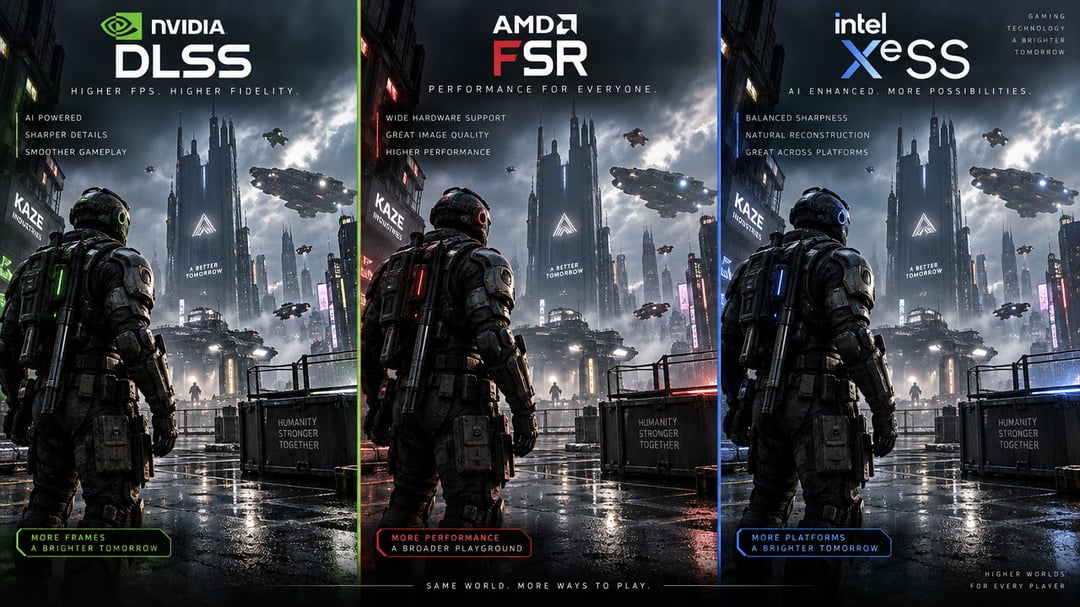
Choosing between DLSS vs FSR vs XeSS can be confusing when each promises smoother gameplay and better performance. The right option depends on your GPU, the games you play, and how much image quality you are willing to trade for higher frame rates.
These upscaling technologies render games at a lower internal resolution and reconstruct the image for display, but they do not produce identical results. Nvidia DLSS, AMD FSR, and Intel XeSS differ in image quality, latency, hardware requirements, game support, and ray tracing performance. We’ll compare those differences so you can see which technology fits your system, whether you are tuning a current PC or deciding which graphics card to buy next.
What GPU upscaling does
When you select an upscaling mode, the game renders each frame at a lower internal resolution, then reconstructs it for your display’s output resolution. For example, a game targeting a 1440p display might render at 1080p and produce a 1440p image. The GPU has fewer pixels to shade during rendering, which can leave more room for higher frame rates. The reconstructed image will not necessarily look the same as one rendered natively at 1440p.
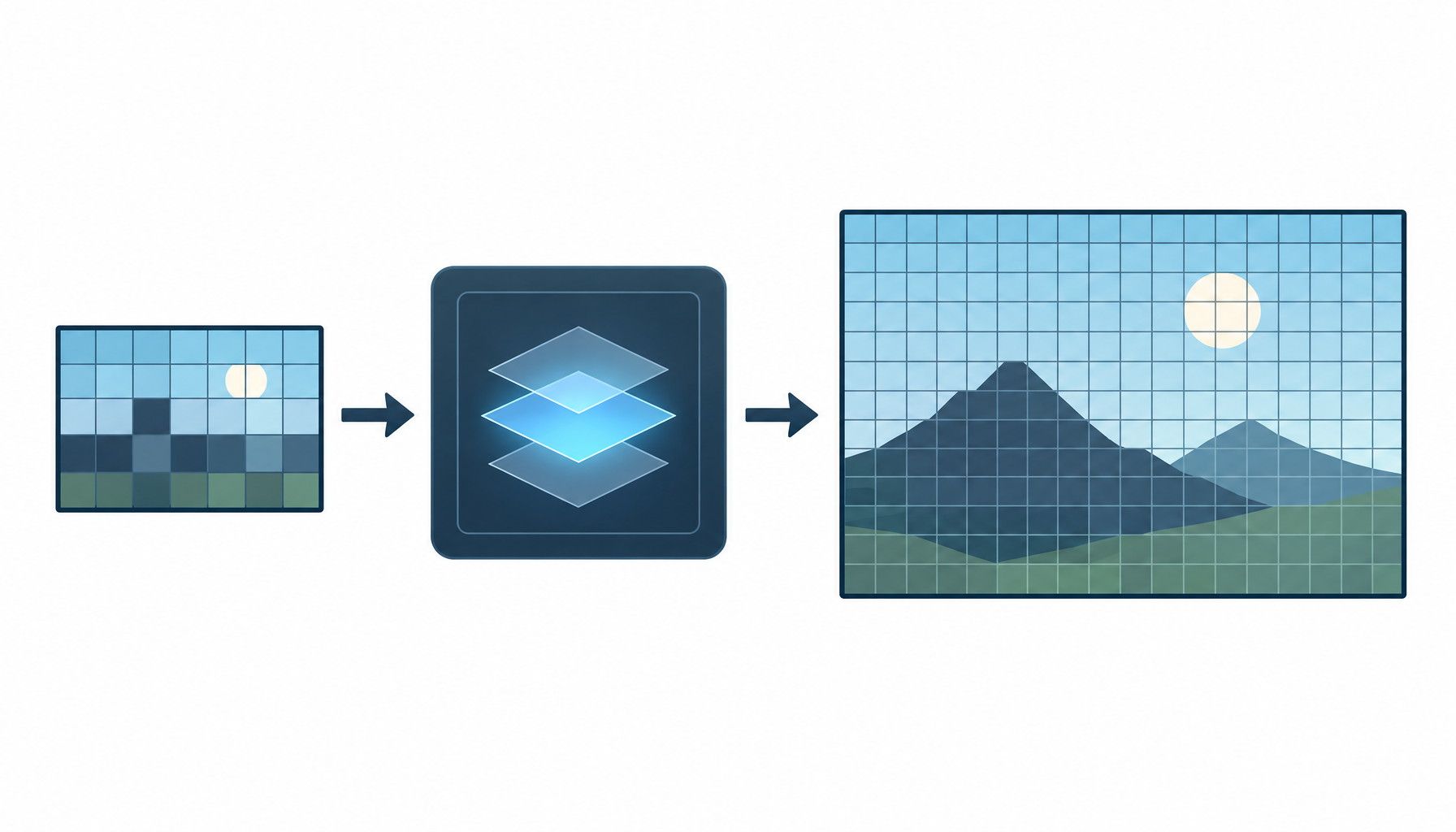
That trade-off matters most when native-resolution performance is struggling. Demanding graphics settings and ray tracing add rendering work; lowering the internal resolution can help offset some of that cost. If the game already runs comfortably at native resolution, the frame-rate gain may be less useful than the image quality you give up.
The DLSS vs FSR vs XeSS comparison comes down to five questions: How clear does the reconstructed image look? How much performance does it recover? Does your GPU support the option you want, and does the game offer it? Finally, what visual artifacts appear in motion, such as shimmering edges, ghosting behind moving objects, or fine detail that flickers between frames?
Nvidia DLSS
How DLSS works
DLSS is Nvidia's upscaling technology. In a supported game, it renders a frame below your chosen output resolution, then uses image data and motion information to reconstruct the higher-resolution image. You need both a compatible Nvidia GeForce GPU and a game that supports DLSS. The specific features available also depend on the game and your GPU generation, so a DLSS setting in one title may not offer the same options in another.
DLSS strengths and limitations
DLSS can make demanding settings, including ray tracing, easier to run because the game renders fewer pixels before upscaling. The benefit depends on the game, GPU, output resolution and DLSS mode. A more aggressive mode may improve frame rate but leave less detail for reconstruction.
Judge image quality while playing, not just from a still screenshot. Look at fine details such as thin wires or distant foliage, then move the camera to check for shimmering and unstable edges. Watch moving objects for ghosting, where a faint trail lingers behind them. Test at the resolution you actually use: artifacts that stand out at 1080p may be less noticeable at a higher output resolution, but that is worth checking in your own games.
AMD FSR
AMD's FidelityFX Super Resolution (FSR) is an upscaling technology designed to work across more graphics hardware than vendor-specific options such as NVIDIA DLSS. That broader compatibility can help when a game runs on an AMD, NVIDIA, or Intel GPU, although support still depends on the game's implementation.
How FSR works
FSR renders a game at a lower internal resolution, then reconstructs the image at the display resolution. Compare it with DLSS and XeSS at the same output resolution and quality mode. Check whether fine detail holds together, edges remain stable during camera movement, and the image avoids flicker, ghosting, and other motion artifacts. A distant fence may look sharp in a screenshot yet shimmer as the camera moves. Foliage, wires, and particles are useful stress tests.
FSR strengths and limitations
FSR's broad hardware support is its main appeal, but image quality is not fixed. Results vary with the game's integration, selected quality mode, internal resolution, and graphics settings such as sharpening or ray tracing. A quality preset at 1440p can look very different from a performance preset at 4K, even when both output 4K.
Do not treat every FSR option as the same feature. FSR upscaling reconstructs a lower-resolution image. Frame-generation or motion-related features address different parts of rendering and can produce different artifacts. Check which FSR feature a game uses before comparing it with DLSS or XeSS.
Intel XeSS
How XeSS works
XeSS is Intel's image upscaling technology. It renders a game at a lower internal resolution, then reconstructs a higher-resolution image using motion data and information from previous frames. The result depends partly on the hardware path that the game supports. Intel Arc cards can use Intel's specialized Xe Matrix Extension (XMX) hardware, while some other supported GPUs may use a different instruction path. That distinction can affect both performance and image quality.
XeSS strengths and limitations
Compare XeSS with DLSS and FSR using the same tests: fine texture detail, thin geometry, motion stability, shimmering, ghosting, and frame rate. A XeSS implementation may preserve distant detail more convincingly than FSR in one game, yet show distracting trails or unstable foliage in another. DLSS may look cleaner in the same scene, but brand reputation cannot replace side-by-side testing at the target resolution.
XeSS can be a sensible factor when choosing an Intel Arc graphics card, especially if the games you play offer a well-tuned XeSS mode. It can also matter on a system with another supported GPU, provided the game exposes that hardware path and the results meet your expectations. Check the available quality modes, because Performance and Quality settings can produce very different sharpness and artifact levels. Game-level implementation matters as much as the upscaler's label.
DLSS vs FSR vs XeSS image quality
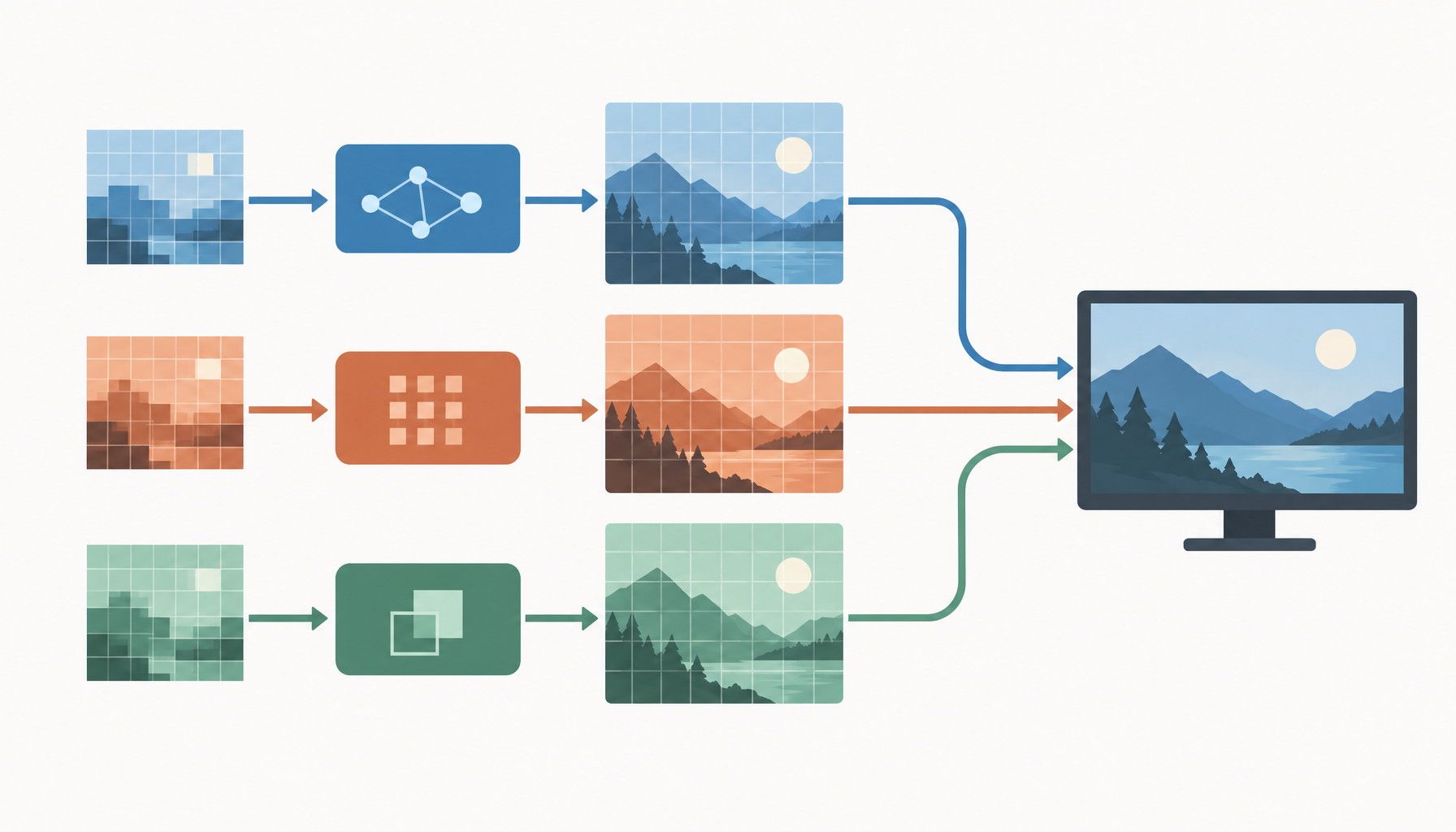
Compare DLSS, FSR, and XeSS at the same output resolution and a comparable quality setting. "Quality" presets with the same name are not automatically equivalent because each technology uses different reconstruction methods and internal render resolutions. A 1440p Quality result may preserve a different amount of source detail depending on the game and implementation.
Detail and sharpness
Differences show up first in thin or distant objects. Inspect foliage, power lines, fence wires, hair, particles, and fine geometry such as railings. Also check distant textures and lettering. One upscaler may keep a texture legible while another makes it look soft, oversharpened, or unstable. Sharpening can change the first impression, so compare the technologies with similar sharpening applied rather than judging sharpness alone.
Motion, ghosting, and shimmering
Still images miss many temporal problems. During a camera pan, look for ghost trails behind moving characters or particles, flickering foliage, crawling edges, and detail that appears and disappears. Shimmering on wires, fences, or reflective surfaces can be more distracting than modest softness. Judge gameplay and screenshots at the native output resolution, normal viewing size, and intended display distance. A zoomed still can exaggerate pixel-level differences, while one frame cannot show whether detail remains stable in motion.
Performance, latency, and ray tracing
Frame rates and quality modes
Upscaling mode changes both the workload and the image input. A more aggressive mode renders the game at a lower internal resolution, then asks reconstruction to produce the target output. That usually leaves the GPU with more time for shading and raises frame rates, but it also gives DLSS, FSR, or XeSS less source detail to recover. Fine geometry, distant foliage, and thin wires are more difficult cases than broad surfaces.
Do not judge a mode by average FPS alone. Suppose one setting averages 90 FPS but regularly produces uneven frame times, while another averages 84 FPS with steadier delivery. The second may feel smoother during camera movement. Responsiveness also depends on latency. A higher displayed frame rate does not automatically mean quicker input response, particularly when the GPU remains saturated. Compare the same resolution, quality preset, upscaler mode, and latency settings when testing.
Ray tracing workloads
Ray tracing adds work for effects such as reflections and global illumination, so upscaling can redirect some GPU budget toward those effects. A quality mode may let a GPU retain ray-traced reflections at a playable frame rate, whereas native rendering forces a lower ray-tracing preset. The result depends on the game engine, GPU, ray-tracing effects, and other selected settings.
Frame generation is separate from upscaling. Test it independently so it does not obscure differences in reconstruction quality, base frame rate, or input latency.
Hardware and game support
GPU compatibility
DLSS is designed for Nvidia GeForce RTX cards, but its features can have different hardware requirements. DLSS Super Resolution requires RTX hardware, while newer features may need a newer RTX generation. FSR supports a wider range of GPUs, including many Radeon and GeForce cards, although compatibility varies by version, game API, and feature. XeSS runs on Intel Arc GPUs and can also work on some non-Intel cards through a fallback path, with possible differences in results and feature availability.
Check the specific feature you want. A game that supports FSR may not support every FSR feature on your GPU.
Game implementation
The game must support the upscaler. A compatible GPU does not guarantee that a title offers DLSS, FSR, or XeSS, or that it includes every mode. Developers may also provide different presets, sharpening controls, frame generation, and image-quality settings.
Before buying, check the game's graphics menu, published GPU requirements, and current driver and game versions. Driver updates can affect compatibility and performance.
Upscaler support should not outweigh overall GPU performance, VRAM, ray tracing, and other features you use. A faster card with adequate VRAM is usually safer than a weaker card chosen only for its preferred upscaler.
Which upscaling technology should you use?
Start with the option that produces the best image on your GPU in the specific game you are playing. If a game offers more than one upscaler, compare them rather than choosing by brand. For example, DLSS may look cleaner on an RTX card, while FSR could be the more practical choice on a Radeon or older GPU. XeSS is also worth testing when it is available, particularly if its motion handling looks better in that title.
Begin with the highest-quality mode, then inspect motion-heavy scenes. Fast camera turns, foliage, thin wires, particle effects, and distant objects can reveal ghosting, shimmering, or unstable detail that is easy to miss in a static screenshot. Lower the quality setting only when you need more performance, since moving from a quality mode to a balanced or performance mode can make artifacts more visible.
Hardware compatibility should outweigh brand preference. Ray tracing can also make the choice more important because the extra rendering load may determine whether you need upscaling at all. Favor the option with the most stable image when you notice flicker or crawling detail, and favor broad game support when you want a consistent feature across your library.
Test DLSS, FSR, and XeSS in the games you play, then choose the setting that best balances visual quality and frame rate on your system.
Choosing between DLSS, FSR, and XeSS
Start with the highest-quality upscaling mode available in the game, then test it during motion-heavy scenes. Look for ghost trails, flicker, shimmering, and unstable fine detail rather than judging a single static screenshot. If the image holds up, compare frame rates, frame-time consistency, and responsiveness. Move to a more aggressive mode only when you need additional performance, such as when ray tracing makes native-resolution rendering too demanding. If several options look similar, let practical factors decide: your GPU's compatibility, the game's implementation, available quality modes, and current driver or game version. For a graphics card purchase, treat the upscaler as one factor among overall performance, VRAM, and feature support. Test DLSS, FSR, and XeSS in the games you play, then keep the setting that gives your system the best balance of image quality and performance.