
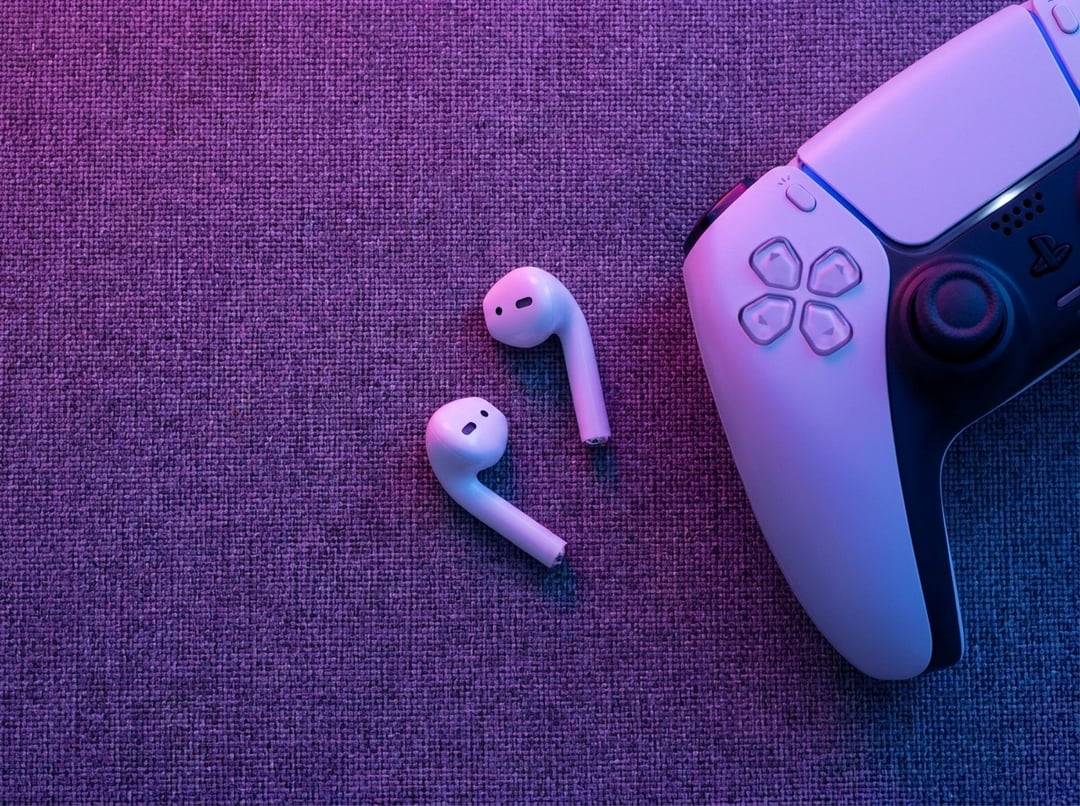
You’d think connecting Bluetooth headphones to a PS5 would be simple. Put the headphones in pairing mode, open Bluetooth settings, tap connect and you’re done.
But the PS5 doesn’t work like your phone.
Sony’s console supports Bluetooth for certain accessories, yet it doesn’t natively support most standard Bluetooth headphones for game audio. That’s the part that catches people off guard. Your AirPods, Bose headphones, Sony earbuds or everyday Bluetooth headset usually won’t pair directly with the PS5 the way they do with a laptop.
The good news? You still have several solid ways to make Bluetooth headphones work with a PS5. Some are clean. Some are a little clunky. And one old-school wired option may save you a lot of frustration.
Can You Connect Bluetooth Headphones Directly to a PS5?
In most cases, no. You usually can’t connect regular Bluetooth headphones directly to a PS5 through the console’s Bluetooth accessories menu.
The PS5 uses Bluetooth for devices like the DualSense controller, media remote and certain supported accessories. Standard Bluetooth audio is different. If you try pairing normal Bluetooth headphones, the console may not detect them. If it does detect them, it may show a message saying the device isn’t supported.
This isn’t just Sony being difficult for fun, though it can feel that way when you’re sitting there with headphones blinking in pairing mode. Bluetooth audio can introduce latency, which means the sound arrives slightly after the action on screen. That delay might not matter during a slow story game, but it feels terrible in shooters, racing games and rhythm games.
Voice chat also complicates things. Many Bluetooth headsets lower audio quality when the microphone activates. Gaming consoles need stable audio output, clear mic input and low delay at the same time. Standard Bluetooth often struggles with that mix.
For official setup guidance around PS5 audio devices, Sony’s support hub is worth bookmarking: PlayStation Support.
Method 1: Use a USB Bluetooth Adapter for PS5
The easiest workaround is a USB Bluetooth adapter made for console audio.
This small device plugs into the PS5 through USB-A or USB-C. Instead of asking the PS5 to handle Bluetooth audio directly, the adapter does the wireless work. The console sees it as a USB audio device, then the adapter sends sound to your headphones.
Here’s the basic setup:
- Plug the Bluetooth adapter into your PS5.
- Put the adapter into pairing mode.
- Put your Bluetooth headphones into pairing mode.
- Wait for the adapter and headphones to connect.
- Go to Settings > Sound > Audio Output.
- Choose the USB audio device if the PS5 doesn’t switch automatically.
- Test sound in a game or on the PS5 home screen.
This method works well for many people, especially if they already own good Bluetooth headphones. But don’t buy the cheapest random adapter and hope for magic. Look for one that clearly says it supports PS5, PS4 or console gaming. Better still, choose a model that mentions low-latency audio.
The catch is microphone support. Some USB Bluetooth adapters only transmit game audio. Others include a small microphone that plugs into the DualSense controller. A few support chat more elegantly, but compatibility varies. If voice chat matters, read the product details carefully before buying.
Method 2: Connect Bluetooth Headphones Through Your TV
If your TV supports Bluetooth audio, you can route PS5 sound through the television.
The chain looks like this: the PS5 sends audio to your TV through HDMI, then the TV sends that audio to your Bluetooth headphones. It’s not technically pairing headphones to the PS5, but the result feels close enough for casual gaming.
To try it:
- Open your TV’s settings menu.
- Find Sound, Audio Output, Bluetooth Audio or External Speakers.
- Put your headphones into pairing mode.
- Select your headphones from the TV’s Bluetooth device list.
- Start your PS5 and test the audio.
This option is great for late-night gaming, streaming apps and single-player games. You can play without waking anyone up, which honestly might be the whole reason you’re here.
But TV Bluetooth often adds more delay than a dedicated gaming adapter. Some TVs also handle Bluetooth audio better than others. If explosions feel half a beat late or dialogue seems slightly out of sync, the TV is probably the culprit.
For competitive games, this method usually isn’t ideal.
Method 3: Use a PS5-Compatible Wireless Gaming Headset
If you want the cleanest experience, use a wireless headset designed for PS5.
Many gaming headsets don’t rely on ordinary Bluetooth for console audio. Instead, they use a dedicated 2.4 GHz wireless USB dongle. That sounds more technical than it needs to, but the point is simple: these headsets usually deliver lower latency, stronger connection stability and better voice chat support than standard Bluetooth headphones.
Sony’s own Pulse headsets and other licensed PS5-compatible headsets follow this approach. You plug the dongle into the console, turn on the headset and the PS5 recognizes it as an audio device.
This is the best route if you play multiplayer games, use party chat or care about positional audio. In games where footsteps matter, timing matters. A tiny delay can be the difference between reacting first and wondering what happened.
You can browse Sony’s official headset and accessory options here: PlayStation Accessories.
Method 4: Use PS Remote Play With Bluetooth Headphones
There’s another workaround: PS Remote Play.
With PS Remote Play, you stream your PS5 to a phone, tablet, PC or Mac. Then you connect your Bluetooth headphones to that device instead of the console.
This can work well if you already use Remote Play or want to use earbuds like AirPods. Your headphones pair with your phone or computer normally, then the Remote Play app handles the audio.
Still, this is not the best everyday solution for most players. Your network quality affects everything. If Wi-Fi gets shaky, the video and audio can lag. Controller setup may also feel less direct than playing on the console normally.
Think of Remote Play as a useful backup rather than the primary way to connect Bluetooth headphones to a PS5.
How to Use Bluetooth Headphones With PS5 Voice Chat
Game audio is one problem. Voice chat is another.
Many Bluetooth headphone setups can send sound to your ears but can’t send your microphone audio back to the PS5. That’s why your headphones may work for listening while the mic doesn’t work at all.
To check your microphone settings, go to:
Settings > Sound > Microphone
From there, confirm the input device and adjust the microphone level. You can also use the DualSense controller’s built-in microphone in a pinch. It works, but it may pick up button clicks, room noise and background chatter.
For regular party chat, a PS5-compatible wireless gaming headset is still the most reliable option. It solves audio and microphone support in one package.
The Simple Wired Alternative Most People Forget
Before you spend money, check whether your headphones include a 3.5 mm cable.
The DualSense controller has a headphone jack. Plug wired headphones into the controller and the PS5 can send audio directly through it. No pairing. No adapter. No Bluetooth delay.
Go to Settings > Sound > Audio Output if the console doesn’t switch automatically.
It’s not as sleek as wireless audio, sure. But it works. And sometimes the boring solution is the one that lets you actually play instead of troubleshooting for 40 minutes.
Best Method for Your Situation
Use a USB Bluetooth adapter if you want to keep using your current Bluetooth headphones.
Use TV Bluetooth if you mostly play casual or single-player games and don’t need voice chat.
Use a PS5-compatible wireless gaming headset if you play online, care about low latency or need reliable microphone support.
Use the DualSense headphone jack if you want the simplest and most dependable setup.
Conclusion
You usually can’t connect Bluetooth headphones directly to a PS5. The console doesn’t support most standard Bluetooth audio devices natively.
The best workaround is a PS5-compatible USB Bluetooth adapter. Your second-best option is pairing headphones through your TV’s Bluetooth settings. For the most reliable gaming and chat experience, choose a dedicated PS5 wireless headset with a USB dongle. And if you want the fastest fix, plug your headphones into the DualSense controller.
The goal isn’t just getting sound into your ears. It’s getting the right sound at the right time without fighting your console every night.