
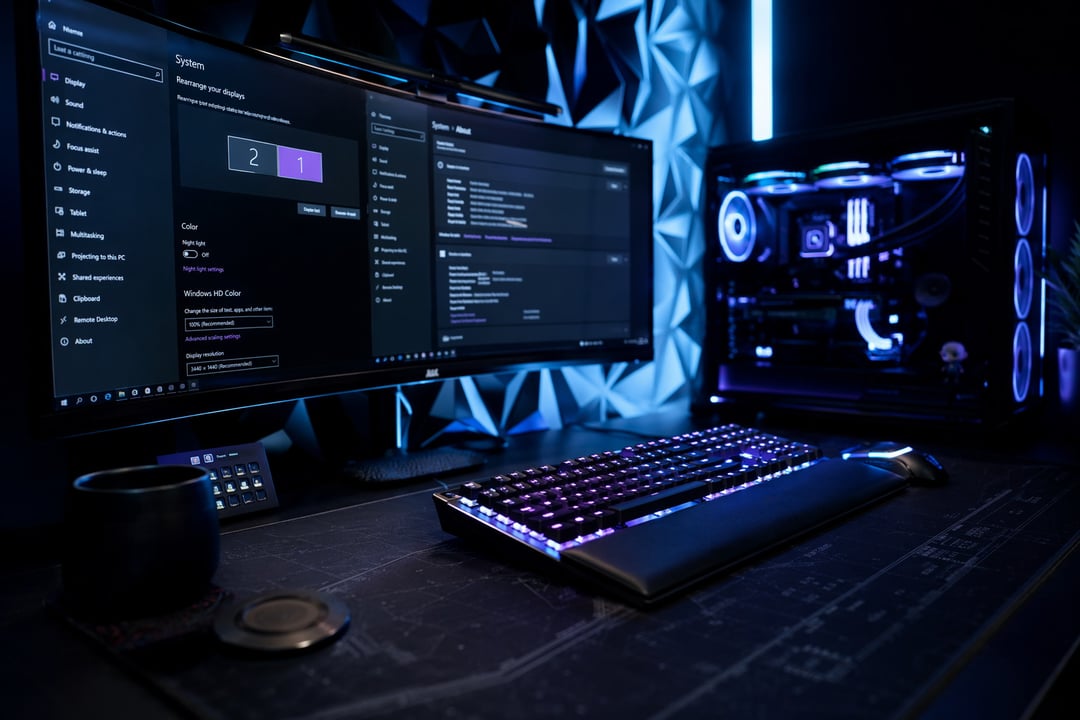
Most gaming PCs never reach their full potential, and the culprit usually isn't the hardware. It's Windows itself. Straight out of the box, Windows is configured for general-purpose use: web browsing, office work, battery conservation on laptops, and a long list of background processes that have nothing to do with gaming. The result is a system that's constantly splitting its attention, even while you're mid-match and every frame counts.
The good news is that fixing this doesn't require a new graphics card or a trip to the electronics store. A focused round of Windows settings for gaming performance can unlock noticeably smoother frame rates, reduce stuttering, and tighten up input response, all without spending a cent. Below is a practical walkthrough of the adjustments that matter most.
Why Default Windows Settings Hold Back Gaming Performance
Windows is built to serve everyone, from spreadsheet users to video editors to gamers, and that balancing act comes at a cost. Background services check for updates, index your files for faster search, and manage power consumption in ways that assume you might close your laptop lid at any moment. None of that is malicious or even unreasonable, but it does mean CPU cycles, memory, and GPU scheduling priority are being quietly allocated to tasks that have nothing to do with your game. Once you understand what's competing for those resources, the fixes below start to make a lot more sense.
Switch to High Performance Power Mode
The single most overlooked setting is the power plan. Windows defaults most systems to "Balanced," which throttles CPU speed to save energy, particularly on laptops. To change it, head to Settings > System > Power & Battery > Power Mode, or search "Power Options" in the Start menu for more granular control. Selecting High Performance (or Ultimate Performance, available on some Windows 10 and 11 builds) removes much of that throttling. In practice, this means your processor spends less time ramping up from a low-power state and more time running at the clock speed your game actually needs. It's a five-second change with an outsized effect on consistency during gameplay.
Turn On Game Mode and GPU Scheduling
Windows includes a built-in Game Mode, found under Settings > Gaming > Game Mode. When active, it deprioritizes background updates and notifications while a full-screen game is running, giving your CPU and GPU more breathing room. Pair this with Hardware-Accelerated GPU Scheduling, tucked under Settings > System > Display > Graphics. In plain terms, this setting lets your graphics card manage its own memory queue instead of relying entirely on Windows to do it, which can reduce latency on supported hardware. Results vary by GPU and driver version, so think of it as a worthwhile experiment rather than a guaranteed FPS jump.
Cut Background Clutter That Steals Resources
Open Task Manager (Ctrl+Shift+Esc) and check the Startup tab for applications launching automatically that you don't need running during a gaming session. Chat clients, cloud sync tools, and update checkers are common offenders. Disabling them here doesn't uninstall anything; it simply stops them from loading at boot.
From there, visit Focus Assist under Settings > System to mute notifications while you play, and consider pausing Windows Update temporarily during a session using Settings > Windows Update > Pause Updates. The same goes for search indexing, which can be paused from Indexing Options in Control Panel. None of these need to be disabled permanently. Just keep them quiet while you're actively gaming.
Simplify Visual Effects for Raw Performance
Under Settings > System > About > Advanced System Settings > Performance Settings, you'll find toggles for animations, transparency, and shadow effects. Switching to "Adjust for best performance" strips these out, freeing up a small amount of GPU overhead. This is a genuine trade-off. Windows will look plainer, but frame consistency often improves, especially on lower-end integrated graphics. Worth testing if you're chasing every last frame.
Keep Graphics Drivers Current
No amount of settings optimization compensates for an outdated GPU driver. NVIDIA, AMD, and Intel all release regular updates that include game-specific performance fixes and bug patches. Check your GPU manufacturer's control panel, or their website directly, and make updating a habit rather than an afterthought.
Quick Wins for Network Stability
For anything competitive or online, background bandwidth use matters. Pause cloud backups, large downloads, or streaming devices on the same network before you play. This won't touch your local frame rate, but it does reduce the kind of latency spikes that make an otherwise smooth game feel unresponsive.
Small Settings, Real Gains
None of these changes require new hardware, and none of them take more than a few minutes to implement. Switching your power plan, enabling Game Mode, clearing out background clutter, and keeping drivers current together add up to a genuinely smoother experience. Treat this as a foundation to optimize your Windows setup for gaming, not a replacement for a hardware upgrade when you eventually need one, but a meaningful improvement in the meantime.


