
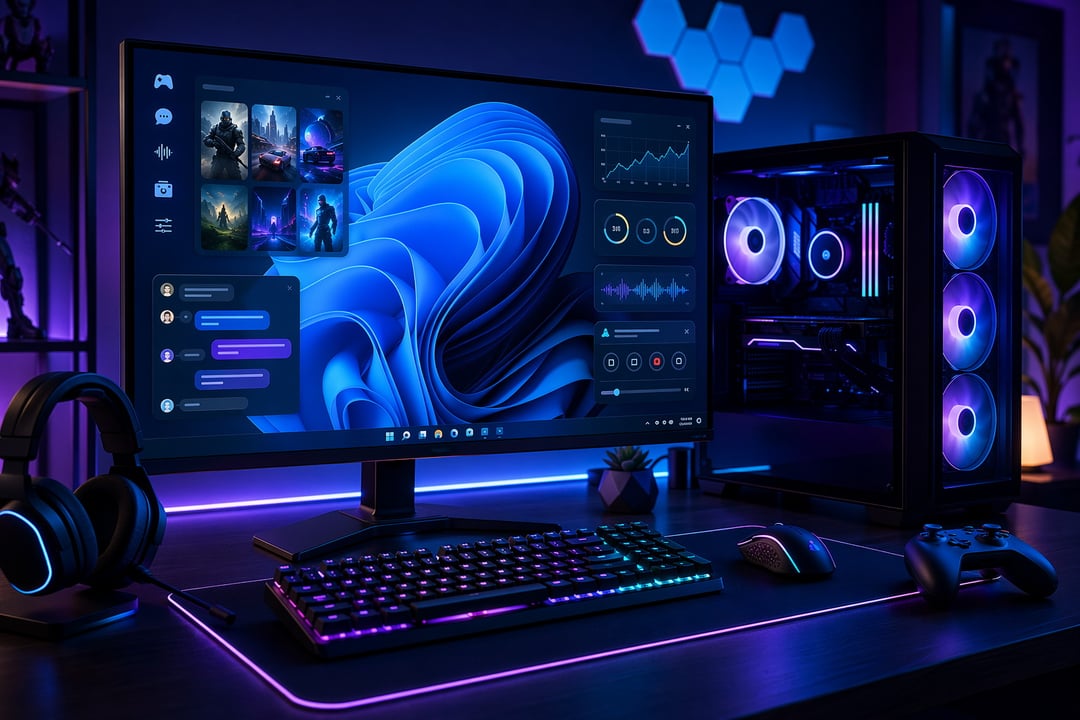
A powerful gaming PC can still feel messy if the software stack fights you. Windows 11 already gives players a strong base with Game Mode, Auto HDR, DirectStorage support, Xbox integration, and better handling of modern hybrid CPUs. But here’s the honest part: the real difference often comes from the apps you install around your games.
The right tools help you launch games faster, organize a chaotic library, chat with friends, record clean gameplay, monitor performance, and keep your graphics drivers under control. The wrong tools? They just add overlays, pop-ups, startup clutter, and weird performance dips at the worst possible moment.
These eight must-have apps give your Windows 11 gaming setup a cleaner, sharper, more reliable foundation.
Steam
Steam remains the center of gravity for PC gaming. It works as a storefront, launcher, update manager, social platform, controller layer, cloud-save system, and mod gateway all at once. That sounds like a lot because it is. Yet Steam handles most of it quietly in the background.
For a Windows 11 gaming setup, Steam’s biggest advantage is consistency. Your games update automatically. Your saves sync across devices when supported. Steam Input helps controllers behave properly in games that may not support them natively. Workshop support also gives certain games a much longer shelf life through maps, mods, skins, and community fixes.
A smart setup starts with organization. Create collections for competitive games, co-op titles, single-player adventures, unfinished backlog games, and controller-friendly releases. It takes ten minutes. Later, it saves you from scrolling through a library like you’re digging through an attic.
Xbox App for Windows
The Xbox App for Windows deserves a spot if you use PC Game Pass or want easy access to Microsoft’s gaming ecosystem. It gives you a large rotating library, Xbox achievements, cloud gaming options in supported regions, friend activity, and direct access to installed Game Pass titles.
It doesn’t replace Steam. Think of it as a second lane. Steam works best as your owned-game library while the Xbox App shines as a subscription discovery tool. You can try games you might never buy outright, bounce between genres, and test new releases without turning every curiosity into a $60 gamble.
The Xbox App can occasionally feel heavier than a traditional launcher. Storage management may need attention too. Still, for Windows 11 users who want value and variety, it’s hard to ignore.
Playnite
Once your games spread across Steam, Xbox, Epic Games Store, GOG, Ubisoft Connect, EA App, and itch.io, your desktop starts looking like a small launcher museum. Playnite solves that problem with one unified game library.
Playnite is open-source, highly customizable, and surprisingly elegant. It pulls games from multiple platforms into a single interface with cover art, metadata, filters, themes, and a fullscreen mode that feels close to a console dashboard. For players with large backlogs, that alone makes it one of the best Windows 11 gaming apps.
The real magic appears when you start tagging games. Add labels like “short campaign,” “co-op,” “benchmark,” “relaxing,” “mouse and keyboard,” or “controller preferred.” Suddenly your library stops being a pile of icons and starts becoming useful.
Discord
Discord has become the default communication layer for modern gaming. Voice chat, private groups, community servers, screen sharing, direct messages, and event coordination all live in one place. Even if a game has built-in chat, your friends probably still say, “Join Discord.”
For multiplayer gaming on Windows 11, Discord helps because it stays game-agnostic. You can coordinate a raid, troubleshoot a mod, share a clip, or jump into a voice channel before everyone launches the same game.
Spend a few minutes tuning it. Set input sensitivity properly. Enable noise suppression if your keyboard sounds like a woodpecker. Disable unnecessary startup behavior if boot time matters. And if you belong to ten loud servers, mute aggressively. Good audio hygiene is underrated. Honestly, it can save a match.
OBS Studio
OBS Studio is not just for streamers. It is one of the most useful apps for anyone who records gameplay, makes clips, tests settings, reviews competitive matches, or creates tutorials. Windows 11 includes basic capture tools, but OBS gives you serious control.
You can capture a game window, full display, webcam, microphone, browser source, alerts, and multiple audio channels. You can also build scenes for different purposes. One scene might record clean gameplay. Another might include webcam and chat. Another might capture a specific app for troubleshooting.
If you have an NVIDIA GPU, hardware encoding through NVENC can reduce CPU load while recording. AMD and Intel systems also have hardware encoder options. The key is testing before you need it. Nobody wants to discover broken audio after the perfect clutch round.
MSI Afterburner
MSI Afterburner is famous for GPU tuning, but its monitoring tools matter even more for most players. Paired with RivaTuner Statistics Server, it can display real-time data while you play.
You can track FPS, frame time, GPU temperature, CPU usage, GPU usage, VRAM consumption, fan speed, clock speeds, and power behavior. Average FPS tells part of the story. Frame time tells the part you actually feel. A game can show 120 FPS and still feel choppy if frame delivery is uneven.
Beginners should use MSI Afterburner as a diagnostic dashboard before touching overclocks. Watch temperatures. Look for throttling. Check whether the GPU or CPU hits full utilization. If you later experiment with fan curves or undervolting, move slowly. Random overclock settings from strangers are not a strategy.
HWiNFO
HWiNFO is the app you open when your PC starts acting strange and vague guesses are no longer enough. It reports detailed sensor data for CPUs, GPUs, memory, drives, motherboards, fans, voltages, clocks, and power limits.
Think of MSI Afterburner as the gaming dashboard. HWiNFO is the engine room. It helps you spot thermal throttling, SSD heat issues, unstable boost behavior, RAM speed problems, and power anomalies. If a game crashes after 40 minutes instead of five, HWiNFO can help reveal what changed over time.
You don’t need it open every day. Use it during testing, troubleshooting, upgrades, and performance tuning. It’s especially useful after installing a new GPU, changing CPU cooling, enabling XMP or EXPO memory profiles, or moving your PC into a warmer room.
NVIDIA App
If your Windows 11 gaming PC uses a GeForce GPU, the NVIDIA App is worth installing. It combines driver updates, game optimization features, recording tools, overlay options, and graphics settings into a more unified experience than older NVIDIA utilities.
Graphics drivers directly affect performance, stability, latency, and new-game compatibility. That makes driver control a core part of any serious Windows 11 gaming setup. New drivers can improve support for major releases, add features, and fix specific issues.
Still, avoid treating automatic optimization as gospel. It can help beginners reach playable settings quickly, but competitive players often need manual control. Lower shadows, tune anti-aliasing, adjust Reflex where available, and balance visual quality against refresh rate. If you use AMD graphics, AMD Software: Adrenalin Edition fills a similar role.
How to Build a Balanced Windows 11 Gaming App Stack
Start with the essentials. Install your GPU software first, then add Steam and the Xbox App. Bring in Discord for communication. Add Playnite once your game library starts spreading across platforms. Use OBS Studio when you want recording or streaming control. Install MSI Afterburner and HWiNFO when you’re ready to monitor performance properly.
The trick is restraint. Too many overlays can cause crashes, input weirdness, stutter, or needless background load. Steam has an overlay. Discord has an overlay. NVIDIA has an overlay. MSI Afterburner can display one too. You do not need all of them active at once.
A great Windows 11 gaming setup is not about installing everything. It’s about building a clean toolkit that solves real problems. Steam gives you the foundation. Xbox App expands access. Playnite organizes the mess. Discord keeps people connected. OBS captures the action. MSI Afterburner shows what the game feels like in data. HWiNFO exposes deeper hardware truth. NVIDIA App keeps the GPU side under control.
Install with purpose. Then get back to playing.
FAQs
What are the most important apps for a Windows 11 gaming setup?
Steam, Discord, and your GPU control app should come first. After that, add Xbox App, Playnite, OBS Studio, MSI Afterburner, and HWiNFO based on how you play.
Do gaming booster apps improve Windows 11 performance?
Most “booster” apps offer limited benefits. You’ll usually get better results from updated drivers, sensible startup settings, clean thermals, and proper in-game graphics tuning.
Is MSI Afterburner safe for beginners?
Yes, if you use it for monitoring first. Avoid aggressive overclocking until you understand temperatures, voltage behavior, power limits, and stability testing.