
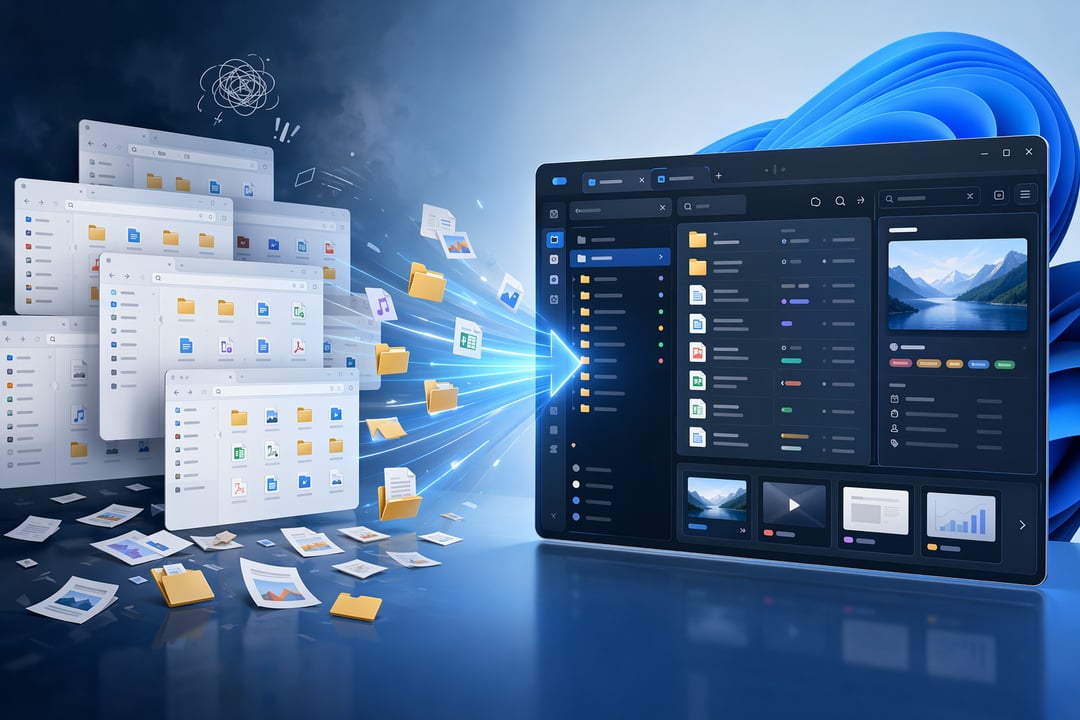
Windows 11 File Explorer Is Holding You Back — Try These File Manager Upgrades

6 Best File Managers for Windows 11 (Better Than File Explorer)

You know that moment. Twelve windows open, you're dragging a file from one folder to another, and somewhere in the shuffle you lose track of where you even were. You blink. You start over. And you think, there has to be a better way to do this.

There is. The problem isn't you. It's the tool.

Windows 11's File Explorer isn't broken, exactly. Microsoft finally added tabs and gave it a fresh coat of paint, and credit where it's due — that helped. But tabs alone didn't fix the deeper issue. File Explorer is built to help you find files. It was never really built to help you work with them, especially not at volume. And once you feel that ceiling, you can't unfeel it.

Why File Explorer Quietly Slows You Down

Here's what I mean. Try moving a batch of files between two locations. You're juggling windows like a circus act because there's no proper side-by-side view. Try renaming forty photos in one go. Clumsy. Try opening a folder packed with hundreds of high-res images and watch the thumbnails crawl while the whole window stops responding.

None of these are dramatic failures. They're tiny, daily frictions. A few seconds here, a lost click there. But they add up, and over a week they quietly eat real time. The fix isn't buried in a settings menu. It's a different tool entirely. Here are six worth your attention.

Six File Manager Upgrades Worth Switching To

1. Files — The Modern Explorer You Wish Came Built In

If you want an upgrade with basically no learning curve, start here. Files is open source and built with the same Fluent design language as Windows 11, so it feels native — like the file manager Microsoft probably should have shipped. You get tabs, a columns view, file tags, an optional dual-pane layout, and a genuinely lovely interface. It's completely free. Honestly, for most people, this is the easiest win on the list. (files.community)

2. One Commander — Dual-Pane Without the 1990s Look

Dual-pane file managers are powerful but most of them look like they time-traveled from Windows 95. One Commander is the exception. It's a modern two-panel manager with a slick column view that makes moving files between folders feel effortless instead of fiddly. There's a free version with an optional Pro upgrade if you want the extras. Great pick if older dual-pane tools scared you off. (onecommander.com)

3. Explorer++ — Tiny, Fast, Portable

Some people don't want bells and whistles. They just want it to be quick. Explorer++ is featherlight, opens instantly, and runs straight from a USB stick with no install needed. It adds tabs and the essentials without the bloat. Perfect for older machines, locked-down work computers, or anyone who values speed over everything. Free and open source. (explorerplusplus.com)

4. FreeCommander — The Free Classic Workhorse

FreeCommander is the answer to "I want serious power but I'm not paying for it." It's a traditional dual-pane manager loaded with built-in tools: folder comparison, batch renaming, archive handling, the works. The interface is busier and less pretty than Files, sure. But the capability per dollar — and the dollar amount is zero — is hard to beat. (freecommander.com)

5. Total Commander — The Veteran Power Tool

Total Commander has been around for decades, and there's a reason die-hard users won't quit it. It does nearly everything: FTP, bulk operations, deep search, a massive plugin ecosystem. I'll be honest though — it looks dated and the learning curve is real. This is the tool you invest a weekend in so it saves you hours every month afterward. It's shareware, so you pay after the trial. (ghisler.com)

6. Directory Opus — The Premium Everything-Tool

This is the splurge, and it earns it. Directory Opus is the most powerful option here — deeply customizable, scriptable, capable of erasing essentially every File Explorer limitation plus a few you didn't know bugged you. It's paid, no free tier. But if you live in your file manager all day and want the absolute best, this is it. (gpsoft.com.au)

So Which One Should You Actually Pick?

Don't overthink it. If you want an easy, free, good-looking upgrade, get Files — that's the default answer for most people. If you live in dual-pane, go One Commander for the modern feel or FreeCommander for free power. Need it lightweight? Explorer++. Want maximum power and you've got a weekend to learn it? Total Commander. Money's no object and you want the best? Directory Opus.

Most of these are free or have trials anyway. Try two. Keep the one that disappears into the background.

Because that's the real point. The right file manager doesn't make you think about it. It just hands you back those minutes you've been losing — the ones that quietly add up. Pick one tonight. By Friday you'll wonder how you put up with the old way for so long.


Join the Community

Get the latest tech news, reviews, and exclusive insights delivered straight to your inbox. Join over 50,000 tech enthusiasts who trust Informer Tech.

Weekly digest

No spam

Unsubscribe anytime