
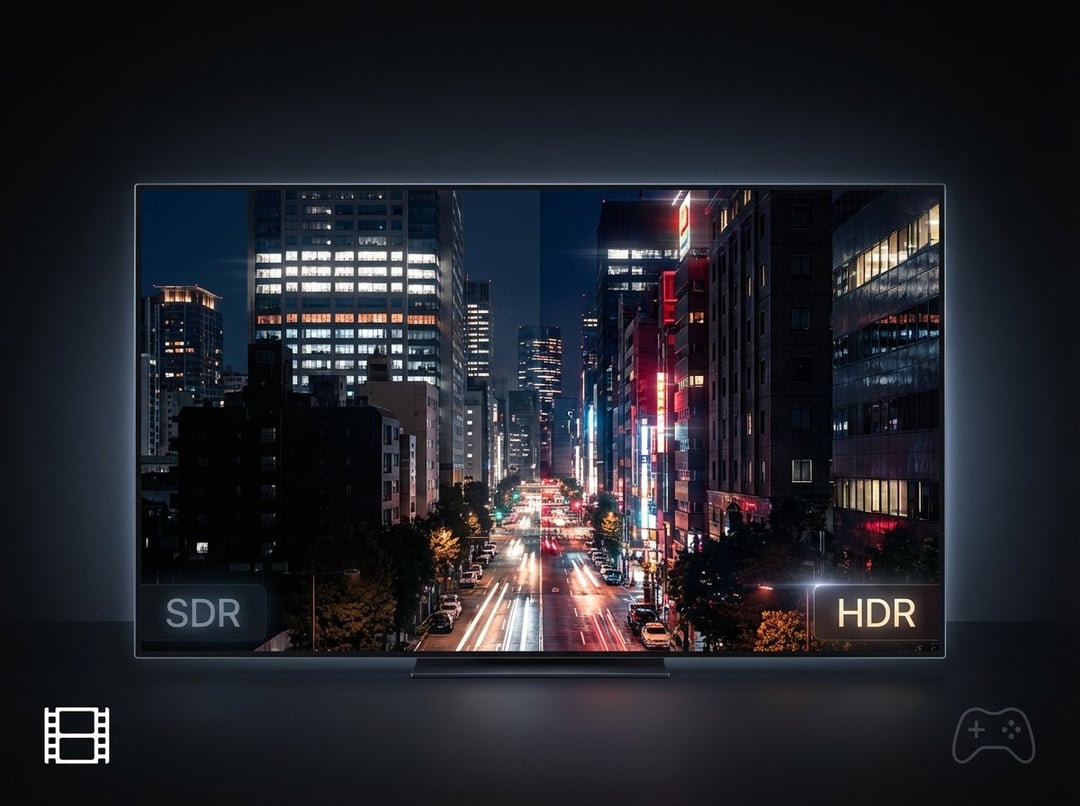
High Dynamic Range (HDR) Meaning in Displays and Content
HDR stands for High Dynamic Range. It’s an umbrella label for the technologies used across image and video content, display panels, and graphics rendering that increase the difference between the maximum and minimum levels of light and color.
That difference is the dynamic range—how many times higher the maximum value is compared to the minimum. On displays, it maps closely to contrast: maximum brightness ÷ minimum brightness (often discussed as a contrast ratio). The practical point is simple: HDR is built to keep fine detail that Standard Dynamic Range (SDR) tends to crush in shadows or blow out in highlights, while also expanding the depth and range of colors.
HDR gear also tends to cost more than SDR gear because it relies on more complex components and pushes more data through the whole pipeline.
HDR vs SDR: Why High Dynamic Range Looks Better
SDR can look great, but it has a narrower window for both brightness and color. HDR systems aim to preserve detail in extreme parts of an image—bright reflections, sunlight, neon signs, and the subtle textures hiding in near-black shadows.
On a high-quality HDR display, HDR can make:
- Highlights look more intense without turning into a white blob
- Dark scenes keep shape and texture instead of flattening into gray or pure black
- Color appear richer because HDR workflows typically use wider-gamut color spaces and higher precision
The catch is that “HDR” on the spec sheet doesn’t guarantee good HDR in real life. The display’s actual brightness capability and black-level control matter a lot.
Understanding Digital Color: RGB Color Model and Color Spaces
Screens create images by manipulating three color channels: red, green, and blue, using the RGB color model. Every color you see is some combination of those three channels.
But RGB values alone aren’t enough. They need rules for interpretation—how those numbers translate into what your eyes should perceive. That’s where a color space comes in. Common color spaces include:
- sRGB
- Adobe RGB
- DCI-P3
No color space covers every color humans can perceive. The set of colors a space can represent is its gamut. That’s why you’ll see display reviews talk about gamut coverage—how much of a given color space the display can actually show.
Electro-Optical Transfer Function (EOTF): Turning Signals Into Brightness
To convert digital image/video signals into actual brightness and color on-screen, systems use an electro-optical transfer function (EOTF). This is the math that translates electrical/digital values into displayed luminance and color levels.
Most people never need to think about EOTFs. But professionals often calibrate screens carefully so content is displayed as intended—especially important when HDR is involved, because the brightness range is so much larger and easier to mishandle.
Color Depth for HDR: 8-Bit vs 10-Bit vs 12-Bit
Digital color values are stored in bits. The number of bits used per channel is the color depth.
- 8-bit per channel (often written as R8G8B8 or 888) is the modern baseline.
- 8-bit provides 256 steps per channel, which produces 16,777,216 possible RGB combinations.
That sounds like plenty—and often it is—but gradients and blended colors can reveal banding (visible steps instead of smooth transitions). Increasing color depth helps:
- 10-bit gives 1,024 steps per channel (4× the steps of 8-bit)
- 12-bit goes further still
Higher color depth becomes even more important when you’re also using a wide-gamut color space, because you’re stretching precision across a larger range of visible color. Consumer HDR delivery is commonly 10-bit, and HDR specifications often require at least 10-bit to reduce banding.
How HDR Displays Create Bright Images: LCD vs OLED and Luminance (Nits)
Most modern screens use either:
- LCD technology, where liquid crystals block light (with a backlight behind them), or
- Emissive displays (like OLED), where pixels emit their own light
A key HDR concept is luminance, measured in nits (candela per square meter). A typical SDR-ish monitor might peak around 250 nits in a full-white screen.
LCD Black Levels, Contrast Ratio, and Local Dimming in HDR
LCDs struggle more with minimum brightness because even “black” pixels can leak a little light. For example, if a monitor peaks at 250 nits and its minimum is 0.2 nits, the dynamic range is 250 / 0.2 = 1250.
Because pushing minimum luminance lower is hard on LCD, many LCD-based HDR improvements come from:
- raising peak brightness, and
- using local dimming to control stray light in smaller regions (modern HDR tests evaluate this more directly)
OLED HDR Strength: Near-Infinite Contrast and Perfect Blacks
On emissive displays like OLED, when pixels are off, minimum luminance can be so low it’s effectively unmeasurable—leading to the “infinite contrast” idea. This is why OLED is often considered the standard for perfect blacks and strong near-black detail in HDR.
HDR Formats Explained: HDR10, HDR10+, Dolby Vision, HLG, PQ, and BT.2100
HDR gets messy fast because there are content formats and then there are display certifications—and they’re not the same thing.
HDR10: Baseline HDR Format and PQ Transfer Function
HDR10 is a widely used, baseline HDR format (often described as royalty-free). It defines aspects like:
- color space
- color depth
- transfer function
- metadata behavior
HDR production and distribution commonly sit under ITU BT.2100, using either:
- PQ EOTF (Perceptual Quantizer, a.k.a. SMPTE ST-2084), or
- HLG
HDR10 uses PQ rather than the simpler SDR gamma curve, and it’s better suited for high dynamic range content. It also uses a wide-gamut color space (commonly referenced as BT.2020) and requires at least 10-bit color depth to avoid banding. HDR formats may include metadata to help the display adjust, and HDR workflows may also involve chroma sub-sampling like 4:2:0 in compressed delivery.
Dynamic Metadata HDR: HDR10+ and Dolby Vision
While HDR10 is often “baseline,” HDR10+ and Dolby Vision add dynamic metadata (scene-by-scene or frame-by-frame adjustments). HDR formats differ by:
- licensing cost
- transfer function
- metadata approach
- compatibility
Even when they differ, many still share similar fundamentals: wide color spaces and higher bit depth than SDR.
VESA DisplayHDR Certification: What DisplayHDR 400/600/1000/1400 Means
Where HDR10 (and similar formats) describe content, VESA DisplayHDR describes display hardware performance.
VESA certifications require meeting thresholds for things like:
- luminance capability
- color depth support
- color space coverage
A critical detail from the context: DisplayHDR 400 is the lowest tier, and in general, displays at this level aren’t especially good at HDR. They may still look “okay” if you’ve never seen better, but the HDR impact often feels muted.
VESA’s program includes:
- DisplayHDR 400/500/600/1000/1400 for LCD/Mini-LED
- DisplayHDR True Black 400/500/600/1000 for emissive tech like OLED/QD-OLED
Higher tiers (like 1000/1400) have stricter requirements around local dimming and sustained contrast, and the guidance in the context is blunt: if you want impactful HDR, aim higher.
Practical HDR Buying Rule: What to Look For in Peak Brightness
A simple rule of thumb from the context:
- For bright Mini-LED LCD HDR, look for DisplayHDR 1000/1400
- For OLED, look for True Black 500+ for a more impactful experience
And a more “feel-based” target for punchy HDR:
- ≥ 1,000-nit peak on Mini-LED LCD, or
- ~600-nit peak on OLED (where black levels create the wow factor)
OLED vs Mini-LED for HDR: Choosing Based on Room Lighting and Budget
OLED still sets the standard for perfect blacks and near-black detail. But the best Mini-LED LCDs can deliver extremely high peak brightness—1,000 to 4,000 nits—and use thousands of local dimming zones, which can look spectacular in bright rooms.
Both can deliver top-tier HDR. The more practical decision comes down to:
- your room brightness (bright room vs dim room)
- how much peak brightness you want
- how much you value black level performance
HDR for Movies and Streaming: What You Need for HDR Playback
To watch HDR movies, you generally need:
- An HDR-capable TV/monitor
- A playback device that supports HDR formats
- HDR-encoded content (disc or stream)
- For streaming, also a decent internet connection
Streaming devices from major brands typically support multiple HDR formats, while cheaper models may skip HDR. Physical media playback depends on the Blu-ray player’s specs—newer 4K players are more likely to support HDR than older ones.
Streaming HDR on PC: HDR Display, HDCP, HEVC, and App Requirements
PC HDR streaming can be finicky. The context highlights moving parts like:
- an HDR-capable display
- HDCP 2.2/2.3-compliant connection
- HEVC decoding
It also notes that some streaming services’ HDR support depends on specific apps/browsers and can change over time. Windows 11 adds improvements like streaming HDR video even with system-wide HDR disabled, plus per-app Dolby Vision controls. Before judging results, the context recommends using the Windows HDR Calibration app.
A practical workaround mentioned: it can sometimes be easier to stream using a dongle plugged into an HDR-capable monitor’s HDMI port.
HDR Connection Standards: HDMI 2.1 Isn’t Required for HDR
HDR doesn’t automatically require HDMI 2.1. The context notes that DisplayPort 1.4 or HDMI 2.0b (with the right formats/DSC) can carry HDR properly.
HDR for Gaming: How HDR Rendering Works and Why Output Support Varies
Early 3D graphics often used 8-bit integer values per channel, which limited brightness and caused banding. Modern GPUs commonly render in 16- or 32-bit floating point, and frame buffers often match that precision. That shift enables true high dynamic range rendering inside games.
Today, most major 3D engines render internally in HDR even if your monitor isn’t HDR. If the monitor can’t display HDR, the game is tone-mapped down to SDR.
The bigger issue: proper HDR output support is still relatively rare. Many games still provide only a basic “HDR On” toggle, which can lead to crushed blacks or blown-out highlights. Better implementations include calibration-aware tone mapping and settings that reflect your display’s luminance range.
Examples of Well-Regarded HDR Games and Calibration Controls
The context points to several games frequently praised for strong HDR implementations:
- Cyberpunk 2077
- Forza Horizon 5
- Horizon Forbidden West
- Alan Wake 2
- Helldivers 2
Cyberpunk 2077 is singled out for matching its frame buffer to HDR10 standards and offering adjustment based on the display’s luminance—still more exception than rule.
Windows 11 Auto HDR and HDR Calibration: Improving SDR Games in HDR
If a game doesn’t support HDR output, Windows 11 can try to help with Auto HDR, which analyzes SDR content rendered via DirectX 11 or 12 and maps it into HDR.
You can enable Auto HDR via:
- Settings > Display > HDR
- Windows Game Bar (Win + G)
The Windows HDR Calibration app can be used to set black levels, peak brightness, and tone-mapping targets more precisely. The context notes Auto HDR can work surprisingly well for some games (especially with strong lighting pipelines), but in others the change may be subtle. And it won’t magically transform titles that don’t already use high-precision rendering before tone mapping.
HDR Adoption and Real-World Value: Why “HDR-Ready” Can Disappoint
HDR isn’t universal yet in gaming or monitors. Good HDR experiences are still often linked to more expensive displays (especially OLED), and many people don’t see HDR as “worth it” until they’ve experienced it on genuinely capable hardware with good content.
The context is pretty direct about the common disappointment: budget “HDR-ready” or HDR400 displays can look washed out, dim, or even worse than SDR.
Still, things are improving:
- decent HDR monitors can appear around the midrange price tier, even if true HDR impact often costs more
- burn-in concerns are less severe due to mitigation, tech improvements, and longer warranties
- Mini-LED with many zones is closing the gap in bright rooms
- consoles (PS5 / Xbox Series X) treat HDR as a default feature
Q&A: HDR Questions People Actually Ask
Q1: What does HDR actually do on a monitor or TV?
HDR increases the visible range between the darkest and brightest parts of an image and expands color range, helping preserve detail that SDR often loses in shadows and highlights. The best results depend heavily on the display’s real peak brightness and black-level control.
Q2: Is DisplayHDR 400 “real HDR”?
It’s a legitimate certification tier, but it’s the lowest one and is generally not considered especially good at delivering impactful HDR. You may find it acceptable if you haven’t seen better, but stronger HDR experiences usually come from higher tiers like DisplayHDR 1000/1400 or True Black tiers for OLED.
Q3: Why does HDR look amazing in some games and awful in others?
Because HDR output implementation varies wildly. Some games offer calibrated tone mapping and luminance-aware controls, while others only provide a basic toggle that can crush blacks or blow out highlights. Display capability and proper calibration (including tools like Windows HDR Calibration) also make a big difference.