
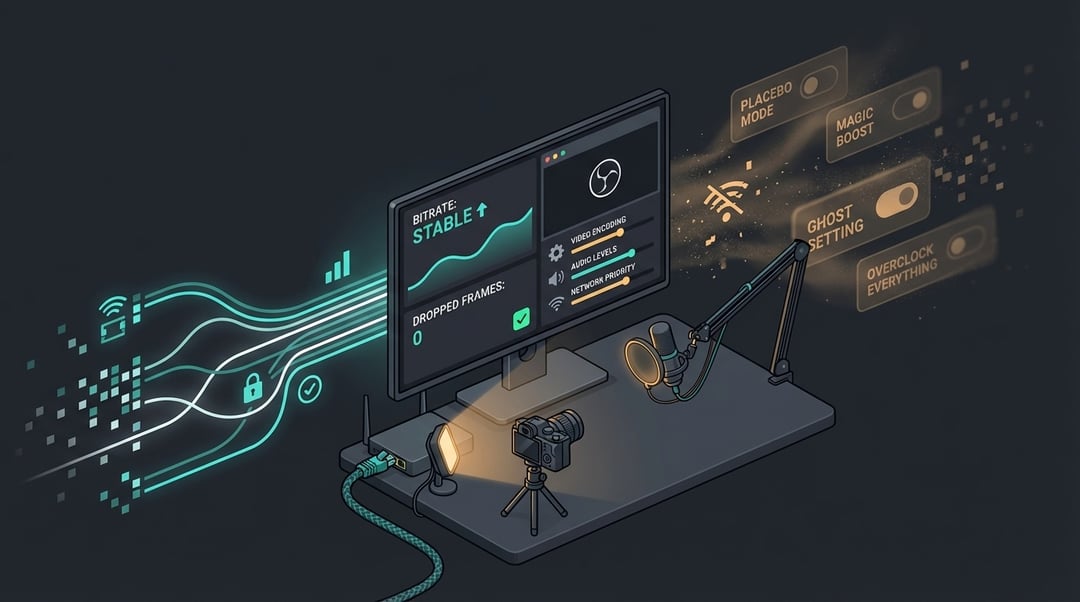
What “streaming quality” really means
Most people treat streaming quality like a resolution badge. 1080p. 60 FPS. Done. But viewers judge quality the way they judge a restaurant. They don’t read the menu. They notice the vibe, fast.
Streaming quality comes from three things working together:
- Clarity: fine detail holds up. Text stays readable. Motion doesn’t smear.
- Stability: the stream doesn’t stutter, buffer, or desync.
- Consistency: quality doesn’t swing wildly every time the scene changes.
Think about bitrate like a monthly budget. Your content “spends” bits. Fast gameplay, confetti-like textures, noisy webcam footage, and animated overlays all spend more. If you overspend, compression panics. It shows up as macroblocking in shadows, muddy grass, and weird skin tones.
If you want to improve streaming quality, optimize for predictable delivery instead of peak specs.
Diagnose first. Change settings second.
Before touching OBS sliders, identify the failure mode. Streaming quality problems usually come from one of three buckets:
- Local overload (your PC can’t render or encode smoothly)
- Network instability (upload fluctuates, packet loss, jitter)
- Bitrate mismatch (you ask too much from too little bitrate)
Run three short tests and review the recordings and VODs:
- Talking head + overlay (tests camera and text legibility)
- High-motion gameplay (tests compression and encoder stress)
- Dark or noisy scene (tests worst-case macroblocking)
Then watch your stats while testing. You’re looking for two numbers that matter more than “it feels laggy”:
- Dropped frames (rendering/encoding): your system can’t keep up.
- Dropped frames (network): your upload path can’t hold target bitrate.
That’s your map. Now you tune with purpose.
Network fundamentals for better streaming quality
Upload speed matters. But raw Mbps doesn’t guarantee streaming quality settings will behave. Stability wins.
Two villains quietly ruin streams:
- Jitter: inconsistent packet timing, which creates uneven delivery.
- Packet loss: missing data, which forces visible corruption and buffering.
Even in real-time media systems outside streaming, jitter and loss thresholds show up as clear quality predictors. Microsoft’s real-time telemetry guidance treats lower jitter and low packet loss as core indicators of “good” media quality: https://learn.microsoft.com/en-us/microsoftteams/use-real-time-telemetry-to-troubleshoot-poor-meeting-quality
Practical setup advice that actually moves the needle:
- Use wired Ethernet whenever possible. It removes a whole category of chaos.
- If Wi‑Fi is unavoidable, stick to 5 GHz, keep strong signal, and reduce interference.
- Kill competing uploads. Cloud backups love to sabotage streams.
- If your router supports QoS, prioritize streaming traffic. Keep it simple.
This is the unglamorous part of optimize streaming quality setup work. It’s also the highest leverage.
Resolution, FPS, and bitrate: choose a sane target
Here’s the truth that frustrates everyone at first: 1080p can look worse than 900p if bitrate can’t support it. More pixels means each pixel gets fewer bits. Detail collapses under motion.
Pick output targets based on your content:
- High-motion games: 900p60 or 1080p30 often looks cleaner than 1080p60.
- Talk streams and slower content: 1080p30 can look excellent at modest bitrate.
- Text-heavy overlays: favor clarity. Avoid aggressive scaling and tiny fonts.
If you stream to YouTube, their own help center provides bitrate ranges by resolution and frame rate plus a keyframe recommendation. For H.264 ingestion, they list recommended bitrates such as 12 Mbps for 1080p60 and they recommend a 2-second keyframe frequency: https://support.google.com/youtube/answer/2853702?hl=en
If you stream to Twitch, Twitch’s broadcasting guidance also highlights practical constraints like CBR, typical bitrate ceilings, and a 2-second keyframe interval: https://link.twitch.tv/BroadcastingGuidelines
So the “best settings for streaming quality” start with platform reality, not wishful thinking.
Encoder choices that actually change streaming quality
You can’t brute-force quality if your encoder can’t hold steady.
Hardware vs software encoding
- Hardware encoders (like NVENC): reduce CPU load, often improve stability.
- Software (x264): can look great, but it punishes the CPU fast.
Your goal is boring but important: keep encoding time stable. Stability creates consistency. Consistency feels like quality.
Keyframe interval: keep it predictable
Most platforms expect keyframes every 2 seconds. YouTube explicitly recommends 2 seconds and says do not exceed 4 seconds: https://support.google.com/youtube/answer/2853702?hl=en
Why it matters: keyframes help viewers recover quickly from packet hiccups and they help platforms segment streams reliably.
NVENC tuning without getting lost
NVIDIA’s broadcasting guide explains why options like Psycho Visual Tuning can improve perceptual quality by allocating bitrate more intelligently. It also notes tradeoffs like higher GPU cost: https://www.nvidia.com/en-us/geforce/guides/broadcasting-guide/
A sensible baseline mindset:
- Keep CBR for live streaming reliability.
- Choose a quality-focused preset if GPU headroom exists.
- Treat “extra features” as optional. Turn them off if you hit GPU limits.
Audio: the quickest way to “upgrade” streaming quality
People forgive soft video. They don’t forgive harsh audio. Bad audio feels like amateur hour.
To improve perceived streaming quality fast:
- Put the mic closer. Distance creates room echo.
- Control reflections. Soft furnishings help more than people expect.
- Use noise suppression lightly. Overdoing it creates watery artifacts.
- Check sync with a clap test if anything feels off.
If the voice sounds clean, the whole stream feels higher quality.
Lighting and camera: reduce noise, reduce compression pain
Compression hates random noise. Webcams produce noise in dim rooms. Encoders waste bitrate trying to preserve it.
Simple fix: add light. Not “buy a studio.” Just add a consistent key light.
Then lock down camera behavior:
- Avoid auto-exposure swings.
- Avoid high gain.
- Prefer a simple background. Busy patterns explode into artifacts.
This is a sneaky way to boost streaming quality without changing bitrate at all.
Overlays and scene design: stop taxing your bitrate
Overlays cost bitrate. Animated backgrounds cost more. Tiny text costs the most.
If you want a stream that looks clean:
- Use thicker fonts and high contrast.
- Reduce constant motion in the scene.
- Avoid stacking multiple resizes across apps. Scale once in your pipeline.
Minimalism isn’t aesthetic here. It’s engineering.
A repeatable checklist to optimize streaming quality setup
Two minutes before going live
- Confirm upload stability and enough headroom.
- Close cloud sync and big downloads.
- Verify output resolution, FPS, bitrate, and encoder selection.
First five minutes live
- Watch for dropped frames (encoding/rendering vs network).
- Listen for audio distortion or clipping.
- Confirm text and overlays look readable on a phone screen.
After the stream
- Identify the single bottleneck.
- Change one variable.
- Retest with the same three-scene workflow.
That loop is how people actually land consistent, professional streaming quality.
Q&A
What’s the fastest way to improve streaming quality with no new gear?
Fix lighting and simplify overlays. Better light reduces noise and noise destroys compression efficiency.
Should you stream 1080p60 if you want the best streaming quality?
Only if your platform bitrate and your encoder can sustain it. Otherwise 900p60 or 1080p30 often looks cleaner.
Why does your stream look fine when still but blurry in motion?
Motion spends bitrate quickly. Lower resolution, reduce FPS, or raise bitrate within platform limits to stabilize quality.