
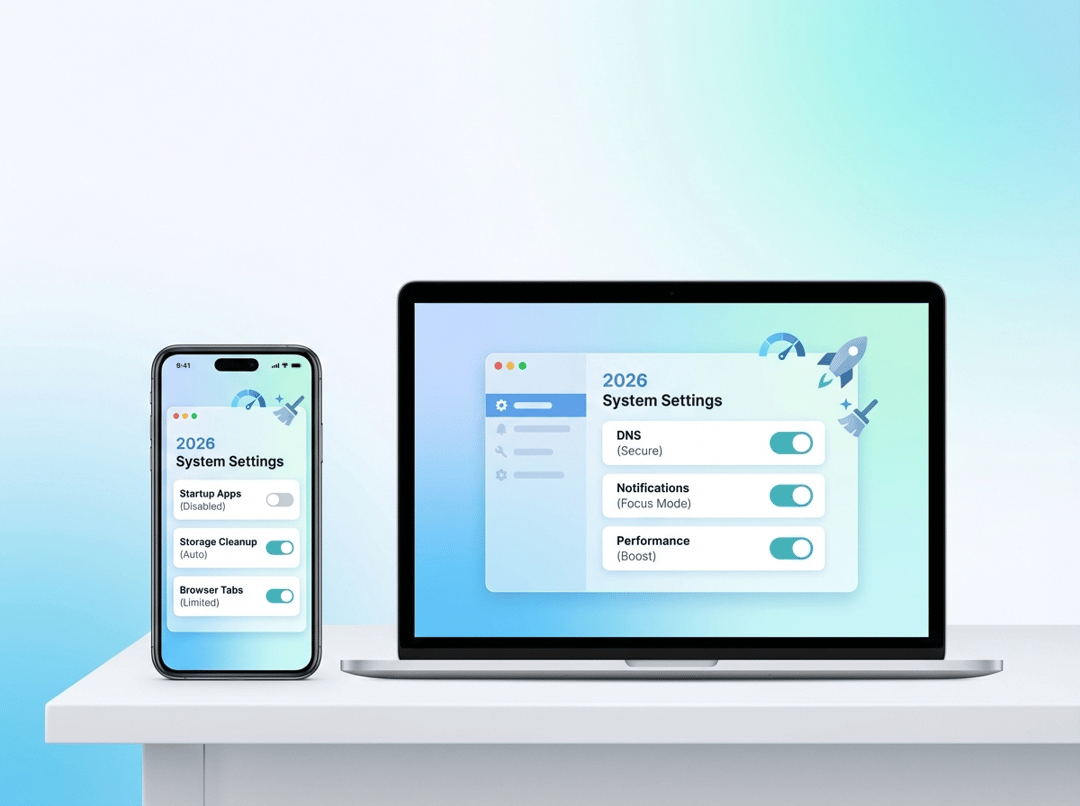
Most devices don’t feel slow because the hardware “got old.” They feel slow because settings quietly stack friction. Background services multiply. Storage fills with junk. Browsers hoard memory. Consequently, you get laggy clicks and messy screens.
This guide focuses on settings that create visible wins fast. It also avoids unstable “tweaks” that trade speed for weird bugs later.
Before you start: a quick baseline that makes this measurable
Time three things right now. Boot to usable desktop. Open your browser with your usual tabs. Launch your heaviest app. Write the times down.
On Windows, open Task Manager and check CPU and Memory. If either sits high while idle then background work drives the pain. On iOS, check Battery Health and iPhone Storage. On Android, open Device Care and view storage plus memory.
Create a Windows restore point. Back up photos and chats. Take a few screenshots of key settings. You want confidence while changing speed up pc settings.
1) Disable non essential startup apps on Windows
Startup clutter acts like rush hour traffic. Everything tries to merge at once. Boot time increases and responsiveness collapses.
Go to Settings → Apps → Startup. Turn off anything you do not use daily. Also open Task Manager → Startup apps and sort by impact. Disable high impact items that feel optional.
Keep security software enabled. Keep touchpad and audio drivers enabled. Conversely, disable “quick launchers” and duplicate updaters. Many vendors run a service already.
2) Restrict background activity for apps you rarely need
Background execution drains performance in small bites. Those bites add up fast.
On Windows, open Settings → Apps → Installed apps. Select an app. Open Advanced options if available. Disable background permissions where Windows allows it.
On iOS, open Settings → General → Background App Refresh. Turn it off for social apps and shopping apps. On Android, open Battery settings and restrict background for noisy apps.
This reduces wakeups and memory churn. It also lowers heat which stabilizes speed.
3) Reduce visual effects that steal responsiveness
Animations look nice until they compete with real work. This matters on midrange laptops and older integrated GPUs.
On Windows, search for “Adjust the appearance and performance of Windows”. Choose Adjust for best performance. Then re enable Smooth edges of screen fonts for readability.
You should feel snappier window switching. You also reduce GPU compositing overhead during calls and screen sharing.
4) Cut notification noise to reclaim focus and system resources
Notifications are not just psychological clutter. They also trigger sync tasks and UI redraws.
On Windows, open Settings → System → Notifications. Disable senders you do not trust. Keep calendar and security alerts. Silence the rest.
On iOS and Android, audit notification categories per app. Turn off “Promotions” and “Social.” Keep direct messages and critical alerts.
The result feels cleaner instantly. Your device also does less background work.
5) Turn on automatic storage cleanup instead of manual purges
Manual cleaning fails because it depends on mood. Automation fixes that.
On Windows, open Settings → System → Storage. Enable Storage Sense. Set it to delete temporary files routinely. Configure recycle bin retention to match your risk tolerance.
On iOS, enable Offload Unused Apps. On Android, clear downloads automatically and review large files monthly.
Cleaner storage improves update reliability. It also reduces indexing load and backup size.
6) Enable browser memory saving and trim extensions first
Browsers eat RAM because tabs behave like apps now. Extensions often behave like parasites.
In Chrome, enable Memory Saver. In Edge, enable Sleeping Tabs. Set an aggressive timeout if you run many tabs.
Then audit extensions. Remove anything you installed “just to try.” Keep password managers and blockers. Disable the rest and test stability.
This setting often delivers the biggest day to day gain. You will feel it during multitasking.
7) Switch to a faster DNS resolver and enable encrypted DNS
DNS latency shows up as “why is this page thinking.” It also affects every new domain lookup.
On Android, enable Private DNS. Use a reputable provider. On Windows, set DNS on your adapter. Also enable DNS over HTTPS in your browser when possible.
Good references include Cloudflare’s 1.1.1.1 docs and Google Public DNS. Start here: https://developers.cloudflare.com/1.1.1.1/ and https://developers.google.com/speed/public-dns
If you use corporate filtering then test carefully. Encrypted DNS can break managed networks.
8) Throttle cloud sync so it stops thrashing disk and battery
Sync tools behave like helpful roommates. Until they decide to reorganize at 2 p.m.
On Windows, open OneDrive settings. Limit upload rate. Pause syncing during gaming and meetings. Exclude massive build folders and VM images.
On phones, restrict photo backup to Wi Fi + charging. Disable auto download in messaging apps. This prevents surprise storage spikes.
Cleaner sync means fewer conflicted copies. It also reduces background CPU spikes.
9) Tighten location services and precision tracking
Location features trigger sensors and radios. They also create data exhaust that you probably do not need.
On iOS, disable Precise Location for most apps. Keep it for maps and ride share. On Android, restrict location to While in use and disable Wi Fi scanning when possible.
This reduces background geofence checks. It can also improve idle battery which supports sustained performance.
10) Schedule updates with active hours so speed stays consistent
Updates keep devices stable. Unscheduled restarts kill trust.
On Windows, set Active hours in Windows Update. Let it install patches automatically. Review optional driver updates cautiously.
On iOS and Android, enable automatic system updates. Prefer Wi Fi and overnight installs.
Stability is a performance feature. Updated drivers reduce stutter and crashes.
11) Limit Windows search indexing to stop constant scanning
Indexing helps when it targets the right data. It hurts when it scans everything forever.
Open Settings → Privacy and security → Searching Windows. Choose classic mode if you prefer smaller scope. Exclude folders like archives and developer directories.
If you search email and documents often then keep those included. If you never search code then exclude node_modules and build outputs.
This reduces background disk activity. It also makes search results more relevant.
12) Stop messaging apps from auto downloading media and filling storage
Chat apps quietly become your largest photo folder. They also keep caches that grow without mercy.
Disable auto download for images and videos in WhatsApp and Telegram. In Slack and Teams, reduce background refresh. Turn off “save to gallery” where available.
This is a cleanliness multiplier. It also reduces backup load and indexing noise.
13) Configure battery optimization without breaking important apps
Battery savers can speed things up indirectly. They reduce background work. They also can break navigation and authentication.
On Android, use Adaptive Battery and restrict social apps heavily. Whitelist maps and 2FA apps. On iOS, use Low Power Mode strategically during travel. Disable live widgets you never check.
Think of this as resource governance. You decide which apps deserve oxygen.
14) Set Windows graphics preferences per app for smoother performance
Wrong GPU assignment causes stutter. It also wastes battery.
Open Settings → System → Display → Graphics. Assign browsers to power saving on laptops. Assign creative tools to high performance if you have a discrete GPU.
This belongs in any serious speed up pc settings checklist. It fixes real frame pacing issues without hacks.
15) Reset defaults and remove sketchy helpers for a cleaner 2026 workflow
“Free” toolbars and search helpers degrade performance and privacy. They also hijack defaults.
On Windows, review Default apps. Reset PDF and web handlers intentionally. Remove unknown browser add ons. Uninstall “assistant” software you did not request.
On phones, remove configuration profiles you do not recognize. Review VPN apps and keyboard apps. Clean defaults reduce friction across every task.
A 30 minute execution plan for a faster cleaner 2026
1) Do PC startup apps then background permissions.
2) Do browser memory saving then extension pruning.
3) Do Storage Sense and phone storage automation.
4) Do DNS then sync throttles.
5) Do indexing scope then notifications.
6) Do updates scheduling then graphics preferences.
7) Finish with defaults cleanup and reboot everything.
Validate the gains after you apply these 15 settings
Re test the three timings from the beginning. Boot time should drop. App launches should feel less spiky. Your browser should stop freezing under tab load.
If push notifications break then loosen background restrictions. If DNS fails then revert to automatic DNS. If sync misses files then re enable needed folders.