
Passwords have become that one chore nobody enjoys but everyone keeps doing. You create one. You forget it. A company gets breached. Then you get an email that tries to scare you into resetting everything at midnight. Passkeys exist because this loop never really gets better. It only gets more exhausting.
This guide delivers passkeys explained in a way that stays accurate but still feels usable. You’ll learn what a passkey is, how passkeys work behind the scenes, and how to start using passkeys today without locking yourself out later.
Passkeys Explained in Plain Terms (What They Are and What They Replace)
A passkey is a modern way to sign in that does not rely on a shared secret like a password. Instead, it uses public-key cryptography. That sounds intense. The idea stays simple.
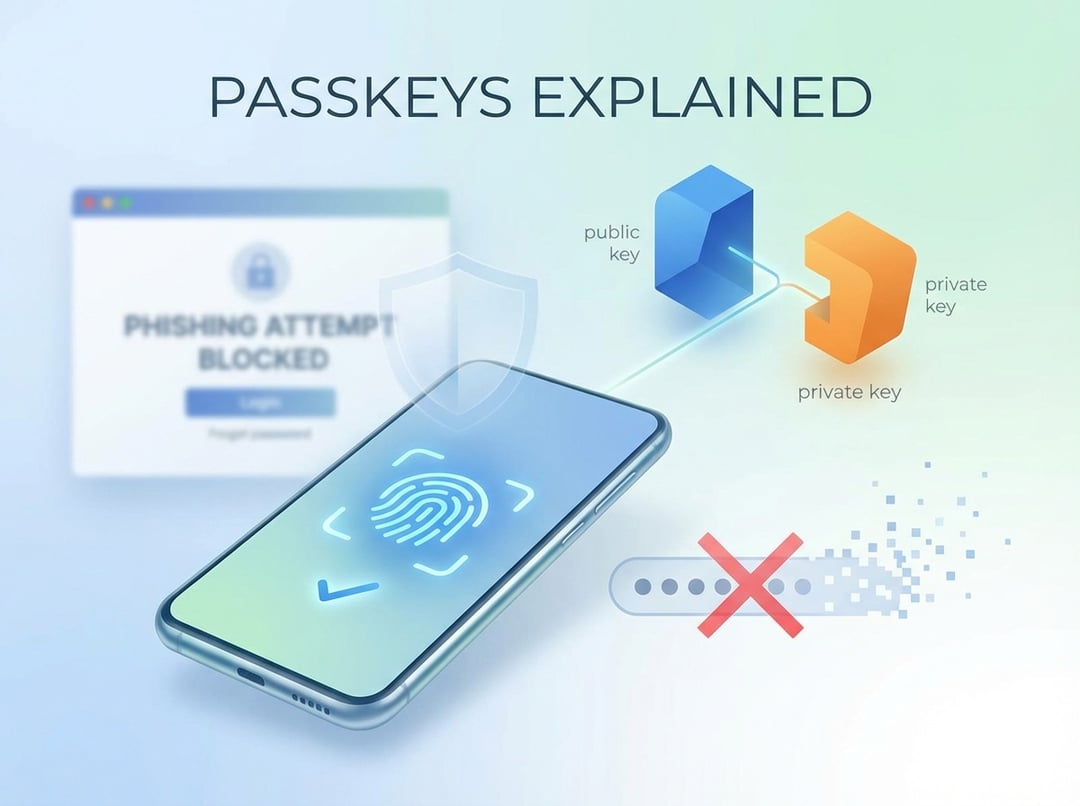
When you create a passkey, your device generates two linked keys:
- A private key that stays on your device
- A public key that the website or app stores
The private key never gets uploaded. It never gets emailed. It never gets typed. That single detail changes the game.
Passkeys vs passwords and password managers
Passwords fail because they are portable secrets. You can copy them. Attackers can steal them. Bots can guess them. Even strong passwords end up reused because humans have lives.
Password managers help. They generate unique passwords and they store them safely. Yet they still depend on passwords existing. Passkeys aim to remove the “secret you must transmit” model entirely. You authenticate by proving you control a private key.
Passkeys vs two-factor authentication (2FA)
Two-factor authentication improves security. It also adds friction. And it often still starts with a password which attackers can phish.
Passkeys can reduce the need for one-time codes because the cryptographic proof is strong. Some services still use extra checks for risky actions like changing payout details. That choice often reflects fraud risk rather than weak passkeys.
How Passkeys Work (The Behind-the-Scenes Version)
If you want a clean mental model, think of a passkey login as a handshake. The site asks a question. Your device answers with proof. The site verifies the proof.
Registration: creating a passkey
When you tap “Create a passkey” the service asks your device to generate a new key pair for that account. Your device then stores the private key in secure storage. It sends the public key to the service. From that point on, the service can challenge you. Your device can respond.
You often confirm creation with Face ID, fingerprint, or a device PIN. That step does not send your biometric data to the site. It only unlocks the private key locally.
Login: a passkey sign-in explained
During login, the service sends a unique challenge. Your device signs that challenge using the private key. The service checks the signature using the public key it already has. If it matches, you get in.
No shared secret crosses the internet. No password gets typed. No code gets copied from a text message.
Why passkeys resist phishing
Phishing works because passwords are easy to trick out of people. A fake site can ask for your password. You type it. The attacker uses it on the real site.
Passkeys resist this because the cryptographic exchange ties to the legitimate website origin. A lookalike domain cannot produce the same valid flow. It can still trick you into clicking things. It cannot easily steal an authentication secret because there is no reusable secret to steal.
For deeper technical background, the core standard behind passkey authentication is WebAuthn from the W3C: https://www.w3.org/TR/webauthn-3/
A practical industry overview lives here: https://fidoalliance.org/passkeys/
Why breaches hurt less with passkeys
When companies store passwords, they store something attackers can reuse after a breach. Even hashed passwords get cracked sometimes. Then credential stuffing begins.
With passkeys, the server stores public keys. Public keys do not let an attacker authenticate. A database leak becomes less valuable. That changes the economics of attacks.
What You Need to Use Passkeys Today (Compatibility and Reality Check)
Passkeys work best when your device supports secure key storage and quick user verification like a fingerprint sensor. Most modern phones and laptops do.
Where people get confused is not the cryptography. It is the ecosystem.
Where passkeys are stored
Your passkey’s private key lives on your device. Some platforms also sync passkeys across your devices using encrypted cloud sync. That feature matters because it prevents the “new phone, locked out forever” scenario.
Sync does not mean the website gets your private key. It means your devices share it within the platform ecosystem under strong encryption.
What “sync” really means for you
Sync makes passkeys practical for daily life. It also means your platform account becomes critical. If someone takes over that account, they may gain access to synced credentials.
So yes, passkeys reduce password risk for websites. They increase the importance of securing the account that manages your devices.
How to Start Using Passkeys (Step-by-Step)
Most people fail with security upgrades because they go all in on day one. Then they hit a recovery problem. Then they retreat back to passwords. Take a calmer path.
Step 1: Pick one low-stakes account
Choose a service you use often but can recover easily. You want repetition. You do not want panic.
Step 2: Create your first passkey
Go to the service’s security settings and look for labels like:
- “Create a passkey”
- “Sign in with a passkey”
- “Passkey login”
- “Security keys” or “device credentials”
Follow the prompt. Confirm with Face ID, fingerprint, or your device PIN. The service should show the passkey as an enabled sign-in method.
Step 3: Test sign-in and confirm fallback options
Log out and sign back in using the passkey. Then check what fallback methods exist. Many services still support passwords as a backup. Some provide recovery codes. Others rely on verified email or phone.
Do not skip this. Recovery determines whether you trust passkeys long term.
Step 4: Add a second device or confirm sync
If you use multiple devices, confirm your passkey works across them. If you rely on sync, secure the platform account first. Use a strong password and enable multi-factor authentication.
This is the unglamorous step that prevents the “lost phone” nightmare.
Step 5: Expand to high-value accounts
Move to your email account next because email controls resets for everything else. Then consider financial services. Keep extra verification enabled where it exists for sensitive actions.
Common Questions and Misconceptions About Passkeys
Are passkeys the same as Face ID or fingerprints
No. Biometrics usually act as a local unlock method. Your device uses them to release the private key. The website never receives your fingerprint or face scan.
What happens if you lose your phone
If your passkeys sync, you can sign in from another trusted device. If they do not sync, you rely on the service’s recovery flow. That is why testing recovery is part of responsible setup.
Can passkeys be hacked
Nothing earns the word “never.” Passkeys reduce major attack classes like phishing and credential stuffing. They do not stop device malware. They also cannot protect you from poor recovery settings.
NIST provides broader guidance on digital authentication and risk tradeoffs here: https://pages.nist.gov/800-63-3/
Security Best Practices When Moving to Passkeys
- Secure the account that syncs your passkeys with a strong password and MFA.
- Keep recovery emails and phone numbers current.
- Store recovery codes offline if the service offers them.
- Keep devices updated and encrypted.
- Avoid using passkeys on shared device profiles.
The Bottom Line
Passkeys explained in one sentence looks like this: the website stores a public key, your device stores a private key, and you sign in by proving possession without sharing a password.
Create one passkey today. Test login. Verify recovery. Add a second device. Then move your email account. That sequence turns passkeys from a trendy feature into a safer daily habit.