
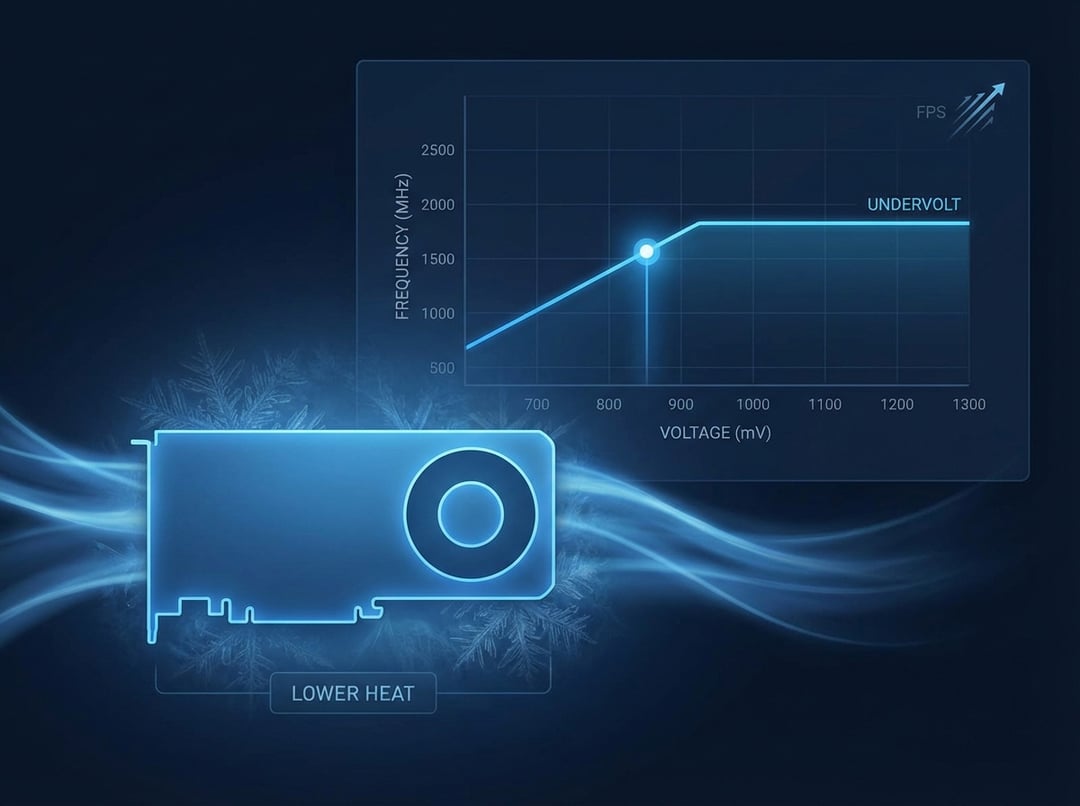
Undervolting means your NVIDIA GPU runs a given clock speed at less voltage than stock. Less voltage usually means less power. Less power turns into less heat. That heat reduction can lower fan speeds and noise while you keep the same feel in-game. The goal is not bragging rights. The goal is steadier performance and a cooler, quieter PC.
It also helps to set expectations. Undervolting does not guarantee higher FPS. Sometimes you gain a little because the card stops bouncing off power or thermal limits. Sometimes you lose a tiny bit because you picked a conservative clock target. Either outcome still counts as a win if you get meaningfully lower temperatures and stable frame pacing.
Why NVIDIA undervolting often works: boost is basically “smart cruise control”
Modern NVIDIA cards don’t run at one fixed clock. They boost up and down based on power, temperature, and workload. Think of it like cruise control with guardrails. When the GPU has headroom, it boosts higher. When it hits a limit, it backs off.
Here is where undervolting gets interesting. If you lower voltage, you often lower power draw. If power drops, heat drops. If heat drops, the GPU can sustain its boost target longer. Consequently, you can get “cooler FPS” that feels smoother even when average FPS barely changes. NVIDIA’s own discussion of GPU Boost frames this behavior as opportunistically increasing performance within available headroom, which is the same principle you exploit with an undervolt curve. (See NVIDIA’s overview of GPU Boost behavior: NVIDIA Technical Blog on GPU Boost.)
Pre-flight checklist: make your results trustworthy
Before you touch the curve editor, capture a baseline. Pick one repeatable load. Use a built-in game benchmark, a consistent in-game route, or a standard GPU benchmark run. Watch these metrics:
- Average FPS and 1% lows
- GPU temperature and hotspot temperature if your tools expose it
- Fan speed or RPM
- GPU core clock behavior under sustained load
- GPU power draw
Then stabilize the test environment. Close background capture tools if they change load. Keep your case airflow consistent. If you recently changed drivers, reboot first. This is boring work. It also prevents tuning by superstition.
MSI Afterburner curve tutorial: what the V/F curve actually shows
MSI Afterburner’s curve editor maps voltage to frequency. Voltage sits on the horizontal axis in millivolts. Frequency sits on the vertical axis in megahertz. Each dot represents a possible boost state the GPU can use under load.
Most people understand sliders. The curve is different. You are not simply “reducing power.” You are telling the GPU, “At this voltage, run this clock.” Then you remove the incentive to boost higher at higher voltage points. That is why curve undervolting feels so effective when it is done correctly.
Open the curve editor in MSI Afterburner. Many setups use Ctrl + F. You should see a rising curve that climbs as voltage increases.
NVIDIA GPU undervolting step-by-step in MSI Afterburner (the curve method)
1) Pick an anchor voltage
Choose a realistic voltage target so you have a starting hypothesis. For many NVIDIA cards, these ranges often make sense:
- Conservative start: 950 mV
- Common efficiency target: 900 mV
- Aggressive territory: 850 mV (very dependent on the specific card)
You are not chasing a magical number. You are choosing a point you can test and iterate.
2) Choose a target frequency at that voltage
Look at your baseline sustained clock under load. If you saw your GPU hovering around 1900–2000 MHz, start near the lower end of that window at your chosen voltage. If you want silence over absolute FPS, shave another 50–150 MHz. That single decision drives the stability story.
A useful framing helps here. Frequency is your speed. Voltage is your fuel pressure. You can reduce fuel pressure, but only if you accept a speed that stays stable.
3) Shape the curve and flatten the right side
In the curve editor, find the dot at your chosen voltage and set it to your target MHz. Then flatten the points to the right so they do not climb above your target frequency. This matters because you want a predictable ceiling. You are effectively telling the GPU, “Do not take the higher-voltage exits.”
Apply the settings, then save them to a profile. Name it something obvious like “900mV Quiet” so you do not forget what you changed.
4) Leave memory tuning for later
Memory overclocking can help FPS in some titles. It can also create artifacts that look like core instability. Keep memory at stock until the core undervolt is proven stable. After that, change one variable at a time.
Validation: prove you actually got cooler FPS
A good undervolt is not “it didn’t crash.” A good undervolt is stable clocks, lower heat, and consistent frame pacing.
Use a three-layer test:
- Fast check: one benchmark pass to catch obvious instability.
- Real test: 15–30 minutes in your most demanding game.
- Cross-check: a second game with a different load pattern, especially if one uses ray tracing.
Watch the clock behavior. If the GPU sits near your target frequency, you shaped the curve correctly. Watch power draw. If it drops, undervolting is doing its job. Watch temperatures and fan speed. Those are the comfort metrics that matter.
Troubleshooting: symptoms that tell you what to change
- Crash to desktop or driver reset: your frequency is too high for that voltage. Drop 15–30 MHz or raise voltage by a small step.
- Artifacts or sparkles: often memory instability if you touched memory. Revert memory to stock, then retest.
- No temperature change: the curve may not be applying, or your fan curve is holding a fixed temperature target. Recheck that your profile is active. Then look at power draw since power tells the truth.
- Big FPS loss: your target MHz is too low, or you flattened too aggressively. Raise frequency slightly at the same voltage if stable. Otherwise nudge voltage up.
Practical targets without pretending every GPU is identical
Silicon varies. Two “identical” GPUs can undervolt differently. The only reliable approach is iterative:
- Lock in a stable point at 900 mV.
- If stable and cool, try 875 mV with a slightly lower MHz.
- Stop when the stability cost exceeds the comfort win.
Save multiple profiles. Keep a quiet undervolt profile for daily gaming. Keep a stock or near-stock profile for troubleshooting and maximum performance sessions.