
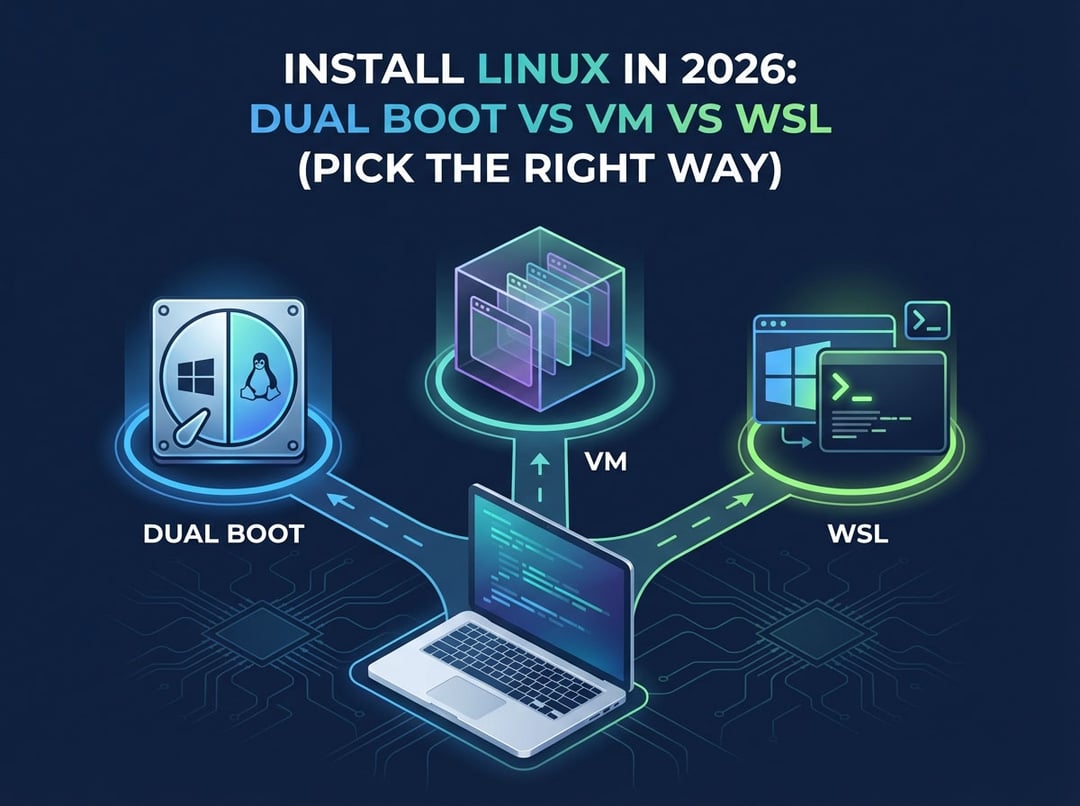
You can “install Linux” in 2026 three different ways and each one changes what Linux even is on your machine. That is why people keep arguing past each other. One person wants Linux as a daily driver with full hardware control. Another wants a safe sandbox. A third wants Ubuntu tools inside Windows with no drama.
This guide cuts through that noise. It frames install Linux dual boot vs VM as a decision about performance, reversibility, and workflow friction. Pick the method that matches your actual workload, not your ideology.
The 2026 reality check: what “installing Linux” means now
In practice, dual boot vs VM vs WSL is not a minor preference. It is an architectural choice.
- Dual boot means Linux runs on bare metal. It gets the CPU scheduler, storage stack, and drivers directly.
- A virtual machine (VM) means Linux runs as a guest OS on top of Windows using a hypervisor. The hypervisor mediates access to hardware.
- WSL means Linux userland integrates into Windows workflows. It targets developer ergonomics and fast iteration.
Two questions decide most outcomes. First, do you need direct hardware access, which includes specific GPUs, unusual USB devices, and low-latency I/O. Second, do you need instant context switching between Windows and Linux without rebooting. Answer those honestly and the best way to install Linux in 2026 becomes obvious.
Dual boot vs VM vs WSL: the decision criteria that actually matter
Most comparisons collapse into vague claims about “speed” or “convenience.” Use these criteria instead.
Performance and latency
Dual boot usually wins when you feel performance in your hands. You get native disk throughput, predictable driver behavior, and fewer layers between your app and the hardware.
VMs deliver strong CPU performance on modern hardware, especially for compilation, services, and general development. Storage speed depends on where the VM disk lives and how it is configured. Graphics acceleration also depends on the platform and settings.
WSL performs best when you lean into its strengths. It shines for CLI tooling, package management, and developer workflows that benefit from Windows integration. Performance can degrade when you bounce between Windows and Linux file paths without a plan.
Risk and reversibility
Dual boot touches partitions and boot configuration. That makes it powerful and fragile. A VM is disposable. WSL is also easy to remove. If you need the lowest risk path, dual boot rarely fits.
Workflow friction
Dual boot forces reboots. That sounds small until you do it ten times in a day. VMs and WSL allow constant switching. Consequently, they often win for mixed Windows and Linux workflows.
Dual boot: when Linux needs to own the machine
Choose dual boot when you want Linux to behave like a primary OS rather than a tool.
When dual boot makes sense
Dual boot fits workloads where native drivers and predictable performance matter.
- Gaming on Linux where you want the cleanest path to hardware performance.
- Hardware-heavy development, which includes large builds and heavy local databases.
- Peripheral-dependent work, which includes niche audio gear and specialized USB devices.
- Low-level networking tasks that behave differently in virtualized environments.
Prerequisites you should not skip
You do not need to become a storage engineer. You do need discipline.
- Understand basic UEFI boot behavior and boot order.
- Know whether you will install on one drive or dedicate a second drive.
- Back up first. Image if possible. Verify the backup can restore.
Common problems with dual booting
Users usually fail on the same few edges.
- They shrink Windows partitions without understanding what “free space” really means.
- They forget Windows updates can affect boot priorities.
- They change encryption settings and partition layouts without a rollback plan.
Dual boot remains the best answer when you want maximum control. It also demands respect. Treat it like surgery, not like installing a browser extension.
Virtual machines in 2026: the safest Linux environment that still feels real
If you want to learn Linux or run Linux tools while keeping Windows stable, a VM often wins the install Linux dual boot vs VM debate on pure pragmatism.
When a VM is the right tool
A VM excels when you need isolation.
- Security labs and risky experimentation.
- Testing multiple distributions without committing to one.
- Reproducible environments you can clone and share.
VM performance: what to expect
Most dev tasks run well in a VM because CPU virtualization has matured. The bottlenecks usually come from misconfiguration.
- RAM starvation makes everything feel slow. Allocate realistically.
- Slow storage makes package installs and builds miserable. Put VM disks on SSD.
- Graphics workloads vary widely. Do not assume gaming-class GPU behavior.
VM operational advantages
VMs give you features that dual boot cannot.
- Snapshots before risky upgrades.
- Clones for parallel experiments.
- Isolated networks for lab work and realistic testing.
If your Linux journey involves experimentation, a VM behaves like a seatbelt. It prevents a small mistake from turning into a weekend-long recovery.
WSL in 2026: the default answer for many Windows-based developers
WSL exists for a specific promise. Keep Windows as the host OS and bring Linux tooling close enough that daily development feels native.
Where WSL shines
WSL delivers speed of onboarding and workflow integration.
- Install a distro quickly and start using apt, git, ssh, and language runtimes.
- Use Windows editors and terminals while targeting Linux environments.
- Switch between Windows apps and Linux commands without a reboot.
WSL often becomes the best way to install Linux in 2026 for intermediate developers who live in Windows for meetings, Office files, or enterprise tooling.
Where WSL still falls short
WSL is not “Linux on bare metal.” Some tasks need deeper system control.
- Kernel development and low-level driver work.
- Certain networking scenarios that require direct control of interfaces.
- Deterministic GPU workflows where you need full driver behavior.
If your goal is full system ownership, WSL will feel like a very capable proxy. That is not a flaw. It is the design.
Pick the right way: a practical decision framework
You can choose quickly with a simple map of use case to method.
Start with your primary workload
- General software development: WSL first, VM second, dual boot third.
- Cybersecurity labs: VM first, dual boot second, WSL third.
- Gaming or hardware-sensitive work: dual boot first, VM second, WSL third.
Then apply constraints
Corporate devices complicate everything. Endpoint security policies, disk encryption, and required Windows software can eliminate dual boot immediately. Conversely, a personal workstation with a dedicated SSD makes dual boot far less stressful.
Choose your preferred failure mode
Every method fails differently.
- Dual boot can fail loudly with boot issues.
- VMs fail quietly with slow performance if misconfigured.
- WSL fails subtly when you blur file boundaries and slow down workflows.
Pick the failure mode you can tolerate.
Recommended 2026 setups
A clean setup beats a clever setup.
The Windows-first developer
Use WSL for daily work. Add a VM when you need snapshots or risky testing. Keep projects in a location that avoids slow cross-environment file access.
The Linux-first but Windows-required user
Dual boot with Linux as the primary environment. Keep Windows for vendor tools and specific apps. Add a VM only when you need disposable labs.
The lab machine
Run multiple VMs with disciplined snapshots. Segment networks. Treat environments as artifacts you can rebuild, not pets you nurse forever.
Pre-install checklist: make sure all these are done before you begin
- You have a verified backup and a recovery plan.
- You understand your firmware boot mode and disk layout.
- You chose a distro that fits your method and your tolerance for troubleshooting.
For more detailed information, use primary sources. Begin with Microsoft’s WSL documentation at https://learn.microsoft.com/windows/wsl/ and the basic Linux installation guide at https://ubuntu.com/tutorials. For boot and partition topics, check the Arch Wiki at https://wiki.archlinux.org/, which explains even rare issues very clearly.
Conclusion
Dual boot gives you the cleanest Linux experience and the highest risk surface. A VM gives you safety, snapshots, and repeatable labs. WSL gives you Linux tooling with Windows integration and minimal disruption.
Pick one method today. Use it for two weeks. Then reassess based on friction, performance, and how often you actually needed full control. That is how you choose the right way in 2026.