
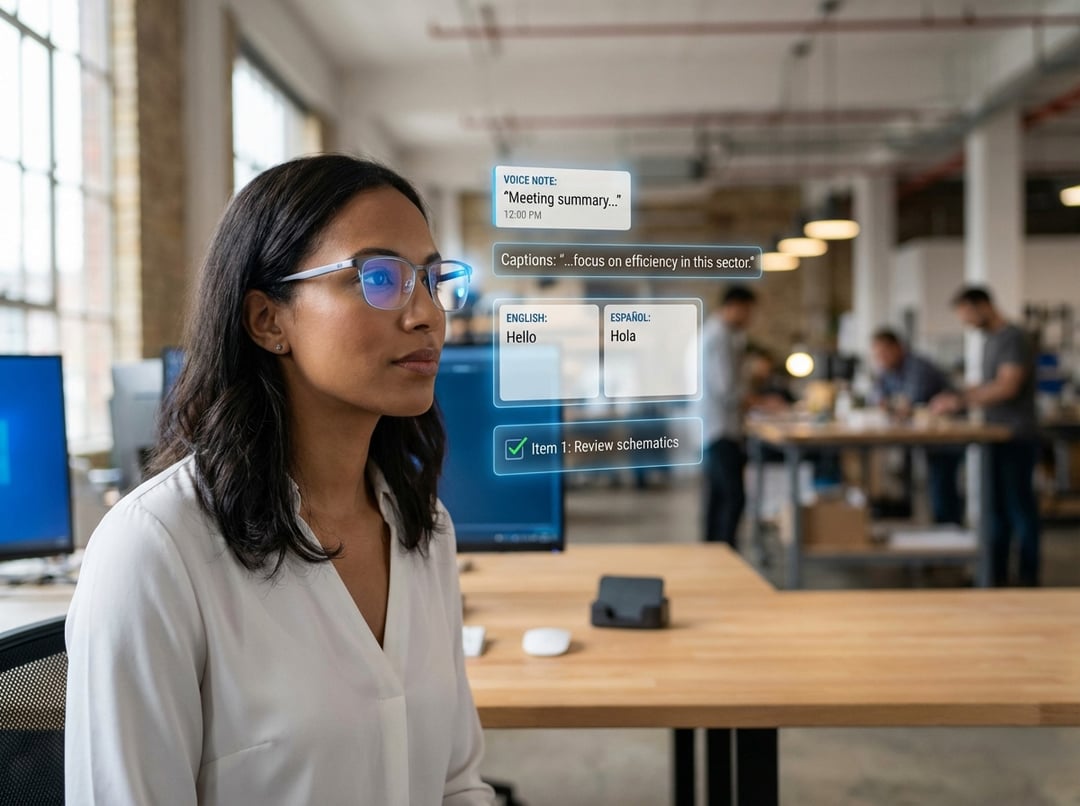
What “productivity” means with AR smart glasses for productivity
Productivity sounds abstract until you tie it to friction. Every time you stop mid-task to unlock a phone, find an app, and reorient yourself, you pay a hidden tax in attention. AR smart glasses for productivity aim to shrink that tax by putting small, timely information where your eyes already are. That matters most when you work on your feet, move between spaces, or bounce between people and tools.
In practice, AR Smart Glasses for Productivity: Notes, Translation, and Hands-Free Work fits best in “in-between moments.” Think hallways, shop floors, airports, job sites, and meeting rooms. These devices rarely replace a laptop for deep work. They work like a smart clipboard that never leaves your field of view.
10 high-impact ways to use AR Smart Glasses for Productivity: Notes, Translation, and Hands-Free Work
1) Capture voice notes without breaking flow
The easiest win comes from hands-free capture. You get an idea or notice a problem and you speak it immediately. That sounds basic, yet it removes the delay where good thoughts evaporate. Keep your dictation structured. Speak in short lines and name the note with a clear label like “Action” or “Issue.” You will thank yourself later.
Noise causes most failures. Step a few feet away from machinery or crowds when possible. If you cannot, slow down and over-enunciate. The goal is not perfect transcription. The goal is reliable recall.
2) Take meeting notes with quick highlights
Meeting notes work best when you stop trying to capture everything. Use your glasses to catch decisions, owners, and deadlines. Mark highlights as you go with a simple phrase like “highlight” or “action item.” That creates an index you can skim later. It also keeps you present since you do not bury your face in a screen.
Privacy matters here. Many spaces treat any camera as recording equipment. Set expectations up front and follow local policy. If your workplace has camera-restricted zones then treat that rule as non-negotiable.
3) Use real-time translation for multilingual conversations
Translation through smart glasses shines in short interactions. You ask a question, you get a response, and you confirm the meaning. The best experience feels like subtitles for the world. The worst experience feels like a game of telephone. Accents, proper nouns, and technical terms create the biggest errors.
A simple fix improves accuracy fast: build a “house glossary.” Add product names, site names, and common acronyms where your app supports it. When stakes are high, use a repeat-back habit. Say the critical instruction back in your own words. That one step prevents expensive misunderstandings.
4) Turn on live captions in loud spaces
Captions help even when everyone speaks the same language. Factories, conferences, and busy streets all wreck clarity. Live captions reduce “say that again” moments. They also help you stay polite and engaged when audio drops.
However, overlapping speech breaks most systems. Position yourself to minimize cross-talk and face the speaker. The microphone hears what you point it at, even when you think it does not.
5) Follow hands-free checklists for repeatable tasks
Checklists are boring. That is why they work. In-view checklist steps help with safety checks, machine startup routines, and inspections. You keep both hands on the work while the next step stays visible. That reduces skipped steps and rework.
The pitfall is checklist drift. Processes change but the checklist does not. Assign an owner and a review cadence. A stale checklist creates false confidence, which is worse than no checklist.
6) Use heads-up prompts for time-critical work
AR prompts excel when timing matters. Picking, sorting, and inspection tasks often involve quick decisions under pressure. A short heads-up prompt can reduce hesitation and errors because it appears exactly where attention already sits.
Keep overlays minimal. If your display shows five widgets at once, your brain treats it like noise. Design for one decision per screen. Anything else belongs in a phone or tablet.
7) Get remote expert help without holding a phone
Remote assistance delivers real productivity gains when expertise sits far away. You stream what you see and an expert guides you through steps. This works well for repairs, audits, and training. It also shortens downtime because the expert does not need to travel.
Bandwidth and framing cause most friction. Start every call with a five-second framing ritual. Pan slowly, show the whole system, then zoom to the detail. You save minutes of back-and-forth later.
8) Translate signs and documents with quick visual capture
Visual translation depends on OCR. Lighting, glare, and low contrast can break it. If you rely on this for travel or on-site work, learn a simple technique. Angle the text to avoid reflections, pause to stabilize, and capture again if the first pass looks wrong.
This use case feels magical for menus and signage. It becomes critical for warnings and instructions. Treat it like an assistant, not an oracle.
9) Triage notifications without falling into phone mode
Notifications are a productivity trap. The phone shows an alert then it offers a buffet of distractions. Smart glasses can help you triage with one glance. You decide if something needs action now or later. You stay in the task.
Set strict rules. Only VIP contacts and critical systems should push to your face. If everything pings you, the glasses recreate the same interruption problem in a new form.
10) Add hands-free navigation and timers for mobile work
Navigation and timers sound simple but they remove constant stopping. Delivery routes, campus work orders, and time-boxed routines benefit from glanceable directions and quick timers. You move more smoothly and you stay aware of your surroundings.
Expect limits indoors where GPS struggles. Plan for battery drain too since navigation and displays consume power. A short charging habit during breaks often solves this without drama.
How to choose AR smart glasses for productivity
Start with comfort. If the device pinches, heats up, or slides, you will stop using it. Next, check battery realism. “All-day” rarely means constant display plus camera use. Then evaluate audio quality because notes and translation live or die on microphone pickup.
Finally, consider privacy and policy. Many organizations restrict cameras in specific areas. Pick a device and workflow that respects those constraints. Otherwise adoption stalls, no matter how good the tech looks.
A practical setup blueprint for AR Smart Glasses for Productivity
Use a four-step loop: capture, confirm, route, retrieve. Capture the raw input fast. Confirm it briefly so you do not store junk. Route it to the right place, such as your notes app, email, or ticketing system. Retrieve it later through search and tags. This loop turns “cool gadget” behavior into a dependable system.
Keep naming simple. Use prefixes like ACTION, ISSUE, or IDEA. Add a project name and a date when it matters. That small discipline makes hands-free notes useful weeks later.
Conclusion: start small, measure, then expand
AR smart glasses boost productivity when they make tasks easier, not just more interesting. This week, choose one workflow to test—like taking notes, translating in real time, or using hands-free checklists. Track simple results: fewer interruptions, less repeating steps, and quicker handoffs. If these areas get better, the glasses are worth using.