
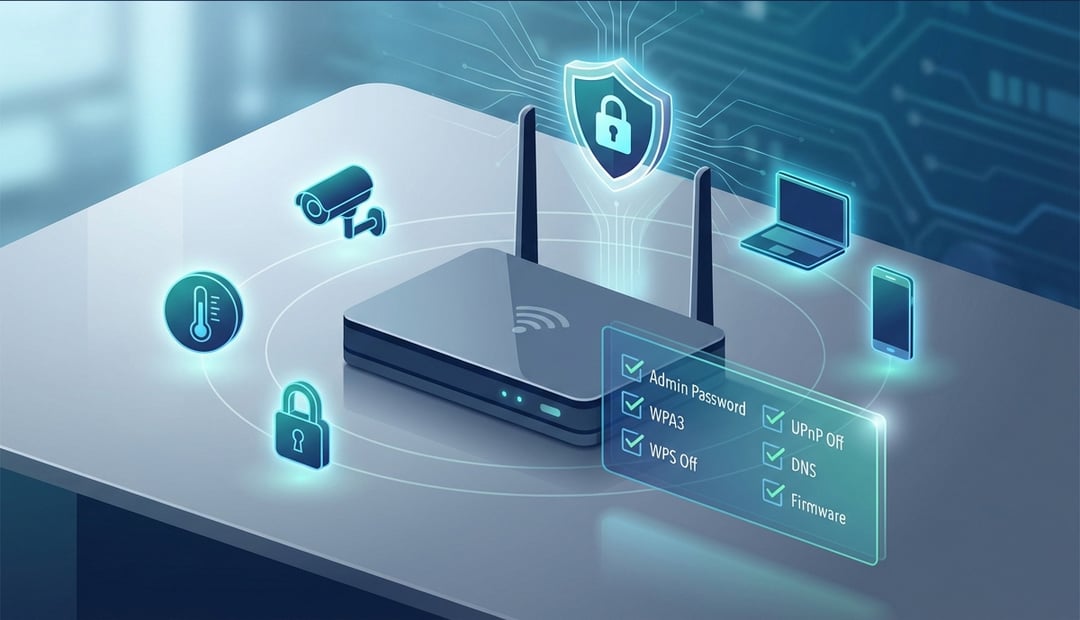
Your router arrived from the factory with a security problem. Actually, several problems. Manufacturers configure these devices for convenience, not protection—and that gap between plug-and-play simplicity and actual security leaves your home network vulnerable to attacks you'll never see coming.
In 2026, the stakes are higher than ever. Your network doesn't just connect laptops and phones anymore. It's your smart doorbell, your thermostat, your security cameras, and possibly your work computer. Each device represents a potential entry point, and your router is the gatekeeper that either locks them down or leaves them exposed.
This home network security checklist walks you through the specific router settings you need to change today. These aren't optional tweaks for the paranoid—they're essential configurations that close documented vulnerabilities attackers actively exploit.
Why Your Default Router Settings Are a Security Liability
The Hidden Risks of Factory Configurations
Every router ships with default settings optimized for one thing: getting you online fast. Security comes second, if it's considered at all.
Default administrator credentials are the most glaring example. Manufacturers use identical username and password combinations across entire product lines—often just "admin" for both fields. These credentials are publicly documented in online databases that attackers reference constantly. If you haven't changed yours, anyone can log into your router's admin panel and reconfigure it however they want.
Then there's the issue of pre-enabled features. WPS (Wi-Fi Protected Setup) ships turned on despite a fundamental flaw in its design that allows brute-force attacks. UPnP (Universal Plug and Play) automatically opens ports in your firewall, creating pathways attackers can exploit. Remote management features expose your admin interface to the entire internet.
Recent vulnerabilities demonstrate why this matters. CVE-2024-12912 and CVE-2024-13062 affected thousands of ASUS routers, allowing attackers to execute commands remotely. CVE-2026-0625 targeted DNS settings, redirecting users to malicious sites without their knowledge. These weren't theoretical risks—they were actively exploited in the wild.
Attackers don't target you personally. They scan entire IP ranges looking for routers with default configurations, then automate the exploitation process. Your network becomes a target simply by existing with factory settings intact.
Critical Router Settings You Must Change Today
1. Replace Default Administrator Credentials Immediately
This is the single most important change you'll make. Your router's admin panel controls everything—wireless settings, firewall rules, connected devices. If someone else can access it, they own your network.
Log into your router (typically at 192.168.1.1 or 192.168.0.1) and navigate to the administration or system settings. Create a new password that's at least 16 characters long, mixing uppercase and lowercase letters, numbers, and symbols. Make it unique—don't reuse passwords from other accounts.
Store this password in a password manager, not on a sticky note attached to your router. You'll rarely need to access these settings, but when you do, you need credentials you can retrieve securely.
2. Enable WPA3 Encryption (or WPA2-AES at Minimum)
Your wireless encryption determines who can access your network and how easily attackers can crack your password. Not all encryption is created equal.
WPA3 is the current gold standard. It prevents brute-force attacks against your Wi-Fi password and provides forward secrecy, meaning even if someone eventually cracks your password, they can't decrypt traffic they captured earlier. If your router supports it, enable WPA3 immediately.
Many routers offer a "WPA2/WPA3 mixed mode" for compatibility with older devices. This is acceptable if you have devices that don't support WPA3 yet. What's not acceptable is using WPA/WPA2 mixed mode or anything labeled "WEP" or "WPA" alone—these are obsolete and can be cracked in minutes.
Find this setting under wireless security or Wi-Fi settings in your router's admin panel. Select WPA3-Personal (or WPA2-Personal with AES encryption if WPA3 isn't available). Avoid TKIP encryption—it's outdated and vulnerable.
3. Disable WPS (Wi-Fi Protected Setup)
WPS promised easy device connections via an eight-digit PIN or push-button setup. In practice, it introduced a vulnerability that undermines your entire wireless security.
The PIN implementation has a fatal flaw: attackers can brute-force it in a matter of hours because the router validates the PIN in two separate halves. This reduces the possible combinations from 100 million to about 11,000—trivial for automated tools.
Even if you only use the push-button method, the PIN feature often remains active in the background. The only safe approach is disabling WPS entirely.
Look for WPS settings under your wireless configuration menu. Turn it off. Yes, you'll need to manually enter your Wi-Fi password when connecting new devices, but that 30-second inconvenience eliminates a critical weakness.
4. Turn Off Remote Management and UPnP
Remote management sounds convenient—access your router's settings from anywhere. In reality, it exposes your admin interface to the entire internet, giving attackers a direct path to your configuration panel.
Unless you have a specific, ongoing need for remote access (and you probably don't), disable this feature. Find it under administration or advanced settings and turn it off.
UPnP presents a different problem. It allows devices on your network to automatically open ports in your firewall without your knowledge or approval. While this makes some applications work more smoothly, it also lets malware create backdoors into your network.
Disable UPnP in your router's advanced settings. If you encounter a specific application that requires port forwarding, you can manually configure those ports—a safer approach that gives you control over what's exposed.
5. Change Your Default DNS Servers
DNS servers translate website names into IP addresses. Your router probably uses your internet provider's DNS servers by default, but these aren't always secure or private.
Recent vulnerabilities have targeted DNS settings specifically. Attackers who compromise your DNS configuration can redirect you to malicious sites even when you type the correct address. You think you're visiting your bank, but you're actually on a phishing site designed to steal your credentials.
Switching to reputable third-party DNS servers adds a layer of protection. Cloudflare (1.1.1.1), Google (8.8.8.8), and Quad9 (9.9.9.9) all offer reliable service with built-in security features like malware filtering.
Find DNS settings under internet or WAN configuration in your router. Replace the automatic or ISP-provided servers with your chosen alternative. Enter both primary and secondary DNS addresses for redundancy.
6. Update Router Firmware Immediately
Router firmware updates patch security vulnerabilities, fix bugs, and occasionally add new features. Manufacturers release these updates specifically because they've discovered problems that need fixing.
Check your current firmware version in the router's administration or system section. Compare it against the latest version available on the manufacturer's website. If you're behind, update immediately.
Some routers offer automatic updates. Enable this feature if available, but verify updates actually complete successfully—don't just assume they're happening in the background.
Set a quarterly reminder to manually check for firmware updates even if you have auto-update enabled. This home network security checklist item takes five minutes but protects against newly discovered vulnerabilities.
Additional Home Network Security Checklist Items
Rename Your Network SSID (But Don't Hide It)
Your network name (SSID) probably broadcasts your router's manufacturer and model by default—information that helps attackers identify specific vulnerabilities to exploit.
Change it to something generic that doesn't identify you, your address, or your equipment. Avoid "Smith Family WiFi" or "123 Main Street." Something neutral like "Network_5G" works fine.
Don't disable SSID broadcasting, though. Hiding your network name creates a false sense of security while causing compatibility issues with some devices. Your network is still detectable by anyone with basic scanning tools—you're just making it harder for legitimate devices to connect.
Create a Separate Guest Network
Guest networks isolate visitors and IoT devices from your primary network. If someone's phone gets compromised or your smart speaker has a vulnerability, the damage stays contained.
Enable the guest network feature in your router settings. Give it a different password than your main network. Configure it to prevent guest devices from communicating with each other or accessing your local network resources.
Put all your smart home devices on this guest network too. They don't need access to your computers and files—keeping them separate limits what an attacker can reach if they compromise a device.
Verifying Your Home Network Security Improvements
After making these changes, verify they took effect. Log back into your router and review each setting to confirm it saved correctly.
Use online security testing tools to scan your network from an external perspective. Services like ShieldsUP! can check for open ports and potential vulnerabilities visible from the internet.
Take screenshots of your configured settings for future reference. If you need to reset your router or troubleshoot issues later, you'll have documentation of your secure configuration.
Set a calendar reminder to review this home network security checklist every three months. New vulnerabilities emerge constantly, and periodic reviews ensure you're maintaining protection over time.
Your Secured Network Starts Now
These router configuration changes form the foundation of home network security. You're not defending against theoretical threats—you're closing vulnerabilities that attackers exploit every day against networks with default settings.
The entire checklist takes 20 to 30 minutes to complete. That's a small investment for protection that works continuously in the background, defending every device that connects to your network.
Start with the administrator password if you're feeling overwhelmed. Then tackle one additional setting each day until you've worked through the entire list. Progress matters more than perfection.
Your router is your network's front door. These changes ensure you're not leaving it unlocked.


