
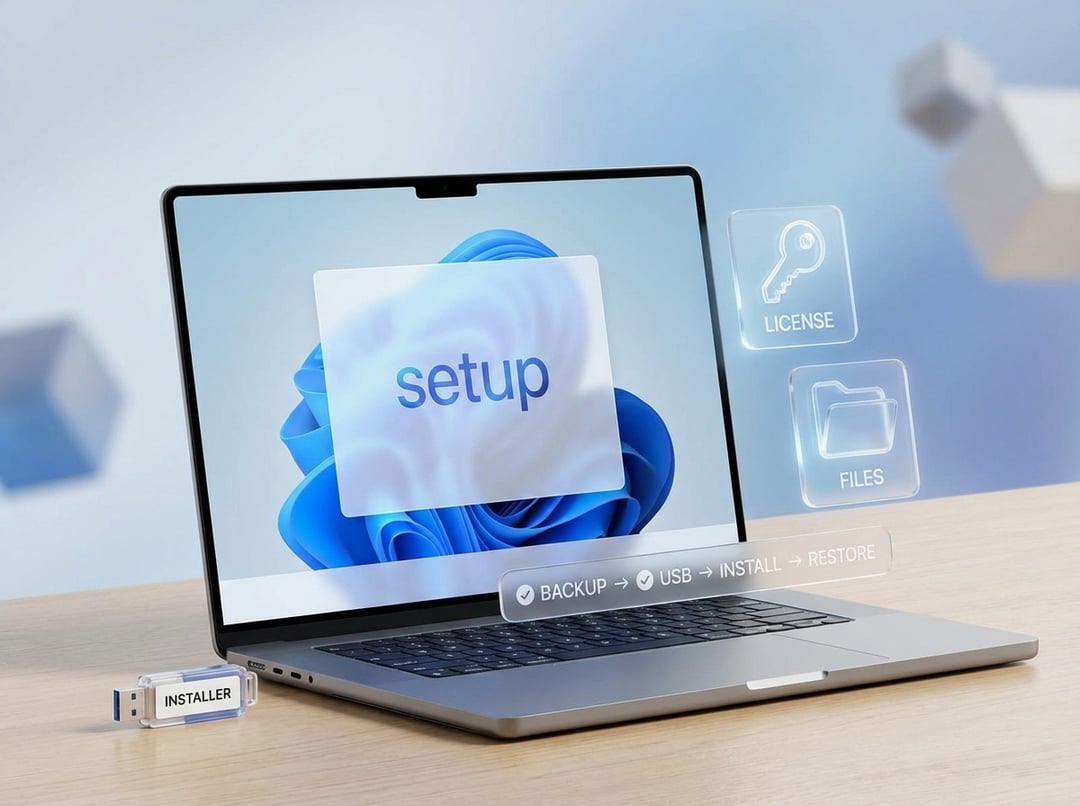
A clean install feels like jumping off a cliff with a backpack full of memories. Photos. Tax PDFs. That one app you paid for years ago. The good news is this. A clean install Windows 11 usually goes smoothly when you treat it like a controlled demolition. Plan first. Wipe second. Restore last.
This guide stays practical. It also keeps you safe.
The importance of a clean install (and situations to avoid it)
A clean install Windows 11 means you boot from installer media, delete the Windows partitions you want to replace, then install fresh. No old system files. No leftover drivers. No mystery startup programs.
It helps when your PC feels “cursed.” Random crashes. Updates failing. Malware you do not trust. Or you replaced your SSD and want a true reset.
But do not rush into it.
Skip a clean install for now if you cannot access your Microsoft account and you use BitLocker. Also pause if you cannot get online without special drivers. You can still do it. You just need more prep.
Before you touch anything, map your risk: licenses, files, and recovery
Think in three buckets.
- Files: obvious folders plus hidden app data.
- Licenses: Windows activation and paid apps.
- Recovery: your ability to get online and log in again.
Spend ten minutes on inventory. Check whether you run Windows 11 Home or Pro. You must reinstall the same edition for painless activation. Open Settings → System → Activation and confirm it shows activated.
Then list your “day one” needs. Wi‑Fi. Printer. VPN. Password manager. School or work apps. That list tells you what to back up and what installers to collect.
How Windows 11 activation works during a clean install
Most people do not need to find a Windows product key. Windows 11 often uses a digital license tied to your device hardware. In many cases it also links to your Microsoft account. After reinstall you connect to the internet. Activation usually happens automatically.
Before you wipe anything, sign in with a Microsoft account if you can. Then confirm activation status. Microsoft explains the basics here: https://support.microsoft.com/windows/activate-windows-c39005d4-95ee-b91e-b399-2820fda32227
If you built your PC or replaced the motherboard, activation can get tricky. In that case, link your device to your Microsoft account and be ready to use the Activation Troubleshooter later: https://support.microsoft.com/windows/using-the-activation-troubleshooter-0d8f64f0-9d92-4e0f-ae12-1b0f5ef2504a
Write down what matters now. Which Microsoft account you used. Any retail key you purchased. Any receipts for paid software.
Backups that actually survive a clean install Windows 11
Do not rely on hope. Also do not rely on “Windows.old” showing up later. Back up first.
Start with the obvious folders. Desktop. Documents. Pictures. Videos. Downloads. Then grab what people forget.
- Browser bookmarks and profiles
- Outlook data files like PST archives
- Game saves that are not cloud synced
- Notes apps that store locally
- App settings stored in AppData
Here is a simple method that works.
- Plug in an external drive.
- Create a folder named
Restore-Me. - Copy your key folders into it.
- Add a text file called
Accounts-and-Apps.txt. - List every login and paid app you will reinstall.
If you use BitLocker, back up your recovery key before the reinstall. Microsoft’s overview sits here: https://support.microsoft.com/windows/find-your-bitlocker-recovery-key-6b71ad27-0b89-ea08-f143-056f5ab347d6
Get the right Windows 11 installer without shady downloads
Only use Microsoft’s official download page for Windows 11. It offers the Installation Assistant, Media Creation Tool, and ISO options: https://www.microsoft.com/software-download/windows11
For most people, the Media Creation Tool is the cleanest path. It builds a bootable USB with the right files.
Use an 8GB or larger USB drive. Expect it to be erased.
Create the bootable USB for a clean install Windows 11
Run the Media Creation Tool. Choose your language. Then select the USB drive and let it write.
Then do one small safety step. Unplug external storage you do not need. That one move prevents installing Windows to the wrong disk. It also protects your backups from accidents.
Do the clean install Windows 11 step-by-step (the clicks that matter)
Boot from the USB
Restart the PC and open the one-time boot menu. Common keys include F12, F9, Esc, or Del. Choose the USB entry that says UEFI when possible.
Start setup
Pick language and keyboard. Click Install now.
Product key screen
If you do not have a key, choose I don’t have a product key. That is normal for digital licenses. You can still activate later.
Edition selection
Pick the same edition you had before. Home stays Home. Pro stays Pro.
Choose the right install type
Select Custom: Install Windows only. That is the clean install option.
Partition screen
This is the part that deserves your full attention.
- Identify the correct drive by size.
- If you have one drive, you will usually see several small system partitions plus the main Windows partition.
- Delete the partitions on the drive you are replacing until you see Unallocated space.
Then select that unallocated space and click Next. Windows creates the needed partitions automatically.
If you have multiple internal drives, go slow. If you are unsure, stop and power down. Disconnect extra drives and retry.
First hour after install: drivers, updates, and getting your stuff back
Get online first. If Wi‑Fi does not appear, use Ethernet if you can. If you cannot, try USB tethering from a phone. Once online, run Windows Update until it stops offering updates.
Then confirm activation in Settings → System → Activation.
Now restore files carefully. Copy your documents back. Sign in to cloud services. Reinstall apps from their official sources. Keep the backup drive untouched until you confirm everything works.
Edge cases and fixes that save the day
BitLocker recovery prompt
If Windows asks for a recovery key at boot, it is not “broken.” It is protecting you. Retrieve the key from your Microsoft account page or where you saved it earlier.
Windows.old expectations
Windows.old often appears after upgrades. A true clean install may not create it. Treat it as a bonus. Never treat it as a plan.
Boot loops or Secure Boot weirdness
If the PC refuses to boot after install, check BIOS boot order. Ensure the internal drive sits first. Reset BIOS defaults if needed. Then try again.
Installed to the wrong drive
Stop using the PC immediately. Do not write more data. Reinstall to the correct drive. You may still recover files from the untouched disk.
A simple checklist: clean install Windows 11 without drama
- Confirm Windows edition and activation.
- Back up personal files and app data.
- Save BitLocker recovery key if enabled.
- Download Windows 11 from Microsoft.
- Create the installer USB.
- Unplug extra drives.
- Boot USB and choose Custom install.
- Delete the right partitions and install.
- Update, activate, then restore files.
FAQs: clean install Windows 11
Will I lose my Windows license?
Usually no. Digital licenses typically reactivate after you reconnect online.
Can I keep my files during a clean install Windows 11?
Not on the Windows drive. You must back them up first.
Do I need a product key?
Often no. If you have a retail key, keep it anyway.
If you want, share your setup in one line. Laptop or desktop. One drive or two. BitLocker on or off. I’ll tell you the safest exact path for your case.