
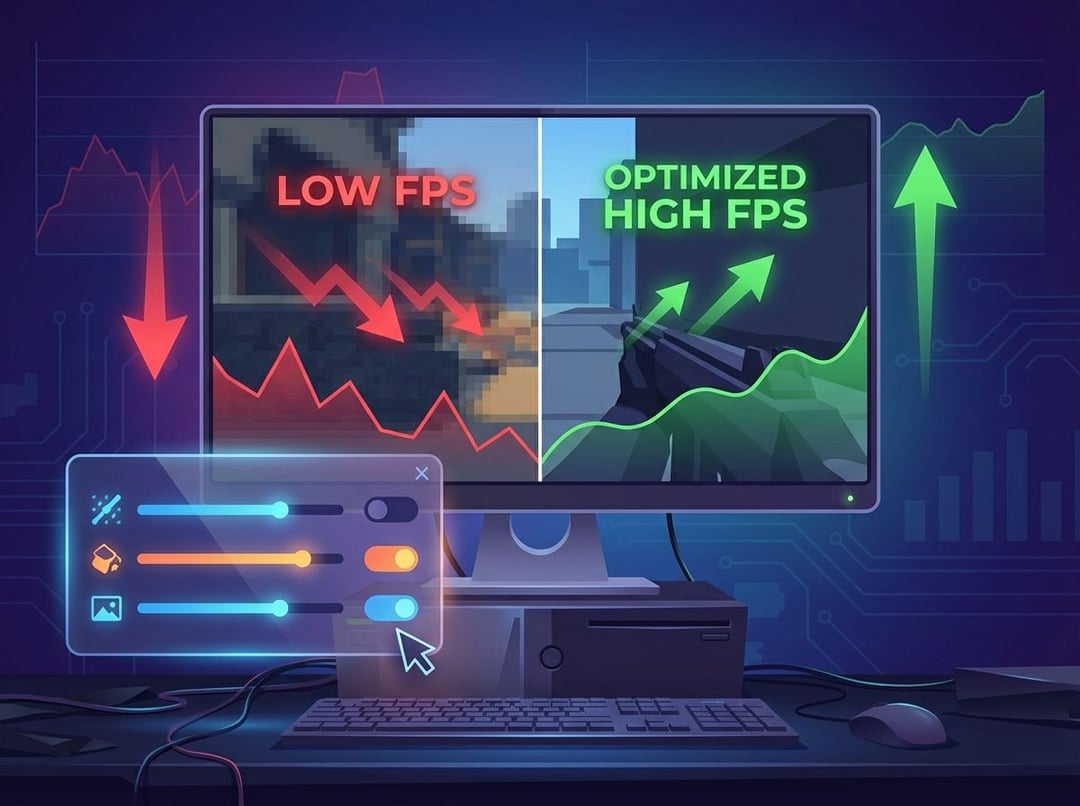
Lag ruins good games fast. The good news is that the best in-game settings for higher FPS on a low-end PC sit in the menus you already have. A careful hour of tweaking often gives bigger gains than a small hardware upgrade.
This guide walks through the exact settings that usually matter most. You can apply the same logic to almost any game whether it is a competitive shooter or a big single‑player title.
Why In-Game Settings Matter So Much On A Low-End PC
On a weak system brute force is not an option. You cannot fix low FPS with raw power so you must remove the heaviest workloads.
Two numbers tell you how smooth a game feels
- Average FPS shows how fast the game runs overall
- Frame time shows how consistent each frame arrives
A low-end PC feels bad when frame times jump all over the place. That is why a stable 50 FPS often feels better than 80 FPS with constant micro stutter.
Most low-end rigs hit one of three bottlenecks
- GPU bound: GPU at 90–100 percent usage while CPU stays lower
- CPU bound: one or two CPU cores max out while GPU sits bored
- VRAM bound: GPU memory fills up which causes texture pop-in and freezing
Every setting you change should target one of these limits. That is the core idea behind the best in-game settings for higher FPS on a low-end PC.
Display Options That Give The Biggest FPS Boost
Resolution and render scale
Resolution controls how many pixels your GPU renders. Halve the pixels and you often gain a huge chunk of FPS.
Practical rules for low-end PCs
- If you play at 1080p try 1600×900 first then 1280×720 if needed
- If the UI looks tiny lower render scale instead of full resolution when a game supports it
Think of render scale as a fine tuner. You render the world at a lower percentage while the menus stay sharp.
Fullscreen mode, V-Sync, and frame caps
Weak hardware needs every bit of performance.
For most low-end systems
- Use Fullscreen or Fullscreen Exclusive rather than Borderless
- Turn V-Sync off to remove extra input lag
- Add an in-game FPS cap only if the GPU runs extremely hot or the FPS jumps wildly
A 60 FPS cap with a stable line of frame times often feels better than uncapped chaos.
Upscaling: DLSS, FSR, and other scalers
Modern games often include an upscaler
- DLSS for NVIDIA
- FSR for AMD and many others
- XeSS for Intel GPUs
They render at a lower resolution then upscale with smart sharpening. On a low-end PC use Performance or Balanced modes. Image quality drops a bit yet you gain a significant FPS bump with almost no extra tweaking.
Best Graphics Settings For Higher FPS On A Low-End PC
Textures and VRAM usage
Textures eat VRAM not raw compute. A 2–4 GB GPU runs out of VRAM fast with High textures.
For most low-end PCs
- Set Texture Quality to Low or Medium
- Turn off any streaming textures or on demand texture downloads if they cause stutter
If you notice frequent micro freezes when you move the camera your VRAM probably hits the limit. Lower texture settings first.
Shadows, lighting, and post‑processing
Shadows and fancy lighting are FPS killers on weak GPUs.
Safe choices for higher FPS
- Shadow Quality: Low
- Ambient Occlusion: Off or Low
- Screen Space Reflections: Off
- Volumetric Fog or Lighting: Low or Off
Then clean up post‑processing
- Disable Motion Blur, Film Grain, Chromatic Aberration, Lens Flare, and heavy Depth of Field
These effects cost performance and they rarely help gameplay. Turning them off usually makes the image sharper and more readable.
Effects, particles, and physics detail
Explosions, smoke, and debris hammer low-end GPUs and CPUs during hectic scenes.
For a stable experience
- Effects Quality or Particles: Low
- Physics debris, persistent bodies, or gore: Low
Competitive players often lower these settings even on powerful PCs because they want clarity. That same logic helps even more when you chase the best in-game settings for higher FPS on a low-end PC.
CPU-Focused Settings That Reduce Stutter
View distance, crowds, and AI density
The CPU handles world simulation and AI. When it gets overloaded the game feels jerky even if average FPS looks fine.
Helpful cuts
- Reduce View Distance or Level of Detail in open worlds
- Lower crowd density, traffic, or horde size where options exist
- Turn down dynamic events or heavy background simulations if possible
If big cities or busy fights tank your FPS your CPU probably needs these reductions.
Physics, ragdoll, and replays
Old processors struggle with complex physics.
You can
- Set Physics and Ragdoll to Low or Medium
- Limit ragdoll lifetime
- Turn off in-game replays, instant highlights, or heavy killcams
These features look cool. They can also add constant CPU overhead that a low-end PC cannot hide.
How To Apply These Settings Across Different Game Types
Competitive shooters
For games like Valorant, CS2, or Warzone style shooters you want clarity and speed.
Try a “competitive” preset
- Textures on Low or Medium
- Shadows on Low with everything extra disabled
- Effects and post‑processing on Low with blur fully off
- Resolution a step down from native or performance upscaling
This fits the core idea of the best in-game settings for higher FPS on a low-end PC. You trade visuals for reaction time and consistency.
Big single-player games
Story driven games often look beautiful and run heavy.
To keep some atmosphere
- Start at Medium overall then instantly drop Shadows, Reflections, and Volumetrics
- Use Balanced upscaling instead of huge resolution drops
- Keep some Depth of Field if you like the look yet disable motion blur and film grain
The goal is a compromise. You still enjoy the art direction while your low-end system stays playable.
Older titles and esports staples
Older engines can deliver very high FPS. Many esports players run them at extremely low settings for pure responsiveness.
On a weak PC you can
- Set almost everything to Low
- Drop resolution aggressively if you chase 120 FPS or more
- Keep UI and HUD clarity high so you can still read the screen easily
The same principles apply the hardware simply has more headroom.
Quick System Tweaks That Support Your In-Game Settings
A few system choices help your in-game changes matter more.
Do this before launching your game
- Update GPU drivers from NVIDIA or AMD or Intel
- Turn on Game Mode in Windows 10 or 11
- Switch to a High Performance or Ultimate Performance power plan
- Close browsers, launchers, RGB toolkits, and overlay heavy apps like Discord or Steam overlays
A low-end PC needs every spare thread and every megabyte of RAM.
A Simple 15-Minute Tuning Process You Can Reuse
You can turn any new game into a smooth experience with a repeatable loop.
- Start with a preset like Low or Medium
- Lower resolution one step or enable performance upscaling
- Drop shadows, ambient occlusion, and reflections to Low or Off
- Disable motion blur, film grain, chromatic aberration, and strong depth of field
- Test in a heavy area such as a crowded city or big fight
- If the game still stutters lower effects and view distance
- Only raise textures if VRAM usage looks comfortable and the game feels stable
Think of this as your personal framework for the best in-game settings for higher FPS on a low-end PC. Once you dial it in save a custom preset so you never redo the work.
Final Thoughts And Next Steps
You do not need a new graphics card to enjoy smoother games. The best in-game settings for higher FPS on a low-end PC focus on three things. Cut resolution and shadow quality. Remove heavy effects. Keep CPU and VRAM workloads under control.
Take one game you play right now and run through the 15‑minute process. Note your FPS before and after in a demanding spot. Once you see how much difference smart settings make you can build similar presets for every title in your library.