
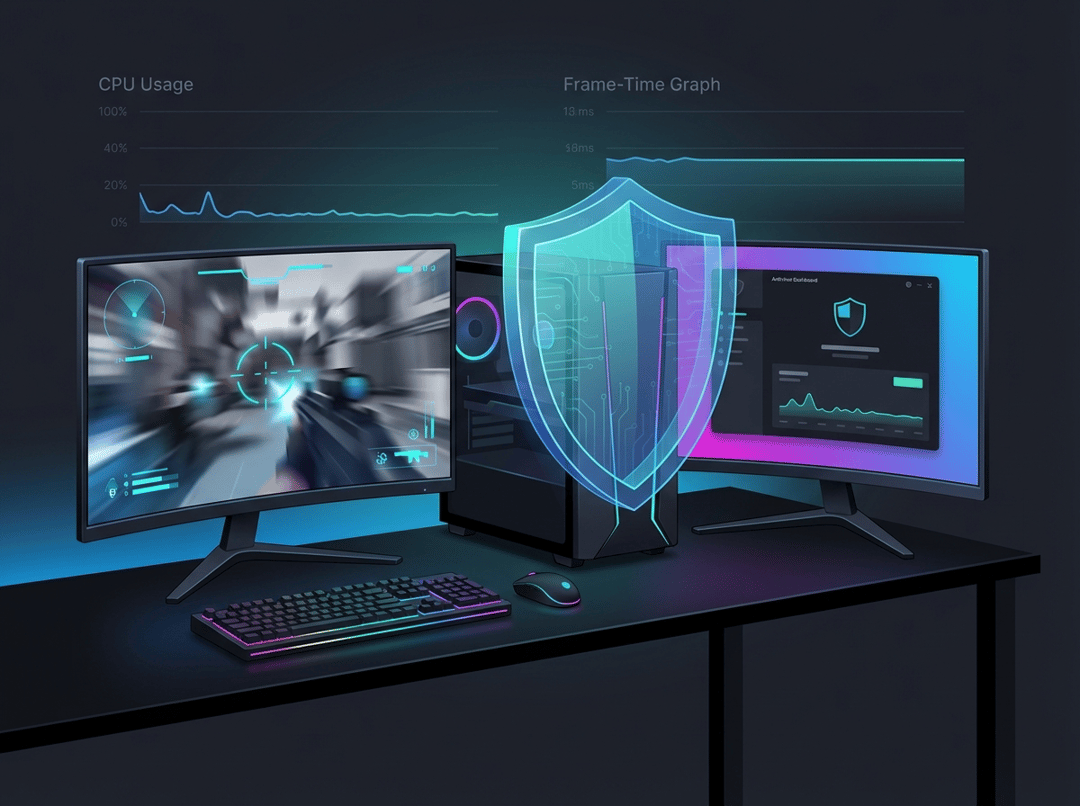
Best Antivirus for Gamers: Low CPU Impact and True Gaming Mode

Best Antivirus for Gamers: Low CPU Impact + True Gaming Mode

What “low CPU impact” really means for gamers (and why marketing gets slippery)

When an antivirus claims “lightweight protection,” it usually means nothing. Gamers feel performance problems in a specific way. You notice a tiny hitch right as you swing a corner in an FPS. You get a half-second freeze when a new map area streams in. Your mouse input feels gummy during a firefight.

That pain rarely comes from sustained CPU load. It comes from spiky contention. Real-time scanning hooks into file access, so every time a game reads assets, writes logs, or compiles shaders, your security tool can jump into the middle of that conversation. Consequently, the best antivirus for gamers does not just run “fast.” It behaves predictably under pressure.

Independent testing helps you avoid pure vibes. For Windows consumer products, labs like AV-TEST score protection and performance, while AV-Comparatives runs performance impact testing across everyday tasks. Use those results as a filter, then use gamer-specific criteria to pick the right tool for your system and habits. Start with the labs, then choose for real life.

What “true gaming mode” should do (and what it must never do)

“Gaming mode” should mean more than “we won’t bother you.” A true gaming mode acts like a disciplined background process manager. It needs to protect you continuously, then it needs to avoid stealing attention and resources during play.

true gaming mode should do all of the following:

  • Silence non-critical notifications so a toast pop-up never covers your crosshair.
  • Delay scheduled scans and background maintenance until you exit the game.
  • Defer heavy updates when you are in full-screen exclusive or borderless full-screen.
  • Avoid surprise UI overlays that inject into rendering pipelines or hook input.
  • Respect your system state like streaming, recording, or a high-performance power plan.

It also must not do a few dangerous things. It must not turn off real-time protection entirely. It must not quietly disable web protection while you alt-tab into a browser. It must not auto-whitelist anything with the word “game” in the filename.

Vendor documentation can clarify what “gaming mode” actually changes. For example, Kaspersky describes its Game mode behavior in its support docs, which makes it easier to evaluate what you will get in practice: Kaspersky support: Game mode. Norton also documents how its gaming-oriented optimization feature works and what it tries to reduce: Norton support: Game Optimizer.

A quick self-test: can you trust this gaming mode?

You do not need a lab to validate basic behavior. Run this simple check:

  • Launch a game in your normal mode (full-screen or borderless).
  • Start a repeatable benchmark, then watch frame-time consistency.
  • Trigger a definitions update mid-session and confirm it does not hijack focus.
  • Confirm scheduled scans delay instead of starting on the dot.
  • Alt-tab, then check whether the suite spams warnings or tries to sell upgrades.

If gaming mode cannot pass that test, it is not a gaming mode. It is a marketing label.

Best antivirus for gamers (ranked for low CPU impact and true gaming mode)

This list focuses on practical gamer outcomes. You want stable play, minimal interruptions, and strong baseline protection. You also want a setup that does not require constant babysitting.

Microsoft Defender (built-in)

Best for: Most Windows players who want solid protection without extra suite bloat.

Microsoft Defender comes with Windows, which matters more than people admit. It integrates deeply with the OS, so it typically avoids the “extra layer of hooks” that some third-party suites add. That integration can reduce weird conflicts with launchers, overlays, and drivers. Furthermore, it tends to keep the experience simple. You get fewer pop-ups and fewer “bonus features” you never asked for.

Why it works for gaming: It stays out of your way when configured sensibly. It also plays nicely with Windows features like Focus Assist, which already aims to silence interruptions in full-screen apps.

What to watch: Defender will not magically solve bad PC hygiene. If you click sketchy links between matches, then no antivirus will feel “light.” You will fight constant remediation.

Best gamer settings:

  • Schedule scans for off-hours, then avoid “random” scan times.
  • Add narrow exclusions only when needed, such as a specific game folder that triggers repeated false alarms.
  • Never exclude your Downloads folder. Never exclude your whole drive.

Bitdefender

Best for: Players who want a full-featured suite with a good reputation, then want it to behave.

Bitdefender often appears in serious antivirus conversations because it aims for strong protection without forcing you to micromanage everything. The key for gamers is not the logo. It is the ability to run quietly, then stop competing with your game for resources. Consequently, Bitdefender can work well when you keep the configuration tight and avoid optional modules you do not need.

Why it works for gaming: With the right profile or automated behavior, it can suppress interruptions and reduce background spikes. It also tends to provide sensible defaults for non-technical users.

What to watch: Feature creep. VPN add-ons, “optimizers,” password managers, and extra telemetry can add services. More services can mean more CPU scheduling noise.

Best gamer settings:

  • Turn off marketing notifications and “special offers.”
  • Set scan windows and update timing explicitly.
  • Keep ransomware protection on, then avoid aggressive “app control” prompts mid-game.

ESET

Best for: Gamers who want a leaner feel and who do not mind tweaking.

ESET has a long-standing reputation for offering deep configuration without turning the product into a carnival of pop-ups. That matters if you like to decide exactly what gets scanned and when. Conversely, if you dislike settings and you never want to think about your antivirus again, then this style can feel like homework.

Why it works for gaming: Granular controls let you reduce interference with known-safe game directories and launchers. You can also tune real-time scanning behavior more precisely than many “one button” suites.

What to watch: Too much freedom can create security holes. If you whitelist impulsively, then you can defeat the entire point of having protection.

Best gamer settings:

  • Reduce scan scope for large, constantly changing cache directories, but keep protection on executable launch paths.
  • Keep detection alerts visible, then silence only non-critical UI elements.
  • Test with a benchmark after every major change. Small tweaks can have big effects.

Norton (including gamer-focused offerings)

Best for: Gamers who like a suite that openly targets gaming performance and system contention.

Norton markets and documents a gaming-oriented optimization feature, which suggests an intentional focus on how background processes compete for CPU. That focus can translate into fewer ugly surprises. It also creates a clearer “this is what we changed” story, which makes troubleshooting easier if something goes wrong. Norton’s own explanation provides the intended behavior and limitations: Norton support: Game Optimizer.

Why it works for gaming: It aims to reduce background competition during play, which targets the problem gamers actually feel. Stutters often come from contention, not from average utilization.

What to watch: Subscription packaging. Make sure you pay for what you will use, not for a bundle of extras that complicate the machine.

Best gamer settings:

  • Verify that “gaming” features do not suppress critical security alerts.
  • Disable non-essential background tools.
  • Confirm updates do not trigger full-screen focus steals.

Kaspersky

Best for: Players who want a clearly described game mode behavior and who can use it comfortably in their region.

Kaspersky documents Game mode as a feature with full-screen awareness, which makes it easier to predict behavior. The documentation also gives you a baseline to compare against your own testing and your own tolerance for interruptions: Kaspersky support: Game mode.

Why it works for gaming: Documented full-screen behavior often means fewer disruptive pop-ups and fewer scheduled tasks that fire at the worst moment.

What to watch: Regional policy and trust considerations vary. Some organizations and countries restrict usage. You should also consider your own risk tolerance and compliance environment.

Best gamer settings:

  • Confirm Game mode triggers for borderless full-screen, not only exclusive.
  • Set update timing to avoid peak play hours.
  • Keep web protection enabled if you browse between matches.

How to choose the best antivirus for gamers (a simple decision framework)

You can pick the “best antivirus for gamers: low CPU impact and true gaming mode” faster when you match the product to your playstyle.

If you play competitive esports titles, prioritize interruption control

Esports titles punish latency and inconsistency. You need stable frame-times and zero distractions. Choose the suite that stays silent, delays heavy tasks, and never steals focus. Then lock down scan schedules. Your performance ceiling matters less than your consistency floor.

If you mod heavily, prioritize false-positive handling and easy recovery

Mods can look suspicious because they behave like injectors. That does not make them malware, but heuristics will sometimes disagree. You want transparent quarantine behavior, simple restore workflows, and precise allow-listing. Furthermore, you want logs you can read. “Blocked for your safety” is not a helpful explanation when you just broke a modded Skyrim build.

If you stream, prioritize compatibility with overlays and capture workflows

Streaming stacks use overlays, audio routing, and capture hooks. Antivirus hooks can collide with that ecosystem. Choose a suite known for quiet behavior and minimal interference. Also keep network inspection features conservative. Streaming already stresses CPU and network stacks, so avoid adding another heavy layer.

Configuration playbook: low CPU impact without weakening security

Most gamers blame the brand when the real problem is configuration. Fix the basics first.

Schedule scans like a person who values their evenings

Set full scans for a time you never play. Weekly often works. Run quick scans after big installs, not during a session. If a product offers “idle-only” scanning, use it, then define what idle means.

Exclusions done right (the safe way)

Exclusions can help when a suite repeatedly scans massive game archives or shader caches. They can also create a giant blind spot.

Safe rules:

  • Exclude a specific game install folder only if you trust the source.
  • Consider excluding shader cache directories if they churn constantly and cause repeated hits.
  • Never exclude system folders, never exclude Downloads, and never exclude your entire drive.

Notification hygiene that still protects you

Silence upsells and informational banners. Keep detection alerts. Keep ransomware blocks. Keep browser warnings. You want fewer interruptions, not less security.

The mid-match disaster prevention checklist

  • Confirm scans do not run during your play window.
  • Disable “run at startup” extras you do not use.
  • Reboot after major updates so background cleanup does not ambush you later.
  • Validate full-screen behavior with Focus Assist or the suite’s silent mode.

Common gamer myths that waste money or wreck performance

Myth: Gaming mode means protection is off.

Good gaming modes reduce noise and defer heavy tasks. They keep real-time scanning alive.

Myth: Real-time protection always kills FPS.

Poorly timed tasks kill smoothness. Smart scheduling and sane exclusions usually fix it.

Myth: More features equals better security.

Extra modules can add services and prompts. Complexity creates its own risks.

Final recommendations: pick your best antivirus for gaming in 60 seconds

  • Want clean and free? Start with Microsoft Defender, then schedule scans and tune notifications.
  • Want a robust suite with strong protection? Pick Bitdefender or Norton, then disable extras and confirm gaming behavior.
  • Want granular control and a lean feel? Choose ESET, then tune carefully and test changes.
  • Want a documented full-screen quiet mode? Consider Kaspersky Game mode if it fits your region and trust requirements.

Security should feel like good refereeing. It should stay vigilant, then stay invisible.